You can livestream from your phone if your app supports live video and your account is allowed to use it. The first things to check are not camera quality, but account eligibility, a stable upload connection, microphone and camera permissions, and enough battery to finish without the phone shutting down.
Can you livestream from your phone?
Most modern iPhones and Android phones can handle a basic livestream. For a quick chat, a small event, a class update, or a product demo, the phone is often enough on its own. The limit is usually the platform, not the device.
Broadcast your camera through a supported app
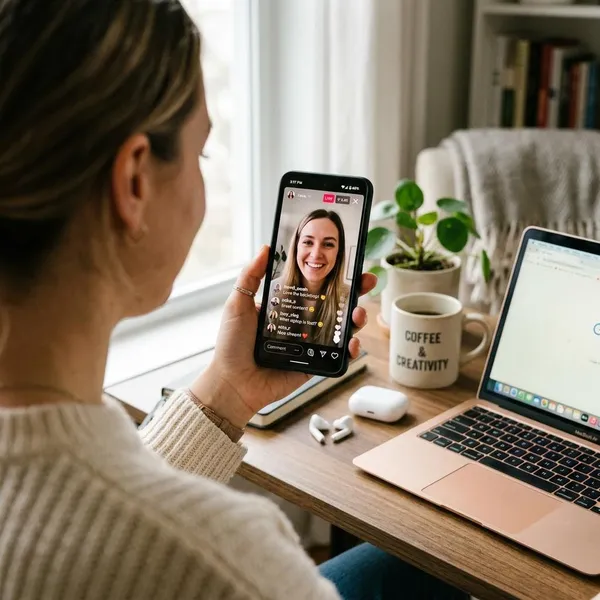
This is the simplest phone livestream setup: open the app, choose Live, and broadcast from the front or rear camera. Use the front camera when you are talking to viewers; use the rear camera when you are showing a product, a room, an event, or something that needs better detail.
Share your screen where supported
Screen sharing is useful when the content is on your phone, such as a mobile game, app walkthrough, settings tutorial, or shopping demo. It is usually clearer than filming one screen with another camera.
Do a privacy sweep first. Turn on Do Not Disturb, close private chats, and hide anything with account details before you share your screen live.
Use a mobile streaming tool for extra features
A third-party mobile streaming tool can help if the native app feels too limited. These tools may add guest invites, overlays, captions, scheduled streams, or multistreaming.
- Use the native app for a quick casual stream.
- Use a streaming tool if you need guests, branding, or several destinations.
- Do not expect tools to bypass rules; your destination account still needs live access.
What do you need to livestream from a phone?
A usable phone livestream depends on five basics: the phone, the app, account access, connection quality, and power. If one of those fails, the stream may not start or may drop out halfway through.
A compatible phone and updated app
Your phone should be able to run the latest version of the livestreaming app without lagging, overheating, or crashing. Updating the app is worth doing before your first stream because live features can move, disappear, or fail on older versions.
If your phone already struggles when recording video, keep the setup light: close unused apps, reduce screen brightness where possible, and avoid switching between too many apps while live.
An account with livestream access
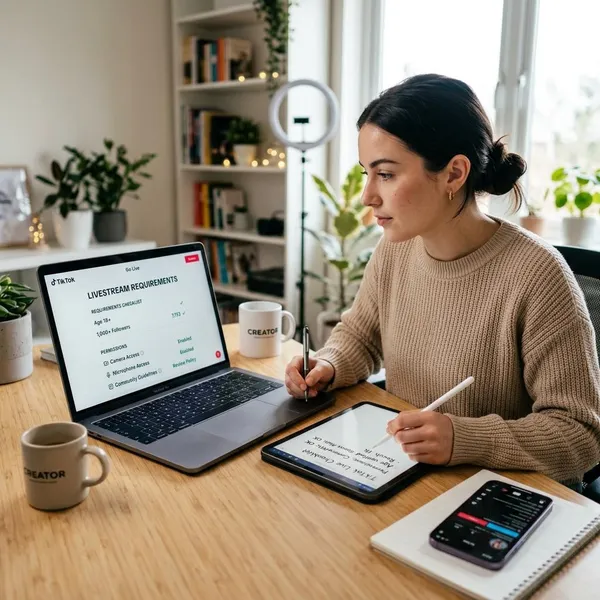
Account access is the check people often miss. A phone can be perfectly capable, but the Live button may still be hidden if your account is too new, unverified, restricted, under the required age, or below a platform's follower or subscriber requirement.
A stable Wi-Fi or mobile connection
Livestreaming needs steady upload, not just a strong-looking signal icon. Wi-Fi is usually safer indoors, especially near the router. Mobile data can work well outside, but crowds, weak coverage, or moving between locations can make it unstable.
- For home or office streams: test near the router and avoid a busy network.
- For outdoor streams: check signal at the exact spot where you will stand.
- For important streams: run a short private test instead of trusting the signal icon.
Camera and microphone permissions
The app needs permission to use your camera and microphone. If the stream starts with no image or no sound, open your phone settings and check those permissions before changing anything else.
Enough battery for your broadcast
Start with more battery than you think you need. Livestreaming uses the camera, screen, microphone, processor, and network at the same time, so power drains much faster than during normal browsing.
For a short personal stream, a full battery may be fine. For anything longer than a few minutes, use a charger or power bank, but watch for heat if the phone is also in direct sun or running mobile data.
Which apps let you livestream from your phone?
The best app is the one where your viewers already are. YouTube is stronger for replays and searchable content, Instagram and TikTok suit quick vertical interaction, Facebook works well for existing groups and local communities, and Twitch is built around live-first audiences.
If you are just testing, pick one platform first. Multistreaming sounds efficient, but it also means more comments, more settings, and more ways for something to go wrong.
YouTube
YouTube is a good choice when the replay matters, such as tutorials, public talks, lessons, or demonstrations people may search for later. Mobile live access can require extra eligibility steps, so check your channel status before the day of the stream.
Instagram works best for fast, informal vertical streams. It suits creator updates, quick Q&A sessions, behind-the-scenes clips, product previews, and casual community interaction where replay value is not the main goal.
Facebook is practical when your audience is already gathered around a profile, page, or group. Local updates, school notices, church messages, club events, and small business announcements often make sense there because people already follow the space.
TikTok
TikTok Live is built for mobile-first, high-interaction streams, but availability can depend on account age, user age, follower count, region, and platform rules. If the Live option is missing, check eligibility before assuming your phone is the problem.
Twitch
Twitch makes the most sense when live interaction is the main format, not just an occasional feature. It is a strong fit for gaming, IRL streams, long chats, and communities where viewers expect to stay and participate.
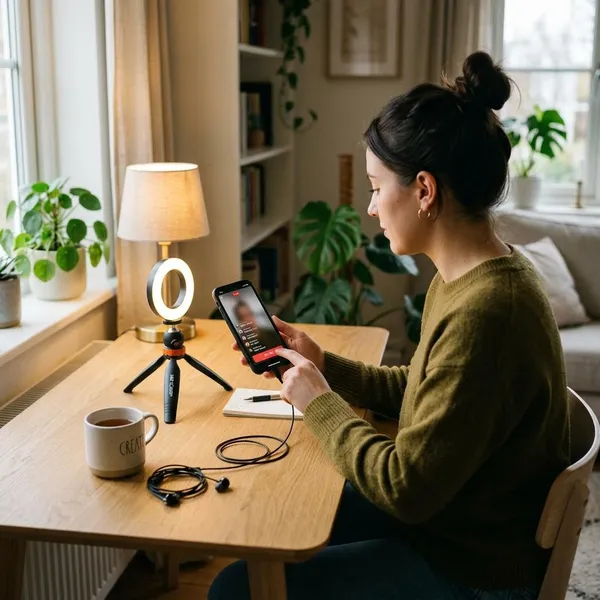
How to start a livestream from your phone
The exact buttons differ by app, but the safe order is the same: open the right account, choose Live, check camera or screen mode, set visibility, test sound and picture, then start. Do not leave the checks until after viewers have joined.
Open your chosen app and select Live
Open the platform where you want the stream to appear and look for Live under the create, plus, camera, or posting menu. If you manage more than one account, confirm you are signed into the correct profile, page, or channel before going further.
Choose camera or screen sharing if available
Pick camera mode for anything happening in the real world: your face, an event, a product, a workspace, or a live demonstration. Pick screen sharing for app tutorials, mobile gameplay, settings walkthroughs, or anything where viewers need to see your phone display.
Add a title and check audience settings
A specific title helps people decide whether to join. "Live setup test for tonight's event" is more useful than "Going live."
Also check visibility before you start. Public, private, unlisted, group-only, or age-related settings can change who sees the stream, who can comment, and whether the replay is available later.
Test the picture and sound
Look at the preview before you tap Go Live. Check that your face or subject is framed, the light is in front of you, and your voice is clear enough without shouting.
For a low-risk casual stream, this can take ten seconds. For a paid class, client demo, or public event, run a private test and watch it from another device if possible.
Start broadcasting and monitor the stream
Once live, pause for a moment and watch for warnings, frozen video, muted audio, or bad framing. The first minute is where many phone livestream problems show up.
- If video drops quality: move closer to Wi-Fi or lower the stream quality if the app allows it.
- If audio is weak: bring the phone or microphone closer.
- If the phone gets hot: reduce direct sunlight, close background apps, or shorten the stream.
End the broadcast when finished
Use the app's End or Finish button instead of simply closing the app. If the replay matters, wait until the platform confirms it has saved, then check whether you need to edit, publish, hide, or delete it.
How to improve your phone livestream
The biggest improvements usually come from steadier video, better light, clearer sound, fewer interruptions, and heat control. A new phone is rarely the first upgrade I would make unless your current one is crashing or cannot run the app.
Use a stand for steady video
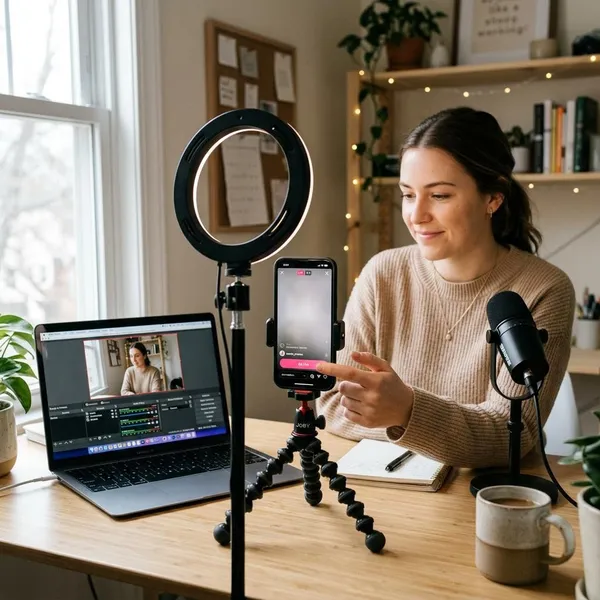
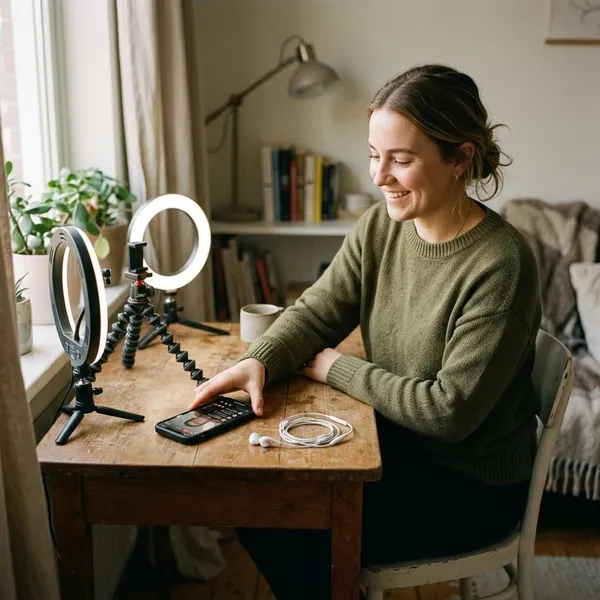
A stand, tripod, clamp, or even a stable shelf makes the stream easier to watch. It also frees your hands for showing products, reading comments, or presenting without the frame shaking every few seconds.
Face a light source
Put the main light in front of you, not behind you. A window, lamp, or small ring light facing your face will usually improve the image more than changing camera settings.
If you are outside, avoid direct harsh sun when you can. It can make you squint, wash out the image, and heat the phone faster.
Keep the microphone close
Clear audio matters more than perfect video. If the phone is too far away, your voice may sound thin, echoey, or buried under room noise. Move closer, choose a quieter space, or use a simple external mic if speech is the main part of the stream.
Silence notifications
Turn on Do Not Disturb or Focus mode before you go live. This protects your privacy and keeps alerts from interrupting the audio, especially if you are sharing your phone screen.
Keep the phone cool
Heat can cause dimming, lag, faster battery drain, or app crashes. Keep the phone out of direct sunlight, remove a thick case if it traps heat, close background apps, and be extra careful when charging during a long stream.
Conclusion
A phone is enough for many livestreams, but the smart first move is to test access, connection, sound, and battery before you depend on it. Start with one app and a simple setup; add microphones, stands, guests, or multistreaming only when they solve a real problem for the kind of stream you plan to do.