The fastest way to understand TikTok livestream requirements is to check four things first: your age, your follower threshold, your account standing, and whether LIVE is available where you are. Reaching 1,000 followers may help, but it does not automatically unlock LIVE for every account. If the LIVE button is missing, your own TikTok app usually gives a better answer than any old tutorial or forum post.
What are the TikTok livestream requirements?
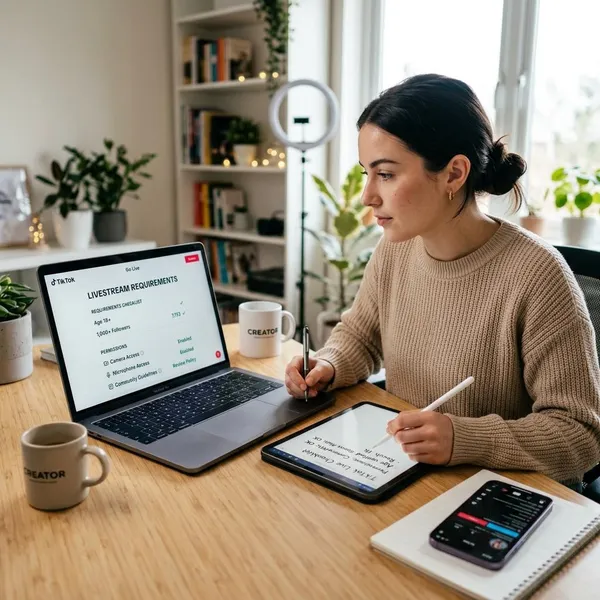
TikTok LIVE has stricter access rules than normal posting because livestreams happen in real time. For most users, the practical checklist is simple: be old enough, meet the follower requirement used for your account or region, keep the account in good standing, and use LIVE from a supported location.
Be at least 18
TikTok generally requires users to be at least 18 to host a LIVE. This is separate from simply having an active account or being able to post videos. If your birthday is wrong, missing, or under review, the LIVE option may not appear even when the rest of your account looks ready.
Meet your region's minimum follower threshold
The follower requirement is often the part people focus on most. In many places, 1,000 followers is the number users hear, but TikTok does not always apply public-facing access rules identically everywhere.
Have an account eligible for LIVE
An account can be allowed to post videos but still not be trusted with livestreaming. LIVE gives you immediate audience interaction, so TikTok may be more cautious with accounts that have recent violations, spam-like behavior, unusual login activity, or other restrictions.
If you are using an account for selling, gaming, or brand content, keep this especially clean. Aggressive follow-unfollow behavior, misleading engagement tactics, or repeated removed content can matter more for LIVE access than they seem to matter for normal posting.
Be in a location where LIVE is available
LIVE access can depend on location. A feature shown in a US-based tutorial, for example, may not appear the same way for someone using TikTok in another market.
This also matters when you travel. If LIVE used to appear and then disappeared after moving countries, changing SIM cards, or using TikTok from a different region for a while, location is worth considering before assuming your account is permanently restricted.
Do you need 1,000 followers to go live on TikTok?
For many users, yes, 1,000 followers is the practical benchmark for going live on TikTok. The problem is that people treat it like a guaranteed switch. It is better to see it as one requirement among several.
Follower thresholds vary by location
The follower rule can vary by location or rollout status, which is why two users with similar accounts may see different options. This is also why copied advice from TikTok clips can be unreliable: the creator may be showing rules from a different market or an older app version.
Your account's LIVE screen shows available access
Your own LIVE screen is the clearest practical signal. If LIVE appears in the creation flow, your account likely has mobile hosting access. If it is missing, do not spend an hour setting up a stream plan yet; first find out which eligibility gate is still blocking you.
Occasionally, TikTok shows a short notice explaining what is missing. Take that notice seriously, especially if it mentions age, account restrictions, or eligibility. A screenshot can also help if you later need to contact support.
Follower count alone does not guarantee eligibility
Having enough followers does not cancel out other checks. A healthy account that is over 18, located in a supported region, and clearly shows LIVE in the app is in a much stronger position than an account that only has the right number of followers.
For a casual creator, this means you should not panic if LIVE does not appear the same day you cross a milestone. For a seller or creator planning a product launch, it is smarter to confirm LIVE access several days in advance instead of discovering the problem right before the scheduled stream.
How to check your TikTok LIVE access
The most reliable check is inside the TikTok app, on the exact account you want to use. This matters if you manage multiple profiles, because LIVE access does not transfer from a personal account to a shop, gaming, or brand account.
Open TikTok and tap Add post
Start from the normal creation button, not from random settings menus. TikTok usually places mobile LIVE access in the same area where you record or upload videos.
Before checking, update the app if you have not done so recently. An old app version can make the interface confusing, and you do not want to mistake a layout issue for an eligibility problem.
Look for the LIVE option
Once you are in the creation screen, look for LIVE among the available modes. If it is visible, you can move on to stream preparation. If it is not visible, treat that as a sign to review eligibility rather than assuming TikTok is broken.
Review any eligibility notice
An eligibility notice is often the most useful clue you will get. It may point to age, account requirements, or a restriction. If the message is vague, note exactly what it says and when it appeared.
This is especially useful for accounts that recently changed status, such as turning 18, passing a follower threshold, resolving a warning, or moving to a new region. The notice can help you decide whether to wait, verify details, or contact support.
Complete age confirmation if requested
If TikTok asks you to confirm your age, complete that step before doing anything more complicated. Use accurate information and follow the in-app process.
After submitting, give the account some time to update. Restarting the app and checking again later is more sensible than repeatedly changing account details or trying unofficial workarounds.
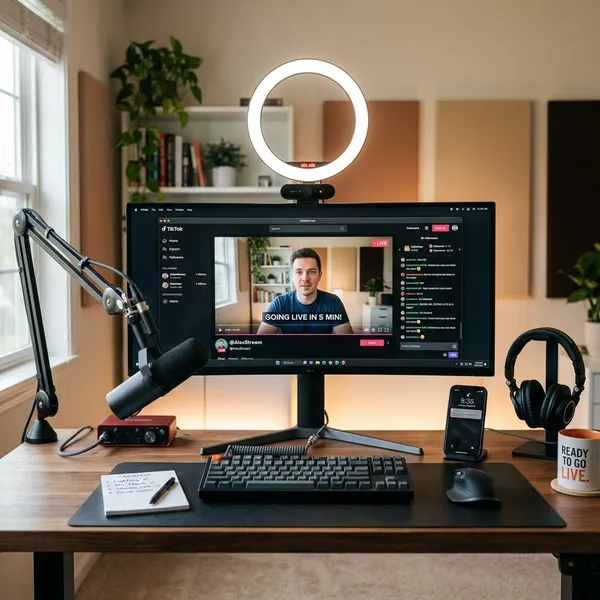
What do you need to stream from a computer?
Desktop streaming usually has extra requirements beyond basic mobile LIVE access. You may need LIVE Studio access, a supported computer, stream-key access for OBS, and a stable upload connection that can handle your chosen settings.
A computer setup makes sense when your stream needs more control than a phone can easily provide. Gaming streams, screen-share tutorials, multi-camera selling sessions, and longer interviews are good examples. For a quick casual chat, mobile LIVE is often simpler and less fragile.
LIVE Studio access for your account
Installing TikTok LIVE Studio does not automatically mean your account can use it. The software still has to support your account, and access may depend on TikTok's rollout or creator eligibility rules.
Check this before building a whole desktop workflow. If LIVE Studio does not let your account broadcast, you may need to use mobile for now or see whether another approved connection method is available.
A supported computer and operating system
Your computer has to do more than open the software. It needs to handle video encoding, audio input, camera capture, chat monitoring, and any extra programs you plan to show on stream.
- Test with everything open: game, browser tabs, camera, microphone, and streaming software.
- Watch for strain: freezing preview, delayed audio, or loud fan noise can signal trouble.
- Keep the setup simple at first: one camera and clean audio are better than five unstable sources.
Stream-key access for an OBS connection
OBS can be useful for advanced scenes, overlays, game capture, and screen sharing, but it does not create TikTok LIVE access by itself. Your account normally needs stream-key access or another supported connection method before OBS can send video to TikTok.
If you do have access, run a private-style rehearsal as far as the tools allow before promoting a real stream. Check the vertical layout, audio levels, camera framing, and whether your scene changes work smoothly.
Enough upload bandwidth for your stream settings
Your upload connection needs to be stable, not just impressive in one speed test. If the upload speed jumps up and down, your stream may freeze, blur, or disconnect even when your download speed looks fine.
How to report a TikTok LIVE access problem
If you believe your account meets the requirements but LIVE is still missing, use TikTok's built-in support path. Before reporting, do the quick checks that support will likely ask about anyway: update the app, confirm you are on the right account, check for eligibility notices, and restart the app.
Open Report a problem in Settings and privacy
Go to your profile, open the menu, enter Settings and privacy, and look for Report a problem. TikTok may adjust menu labels over time, but this is the normal account-specific support route.
Select the relevant LIVE issue
Choose the closest LIVE-related topic available. If your issue is about a missing LIVE button, age confirmation, a restriction, LIVE Studio, or stream-key access, pick the category that most closely matches that problem.
The category matters because it can change which troubleshooting prompts you see and how the request is routed. Do not choose a generic topic unless there is no relevant LIVE option.
Follow the troubleshooting prompts
Complete the prompts even if they seem basic. TikTok may ask you to update the app, check account details, review eligibility, or repeat the creation-flow check.
If the prompts do not fix anything, mention that you already tried them when you submit the final details. That keeps the report focused and reduces back-and-forth.
Submit details if the issue remains
Include the facts support needs to understand the case: whether the LIVE tab is missing completely, when you first noticed it, your approximate follower count, whether you are over 18, whether the issue is mobile or desktop, and any message TikTok showed.
Screenshots are useful when available. A clear screenshot of the missing LIVE option or eligibility notice is better than guessing which rule is causing the block.
Conclusion
If LIVE is missing, start with the account-level checks before blaming your phone or buying streaming gear: age, followers, account standing, region, and the actual LIVE screen in TikTok. For desktop streaming, confirm LIVE Studio or stream-key access before planning a more complex setup. The safest move is to verify access early, test the setup once, and only then schedule a stream you expect people to attend.