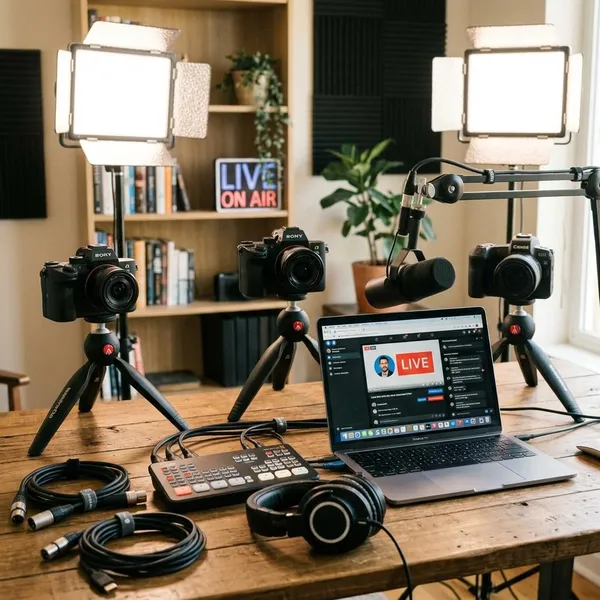
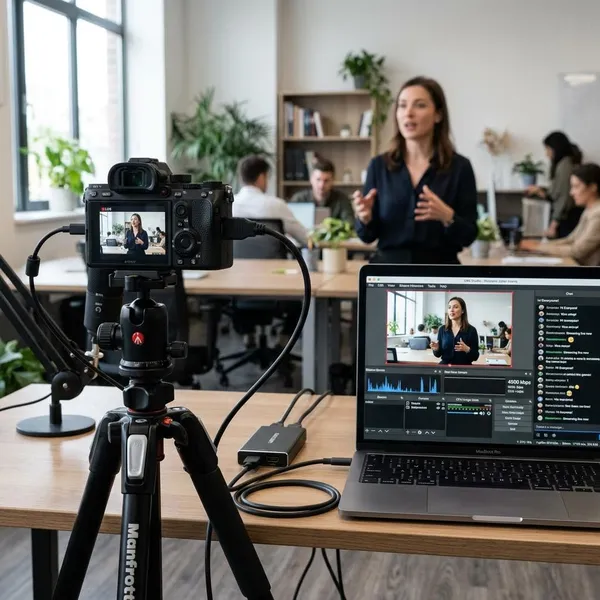
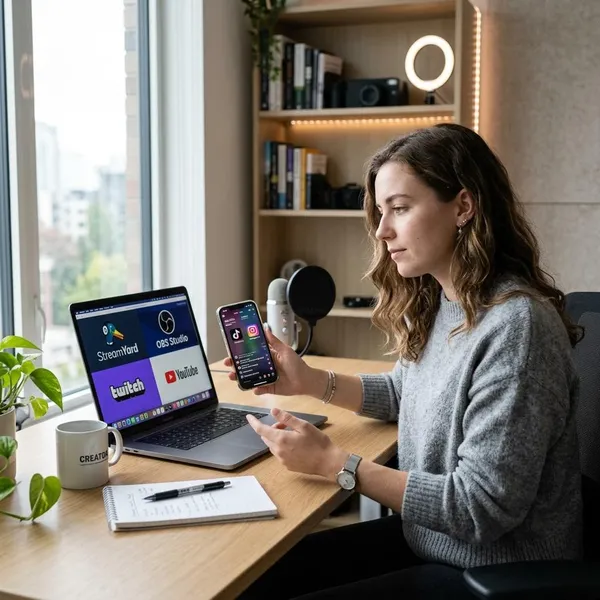
The easiest answer to how to livestream on TikTok from a PC is to use TikTok LIVE Studio, as long as your account has LIVE access and you are on a compatible Windows computer. Check eligibility first, then worry about cameras, layouts, and stream quality; most setup problems come from access, audio, or internet stability rather than the software itself.
What do you need to go live on TikTok from a PC?
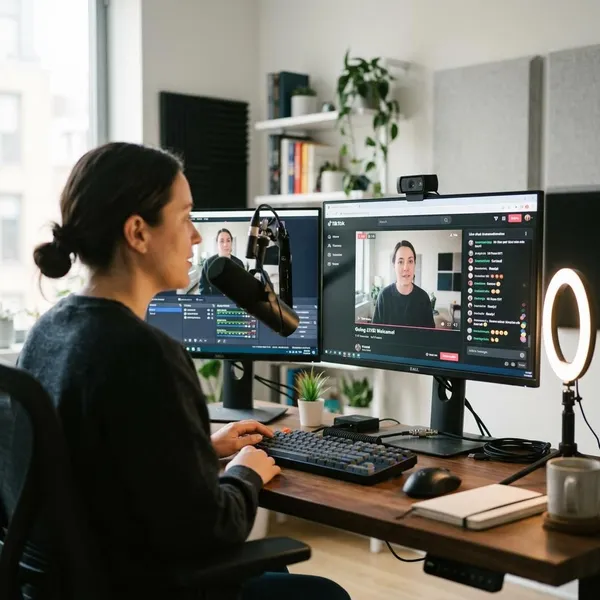
You need five things before a PC livestream is worth setting up: an account that can use LIVE, a Windows PC that can run TikTok LIVE Studio, something to show on screen, a microphone, and a stable upload connection. If one of those is missing, the stream may not start or may feel rough for viewers.
An eligible TikTok account
Your TikTok account needs LIVE access before TikTok LIVE Studio will be useful. Many users need to meet follower and age requirements, but the exact rules can vary by region, account status, and TikTok's current rollout.
The quickest check is to look for LIVE options inside TikTok or try signing in to LIVE Studio with the account you plan to stream from. If the app says LIVE is unavailable, do not spend an hour changing camera settings yet; the block is often eligibility, not your PC.
A compatible Windows PC
TikTok LIVE Studio is mainly built for Windows. A laptop can be enough for a talking-head stream or study session, but gaming while streaming asks much more from the processor, graphics card, memory, and cooling.
If your computer already feels slow with several apps open, keep the first stream simple: close background programs, plug in the laptop, update graphics drivers, and avoid heavy overlays. For longer or more serious streams, stability matters more than squeezing out the highest possible resolution.
Camera or game capture
Choose the video source based on what viewers actually need to see. For a simple chat, a built-in webcam with decent front lighting can be fine. For tutorials, use screen capture. For PC games, game capture is usually cleaner because it targets the game window instead of showing your whole desktop.
Console gameplay is a different situation. You may need a capture card to bring the console signal into the PC, so test that before scheduling a stream rather than discovering it five minutes before going live.
Microphone
Bad audio loses viewers quickly. A headset mic or basic USB microphone is usually enough if your voice is clear, not too quiet, and not distorted.
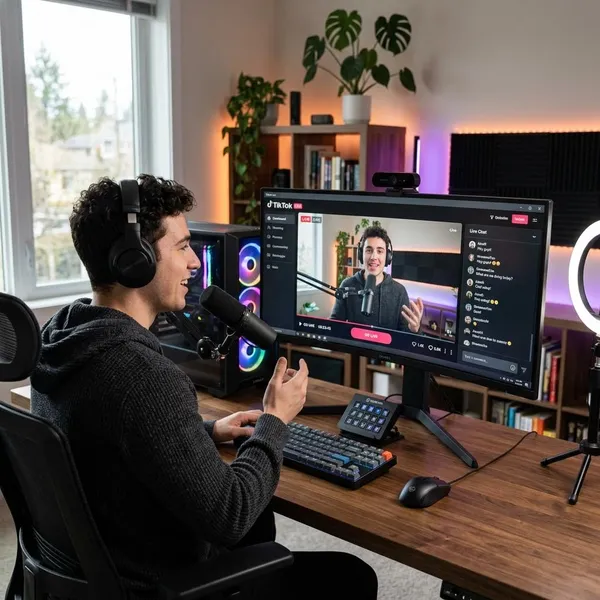
Record a short test before your first stream and listen to it with headphones. Fan noise, keyboard clicks, room echo, and game audio that overpowers your voice are much easier to fix before viewers arrive.
Stable internet connection
For livestreaming, upload stability is the part to care about. A wired Ethernet connection is best, but strong Wi-Fi can work if you are close to the router and nobody else is running heavy downloads, cloud backups, or high-resolution streaming at the same time.
How to livestream on TikTok from a PC
Once the basics are ready, the setup is mostly a checklist: install TikTok LIVE Studio, sign in, build a simple scene, add your sources, test audio, check stream quality, then start the LIVE. Do it in that order so you catch the common failures before viewers see them.
Download and open TikTok LIVE Studio
Download TikTok LIVE Studio from TikTok's official source, install it, and open the app. Avoid random installer sites because they may offer outdated or unsafe files.
Allow camera and microphone permissions when prompted. If the app opens but says desktop LIVE is not available, check your account access and region before reinstalling the program repeatedly.
Sign in to your TikTok account
Sign in with the exact account you want to stream from. This sounds obvious, but it is a common mistake when someone manages more than one TikTok account.
If the correct account has access, LIVE Studio should let you continue into the setup flow. If it does not, check TikTok on your phone as well; sometimes the account itself shows whether LIVE features are restricted or unavailable.
Choose your stream layout
Start with the simplest layout that fits the stream. A webcam chat usually needs a clean camera view. A gaming stream should keep the game large enough to read on a phone screen, with the camera placed where it does not cover health bars, maps, subtitles, or menus.
Add your camera, screen, or game capture
Add the source your audience needs: camera for a face-to-camera stream, screen capture for a tutorial, or game capture for gameplay. Preview it carefully before going live.
- Camera: check framing, lighting, and background clutter.
- Screen capture: close private tabs, messages, and desktop notifications.
- Game capture: confirm the right game window appears and is not frozen.
If you use more than one monitor, make sure LIVE Studio is capturing the correct one. Broadcasting the wrong screen is one of the easiest mistakes to avoid with a 10-second preview check.
Set up your microphone and audio
Select your microphone, speak at your normal volume, and watch the input meter. If the meter barely moves, viewers may not hear you; if it constantly peaks, your voice may sound harsh or clipped.
Also test desktop audio if viewers should hear gameplay, videos, or app sounds. Headphones help prevent echo because your speakers will not feed back into the microphone.
Check video and stream settings
Choose video settings your PC and internet can maintain. For many creators, 720p or 1080p is a practical range, but the better choice depends on your machine, connection, and type of stream.
If the preview stutters, your game lags, or the stream warning indicators appear, lower the output quality before you go live. Smooth playback with clear audio usually feels better than a sharper picture that keeps buffering.
Add your LIVE title and go live
Write a title that tells people what they are joining. "Live drawing practice," "Ranked matches with viewers," or "Study with me for one hour" is more useful than a vague title like "Come hang out."
- Check camera framing and visible sources.
- Say a few words and confirm the mic level moves normally.
- Make sure private windows, notifications, and wrong monitors are not showing.
- Start the LIVE and watch the first minute from a phone if possible.
That first minute is your safety check. If audio is muted, the game is cropped badly, or the layout is unreadable on mobile, you can fix it before too many viewers drop in.
Conclusion
PC streaming on TikTok is worth it when you want more control than a phone gives you, especially for gaming, tutorials, or a cleaner camera-and-mic setup. Check LIVE access first, keep your first layout simple, and test audio plus upload stability before you care about advanced effects; that order saves the most frustration.