The best livestream app is the one that matches how you actually go live: phone, desktop, browser, guests, gaming, or several platforms at once. For a simple first stream, StreamYard is usually the easiest pick; for free desktop control, OBS Studio is still the strongest; for mobile creators, PRISM Live Studio is more practical than forcing a desktop workflow.
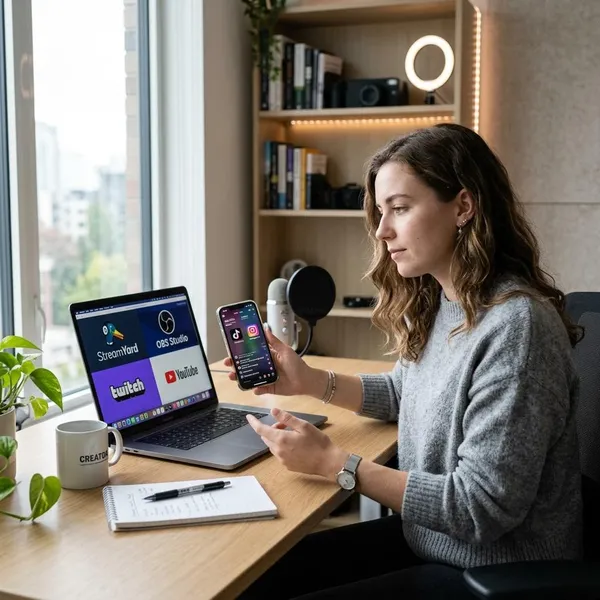
Best livestream apps right now
Start with your main format before comparing every feature. A solo gaming stream, a guest interview, and a quick phone stream need different tools, even if all of them can technically "go live."
StreamYard for beginners and guest streams
StreamYard is the safest starting point if you want a clean live show without learning broadcast software. It runs in a browser, so a laptop, webcam, microphone, and stable internet connection are usually enough to get started.
Its real advantage is guest handling. If you host interviews, coaching sessions, panels, or podcast-style conversations, sending someone a join link is much easier than asking them to install software or configure audio settings.
OBS Studio for free desktop streaming
OBS Studio is the best choice when you want serious desktop control without paying for the app itself. You can build scenes, capture screens or games, manage audio sources, adjust transitions, and fine-tune output settings.
The trade-off is time. A beginner may need a few practice sessions before going live confidently, especially if audio routing, screen capture, or bitrate settings are new. For long-term streaming from a desktop, that learning curve is often worth it.
PRISM Live Studio for mobile creators
PRISM Live Studio makes more sense for phone-first creators than a heavyweight desktop setup. It gives you mobile-friendly controls, visual effects, text, stickers, and simple polish without making the stream feel like a technical project.
Streamlabs for gaming streams
Streamlabs fits gaming creators who want alerts, overlays, widgets, chat tools, and a more guided setup in one place. It is easier to approach than a fully manual OBS setup, especially if you want your Twitch or YouTube stream to look active quickly.
Choose it for convenience, not maximum flexibility. If you enjoy tuning every detail and care about long-term performance control, OBS Studio may still be the better route.
Restream for multistreaming
Restream is built for creators and businesses that want one live feed to appear on several platforms at the same time. That matters if you are still testing whether your audience is strongest on YouTube, Facebook, LinkedIn, Twitch, or another channel.
Best livestream app by use case
The fastest way to narrow the list is to match the app to the situation. A creator doing casual phone streams needs speed. A business running a webinar needs reliability and guest control. A gamer needs overlays, alerts, and performance.
Mobile streaming
For mobile streaming, PRISM Live Studio is usually the most natural choice. It keeps the setup light and gives you enough visual tools to make a phone stream look intentional.
If you only care about one platform, the platform's own live tool can also be enough. For example, a short TikTok Live session may not need a separate app at all. The mistake is adding too many effects or controls when your real priority is staying connected and responding to viewers quickly.
Gaming
Gaming usually comes down to OBS Studio versus Streamlabs. Pick OBS Studio if you want deeper control over capture, audio, scenes, and performance. Pick Streamlabs if you want alerts, overlays, and creator tools ready faster.
| Gaming need | Better fit | Reason |
|---|---|---|
| Maximum control | OBS Studio | More flexible scenes, sources, and settings |
| Faster setup | Streamlabs | Built-in overlays, alerts, and widgets |
| Learning slowly over time | OBS Studio | Better long-term customization |
| Beginner Twitch layout | Streamlabs | Less manual setup at the start |
Interviews and podcasts
StreamYard is the easiest option for interviews and podcasts because the guest experience is simple. A guest can join from a browser link, and the host can switch layouts, show comments, and keep the conversation moving.
Webinars and business streams
For webinars and business streams, StreamYard and Restream are the two most practical choices. StreamYard is better when the event depends on speakers, presentations, interviews, or a clean Q&A flow. Restream is better when the same event needs to reach several channels at once.
For a small team running a one-off product demo, simplicity usually wins. For a recurring brand show sent to LinkedIn, YouTube, and Facebook, distribution becomes more important.
Multi-platform broadcasting
Restream is the clearest pick if multi-platform broadcasting is the main requirement. It saves you from setting up separate live events manually and helps you compare where viewers actually show up.
It may be unnecessary if you only stream to one channel. Multistreaming adds value when reach matters, but it can also split comments and attention, so use it when you have a real reason to be live in more than one place.
How the top livestream apps compare
Feature lists can make every app look similar, but the day-to-day experience is different. The points that usually matter most are how quickly you can go live, whether the app fits your device, and whether it handles your stream format without awkward workarounds.
Ease of use
StreamYard is the easiest for most beginners because there is very little setup before a basic stream. PRISM Live Studio is also beginner-friendly if you stream from a phone. Streamlabs sits in the middle, while OBS Studio asks for more patience before it feels comfortable.
Device support
Your device should filter your options early. Phone-first creators should look at PRISM Live Studio. Laptop users who want browser convenience should start with StreamYard or Restream. Desktop users who need gaming capture, multiple sources, or more detailed audio control should look at OBS Studio or Streamlabs.
Scenes and overlays
OBS Studio gives the most control over scenes and overlays, especially if you want different layouts for a starting screen, screen share, camera view, break screen, and ending screen. Streamlabs is easier for gaming-style overlays and alerts.
StreamYard and Restream are more limited visually, but that is not always a problem. A webinar with two speakers and a few banners does not need the same production control as a gaming channel with animated alerts and custom transitions.
Guest features
Guest features are where StreamYard stands out. The fewer steps your guest has to complete, the lower the chance of delays before going live.
- Frequent guests: choose StreamYard first.
- Occasional guests: Restream can be enough.
- Technical guests: OBS Studio can work with extra tools.
- Non-technical guests: avoid complicated setup wherever possible.
Multistreaming
Restream is strongest for multistreaming because distribution is its main purpose. Some other tools offer multi-destination streaming in paid plans, but Restream is usually the cleaner choice when going live on several platforms is central to your plan.
Before paying for multistreaming, check whether you can realistically manage comments and audience interaction from several places. Reaching more platforms is useful only if the live experience still feels controlled.
Free and paid features
OBS Studio has the strongest free offering because the core software is free and powerful. The cost is learning time, not a monthly plan.
StreamYard, Streamlabs, Restream, and PRISM Live Studio may include free access with limits. Before upgrading, check the limits that actually affect your stream: watermarks, guest numbers, recording, resolution, destinations, branding, and platform support. Paying only makes sense when a limit is blocking your real workflow.
How to choose a livestream app
A good choice should make you go live more consistently, not give you the longest possible feature list. Use your first few streams as a test: if setup feels stressful every time, the app is probably too complex for your current needs.
Start with where you want to stream
Pick your destination first. Twitch and YouTube Gaming point naturally toward OBS Studio or Streamlabs. LinkedIn interviews, YouTube podcasts, and business Q&A sessions usually fit StreamYard or Restream better.
Choose between mobile, desktop, and browser tools
Choose the tool type that matches your normal behavior, not your ideal fantasy setup. If you stream from your kitchen, shop floor, event booth, or while traveling, mobile matters. If you stream from a desk with a microphone, webcam, and monitor, desktop or browser tools make more sense.
- Mobile: best for quick, flexible, location-based streams.
- Desktop: best for gaming, tutorials, demos, and layered scenes.
- Browser: best for guests, interviews, and low-friction setup.
Decide how much production control you need
Be honest about how much control you will actually use. A solo creator who only needs a camera, screen share, and a title banner does not need the most advanced setup on day one.
Choose OBS Studio if you want to build a more custom production over time. Choose StreamYard or PRISM Live Studio if getting live quickly matters more. Streamlabs is a practical middle option for gaming creators who want polish without building everything manually.
Check guest and multistreaming needs
Guest and multistreaming features are worth checking before you commit because they can be annoying to change later. If guests are part of your format, test the join process with someone who is not technical. If you need multiple platforms, test whether comments, branding, and destination settings are easy enough to manage.
Compare free features before paying
Use the free version for a real stream before upgrading. Do not judge only from a pricing page; test the setup, audio, camera, comments, overlays, and ending workflow.
- Run one private or low-stakes stream to check audio, video, and layout.
- Note the first real limitation, such as watermark, guest cap, recording, or destination limit.
- Upgrade only if that limit affects your next stream, not because the paid plan looks more complete.
Conclusion
Choose the app that removes the biggest obstacle between you and a good live session: StreamYard for easy guests, OBS Studio for free desktop control, PRISM Live Studio for phone-first streams, Streamlabs for gaming convenience, and Restream for wider distribution. If you are still undecided, start with the simplest tool that fits your next real stream, then upgrade or switch only when you hit a specific limit.