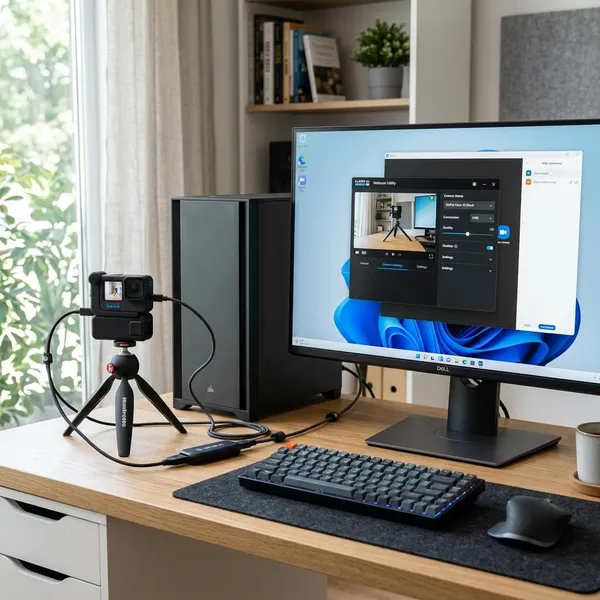
To use a GoPro as a webcam on Windows, you need three things to work together: a compatible GoPro, the GoPro Webcam app, and a USB-C cable that can carry data. If any one of those is missing, Windows may still react when you plug in the camera, but Zoom, Teams, OBS, or another video app may not show it as a webcam.
What you need to use a GoPro as a webcam on Windows
Start by checking the basics before changing settings in Windows. Most failed setups come down to an unsupported camera model, missing webcam software, or a cable that charges the GoPro but does not send video data.
A GoPro that supports webcam mode
Your GoPro must support webcam mode. Some older models can connect to a PC for charging or file transfer, but that does not mean they can send a live webcam feed over USB.
GoPro Webcam for Windows
GoPro Webcam for Windows is usually the software layer that makes the camera appear as a usable webcam source. Without it, Windows may only treat the GoPro like a USB device or storage device.
- Install the current Windows version from GoPro.
- Check for the GoPro Webcam icon in the system tray.
- Make sure the app is running before opening your video app.
A data-capable USB-C cable
Use a USB-C cable that supports data transfer, not only charging. A charge-only cable can make the GoPro power on while blocking the video connection Windows needs.
If you are not sure about the cable, try one that you have used for file transfer with another device. For longer meetings, classes, or livestreams, a short reliable cable plugged directly into the PC is usually safer than a long cable through a hub.
A video app that supports external cameras
Your video app must let you choose an external camera. Apps such as Zoom, Microsoft Teams, Skype, OBS Studio, and browser-based meeting tools usually can, but you still need to select the GoPro manually in the app's video settings.
How to connect a GoPro to Windows as a webcam
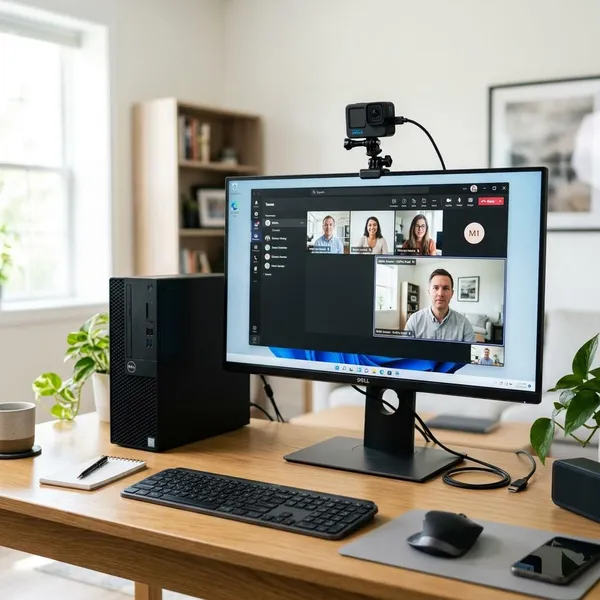
The cleanest setup order is firmware first, software second, USB connection third, and video-app selection last. That order matters because it tells you where the problem is if the camera does not appear.
Update your GoPro firmware
Update the GoPro firmware before using it as a webcam, especially if the camera has not been updated for a while. Firmware updates can affect USB behavior, stability, and webcam compatibility.
Make sure the battery has enough charge before starting the update. A camera that records video normally can still behave badly as a webcam if its firmware is outdated.
Install GoPro Webcam on Windows
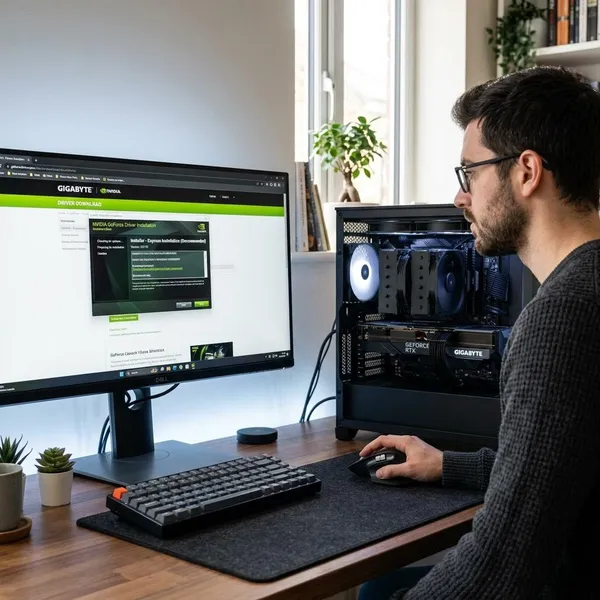
Install GoPro Webcam for Windows and allow the installer to add any required components. After installation, look for the GoPro Webcam icon in the Windows system tray.
If the icon does not appear, launch the app manually. If it still behaves oddly, restart Windows before connecting the camera.
Restart Windows if needed
A restart is worth doing after installation if the GoPro Webcam icon is missing, the camera is not detected, or your video apps were open during setup. It gives Windows a clean chance to load the webcam service and avoids chasing a problem that is only a half-loaded driver or background process.
Turn on the GoPro and connect it by USB
Turn on the GoPro, then connect it to the Windows PC with a data-capable USB-C cable. Use a direct USB port on the computer while setting it up; docks, hubs, and adapters add extra places for the connection to fail.
Check that GoPro Webcam detects the camera
Before opening your meeting app, check whether GoPro Webcam detects the camera. If the GoPro Webcam app does not see it, Zoom or Teams probably will not see it either.
- If detected: move on to your video app.
- If not detected: test the cable, port, firmware, and app status first.
- If detection is inconsistent: avoid hubs and restart both the app and camera.
Select the GoPro as your camera source
Open your video app and choose GoPro Webcam in the camera or video settings. If the app was already open before you connected the GoPro, close and reopen it because some apps only scan for cameras when they launch.
How to fix a GoPro webcam not working on Windows
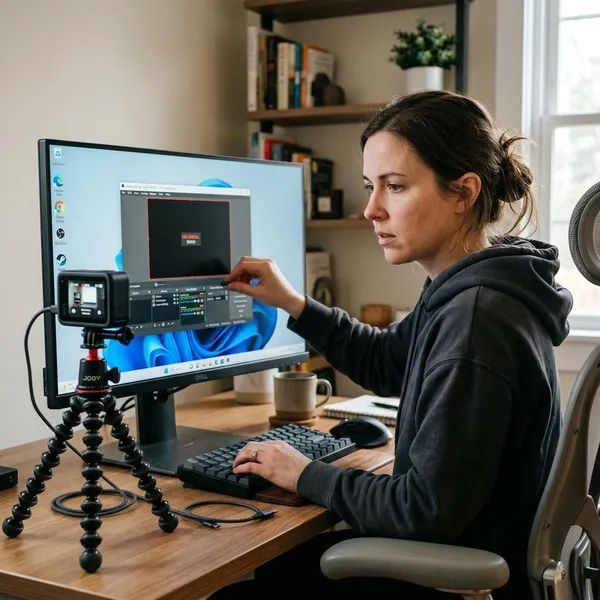
When a GoPro webcam does not work on Windows, troubleshoot from the simplest link in the chain to the more annoying ones: app restart, cable and port, camera selection, then updates. Randomly changing everything at once makes it harder to know what fixed the issue.
Restart GoPro Webcam and reconnect the camera
Close GoPro Webcam, unplug the camera, wait a few seconds, then open the app and connect the GoPro again. This resets the handshake between the camera, Windows, and the webcam app.
This is the first fix to try if the setup worked yesterday but fails today, or if the preview disappeared after switching between video apps.
Update the camera firmware and webcam software
If the problem keeps coming back, update both the GoPro firmware and the Windows webcam software. A Windows update, old camera firmware, or outdated webcam utility can cause black screens, failed detection, or unstable video.
Try another USB cable or USB port
Swap the USB-C cable and try another direct USB port on the PC. If the GoPro charges but never appears as a webcam, suspect the cable first. If it appears and then drops out, the cable, port, hub, or docking station may be unstable.
| What you see | Most likely check |
|---|---|
| GoPro charges but no webcam appears | Try a known data-capable USB-C cable |
| Webcam appears, then disconnects | Use another direct USB port and avoid hubs |
| Works in one app but not another | Close competing camera apps and reselect the source |
Close other apps using the camera
Close Zoom, Teams, OBS, browser meeting tabs, the Windows Camera app, and any other tool that might be holding the camera feed. Some apps keep running in the background even after the main window is closed, so check the taskbar and system tray as well.
This problem is common when you move from a browser call to Teams, or from OBS to a meeting app, without fully closing the first program.
Reselect the GoPro as the video source
Open the video settings in your meeting or recording app and manually choose GoPro Webcam. Many apps remember the last camera used, so they may stay on the laptop webcam even after the GoPro is ready.
If the GoPro is listed but the preview does not update, switch to another camera briefly and then switch back. That often forces the app to refresh the feed.
Reconnect the camera if the video is black or frozen
A black or frozen image usually means the app still sees a webcam connection, but the live feed has stopped. Disconnect the GoPro, reconnect it, and restart the video app if the preview does not recover.
If freezing happens during longer sessions, treat it as a stability problem rather than a one-time glitch. Use a shorter data-capable cable, avoid USB hubs, close extra camera apps, and make sure the camera and webcam software are up to date.
Conclusion
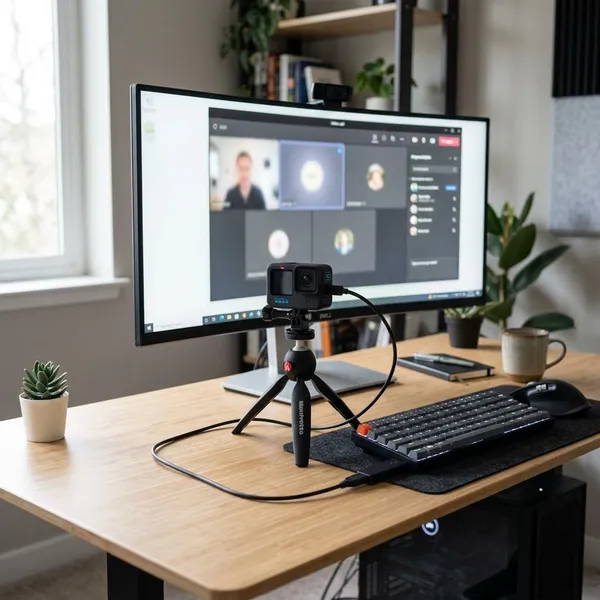
A GoPro can work well as a Windows webcam when the setup is kept simple: supported camera, current GoPro Webcam software, a real data cable, and the right camera selected in your video app. If you only need it for the occasional call, that may be all you ever adjust; if you plan to use it for regular streaming, classes, or presentations, spend extra time on cable stability, direct USB connection, and camera placement.