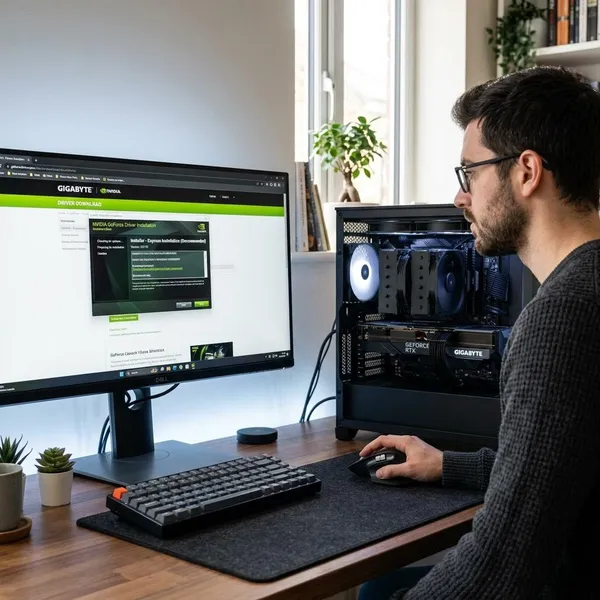
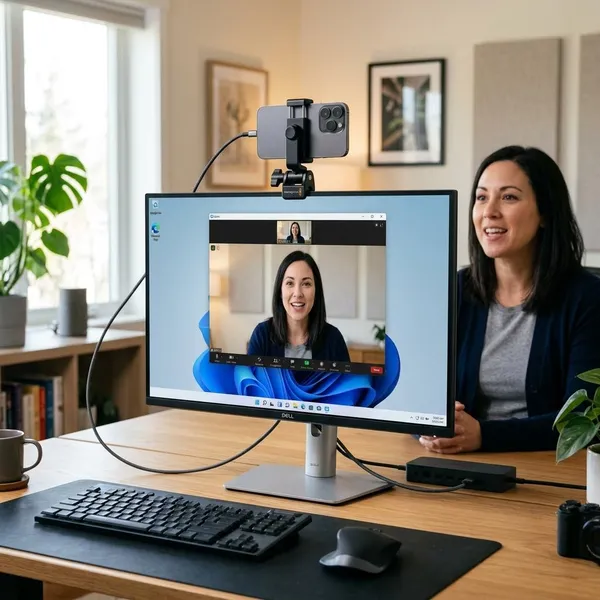
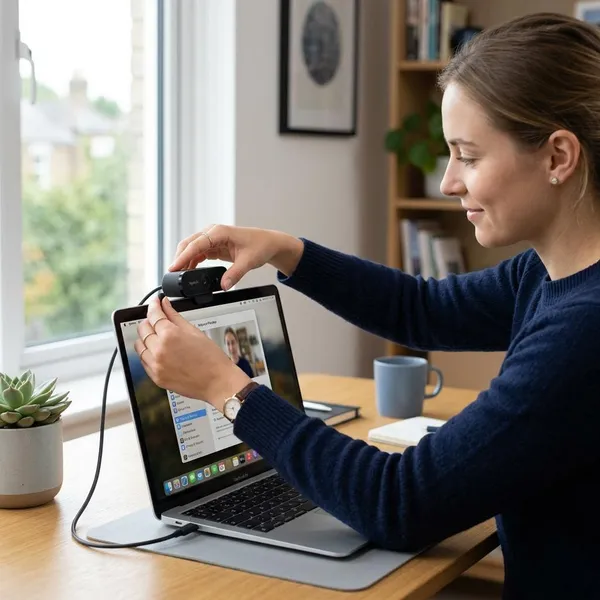
If you want a cleaner face-cam for Twitch, YouTube, or OBS, a 4k webcam for streaming is worth considering even when your final stream is 1080p. The extra resolution helps with cropping, sharper recordings, and more flexible framing, but it will not fix poor lighting or unstable USB bandwidth. Choose based on your room, movement, and software control first, then worry about the headline resolution.
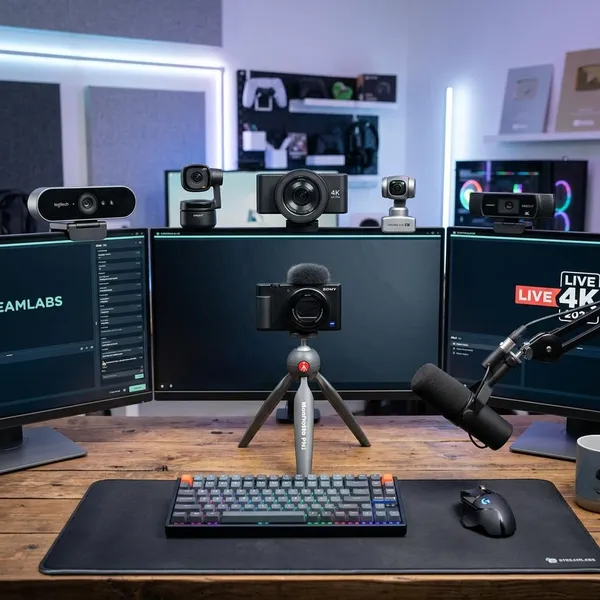
Best 4K webcams for streaming
| Webcam | Best fit | Why it stands out |
|---|---|---|
| Elgato Facecam 4K | Creators who want 4K60 | Smoother motion and strong streamer-focused control |
| YoloCam S3 | Value-focused buyers | A practical 4K upgrade without paying flagship pricing |
| Razer Kiyo Pro Ultra | Dim rooms and late-night streams | Better low-light image quality than many small-sensor webcams |
| Insta360 Link 2 Pro | Creators who move on camera | AI tracking and flexible framing for active setups |
Elgato Facecam 4K for 4K60 streaming
Pick the Elgato Facecam 4K if smooth motion matters as much as sharp detail. 4K60 is useful for hand movement, product demos, reaction content, and streams where you also record clips for editing later. A simple talking-head setup can still look excellent at 4K30, so this is mainly the premium choice when movement is part of the content.
Its biggest practical advantage is control. Streamers benefit from software that makes exposure, white balance, framing, and image settings easy to repeat before going live. Just make sure your computer, cable, and USB port can actually handle higher-bandwidth modes; otherwise, a cheaper 4K30 setup may feel more stable.
YoloCam S3 for 4K value
YoloCam S3 makes sense if you want a visible upgrade from a basic webcam without building an expensive camera rig. It is the sort of pick that fits new streamers, students, remote workers, and casual creators who want more cropping room and a sharper source image.
- Choose it for: budget-conscious 4K streaming, video calls, and simple OBS scenes.
- Do not choose it for: the best low-light performance, advanced tracking, or maximum frame-rate flexibility.
- Check before buying: whether the advertised resolution and frame-rate modes work in the apps you actually use.
Razer Kiyo Pro Ultra for low-light image quality
The Razer Kiyo Pro Ultra is the stronger pick when your room is not bright. A larger or better sensor can make shadows cleaner, skin tones less muddy, and the image less grainy before you start adjusting settings. That matters more than raw 4K sharpness if you stream at night or use softer room lighting.
Insta360 Link 2 Pro for AI tracking and flexible framing
Insta360 Link 2 Pro is the most practical choice here for creators who do not stay locked in one chair. AI tracking can keep you framed while you teach, cook, craft, play music, present at a whiteboard, or move between a desk and standing position.
Flexible framing also saves time if your content changes from stream to stream. One session might need a close face shot; another might need a wider desk view. If constant camera repositioning annoys you, smart framing can be more valuable than a small difference in image quality.
What to look for in a 4K streaming webcam
A good 4K webcam should give you a clean, controllable image in your real room, not just a sharp picture in ideal lighting. Start with these priorities: stable USB bandwidth, usable software controls, sensor quality, and the right frame rate for your content. Resolution is helpful, but it is rarely the only reason a stream looks good.
If you are choosing between two similar models, use this order: first check OBS support and connection requirements, then low-light behavior, then frame rate, then extras like AI framing. That order prevents a common mistake: buying the most impressive-looking spec and later discovering it is awkward to run every day.
4K30 vs 4K60
4K30 is usually enough for seated commentary, podcast-style streams, meetings, and creators who mainly want a sharper crop into a 1080p canvas. It is easier on USB bandwidth and system resources, which can matter if you are gaming, streaming, and running overlays at the same time.
Go for 4K60 when motion is part of the show: fast hand gestures, tabletop demos, art, unboxings, or recorded clips you plan to edit. If the camera becomes unstable at 4K60, drop to 4K30 or 1080p60 before blaming the webcam.
Sensor size and low-light performance
Sensor quality decides how forgiving the webcam is in a normal home setup. A better sensor can keep the image cleaner when the room is dim, while a weak one may add noise, flatten skin tones, or make the picture look harsh even at 4K.
- Bright desk setup: resolution and framing flexibility may matter more.
- Night streaming: prioritize low-light performance and manual exposure control.
- Changing daylight: look for stable exposure behavior so the image does not pulse during a stream.
Autofocus and exposure control
Autofocus should be boring in the best way: it should lock quickly and avoid hunting. If you show objects to the camera, lean forward often, or switch between face and desk shots, poor autofocus becomes noticeable fast.
Exposure and white balance control are just as important. Auto settings can shift when a bright monitor changes or daylight moves across the room. For regular streaming, lock the settings once your lighting is set so your face does not keep getting brighter, darker, warmer, or colder during the broadcast.
Field of view and digital cropping
Field of view controls how personal or open your shot feels. A tighter frame works well for solo gaming and commentary because it keeps attention on your face. A wider view suits tutorials, two-person setups, or creators who need to show a desk, instrument, or product area.
The practical benefit of 4K is cropping. You can capture a wider 4K image, crop into a cleaner 1080p scene in OBS, and avoid physically moving the webcam every time your layout changes.
OBS compatibility and camera software
OBS compatibility is not a bonus feature; it is the point for many streamers. The webcam should appear reliably as a video source, expose the resolution and frame-rate modes you expect, and keep working when you restart OBS or switch scenes.
Good camera software should let you adjust exposure, gain, white balance, focus, zoom, and presets without fighting hidden menus. Also check how the webcam behaves when another app, such as Zoom or a vendor utility, tries to access it. If you use the same camera for work calls and streaming, this can save a lot of frustration.
How to set up a 4K webcam for streaming
Setup matters more than many buyers expect. A strong webcam can look mediocre if it is plugged into the wrong port, left on aggressive auto exposure, or forced to brighten a dark room with gain. Work through the connection first, then OBS settings, then camera tuning, and leave lighting as the thing you improve before pushing electronic brightness.
Connect the webcam to a compatible USB port
Use a direct USB port that supports the webcam's intended 4K mode. Many 4K webcams need USB 3.0 or better for full resolution or higher frame rates, and older cables can quietly limit what appears in the software. If the right modes are missing, try the included cable and a direct computer port before changing OBS settings.
Add the webcam as a video source in OBS
Add the camera in OBS as a Video Capture Device and select the webcam manually. Then open the source properties and confirm that the expected resolution and frame-rate options are available.
Set the resolution and frame rate
Choose the mode that your stream can hold reliably. Capturing in 4K and outputting a 1080p stream is often the sweet spot because you get a sharper source and cropping room without forcing a full 4K livestream.
- Use 4K30 for sharp face-cam framing and lighter system demand.
- Use 4K60 when motion needs to look smoother and your setup stays stable.
- Use 1080p60 if the stream drops frames or your platform, bitrate, or PC cannot comfortably handle 4K capture.
Adjust exposure, white balance, and focus
Tune the image after the webcam is in its real streaming position. Set white balance so skin tones look natural, lower gain where possible, and adjust exposure until your face is bright without blown-out highlights. If autofocus keeps shifting during normal movement, lock focus at your seated distance.
Improve lighting before increasing camera gain
When the image looks noisy, add or soften light before raising gain. One soft light in front of you and slightly above eye level usually helps more than pushing the webcam to brighten a dark room electronically.
- Light your face first. Avoid relying only on monitor glow or ceiling lights.
- Reduce harsh shadows. Bounce the light off a wall or use diffusion if it looks too sharp.
- Lower gain after adding light. This usually cleans up grain and improves detail.
- Check the scene in OBS. Judge the final canvas, not only the vendor camera preview.
Conclusion
The safest way to choose is to match the webcam to the weakest part of your setup: motion, lighting, framing, or budget. Elgato is the stronger 4K60 pick, YoloCam is the value route, Razer makes the most sense for dim rooms, and Insta360 is the practical choice if you move around on camera. A well-lit, stable 4K webcam in OBS will usually beat a more expensive camera running on poor settings.