If you are asking how does livestream work, think of it as a fast handoff rather than one video file being sent across the internet. Your camera and microphone capture the moment, an encoder compresses it, a platform prepares it for delivery, and each viewer's device plays the best version it can handle. The parts that matter most in practice are a stable upload connection, sensible quality settings, and enough buffering to keep the stream from breaking.
How does live streaming work?
Live streaming works by turning live video and audio into compressed data, sending that data to a streaming service, and delivering small pieces of it to viewers almost immediately. It feels instant, but there is always a short technical chain behind it.
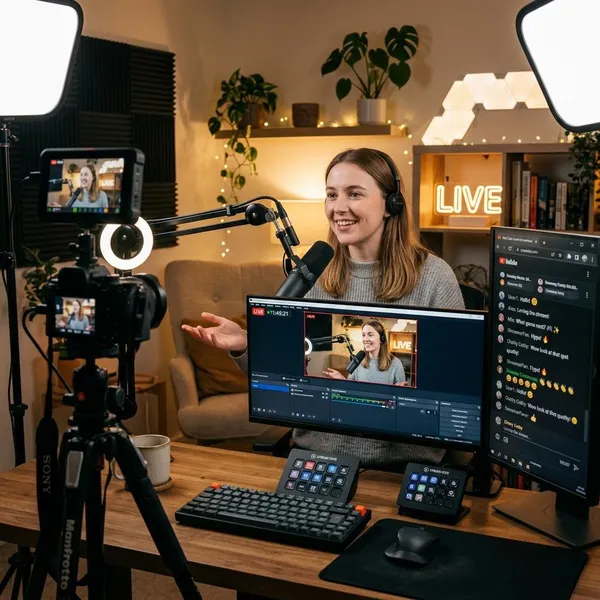
Capture video and audio
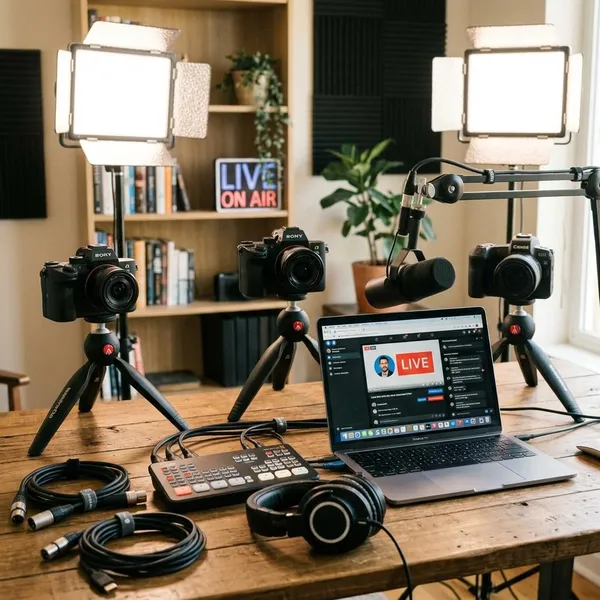
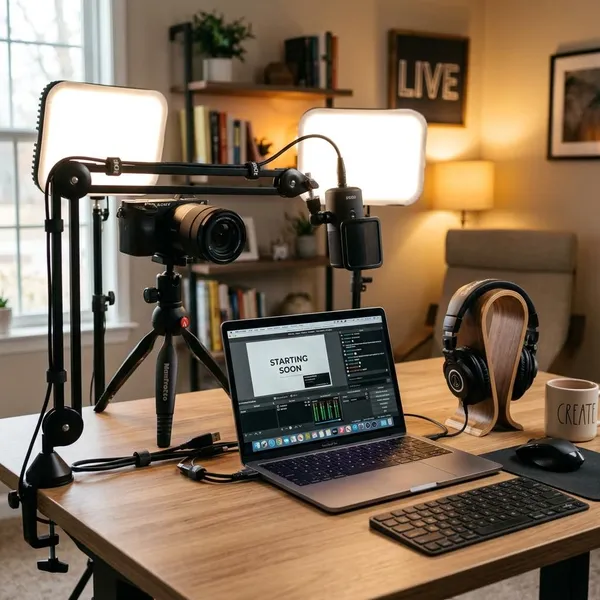
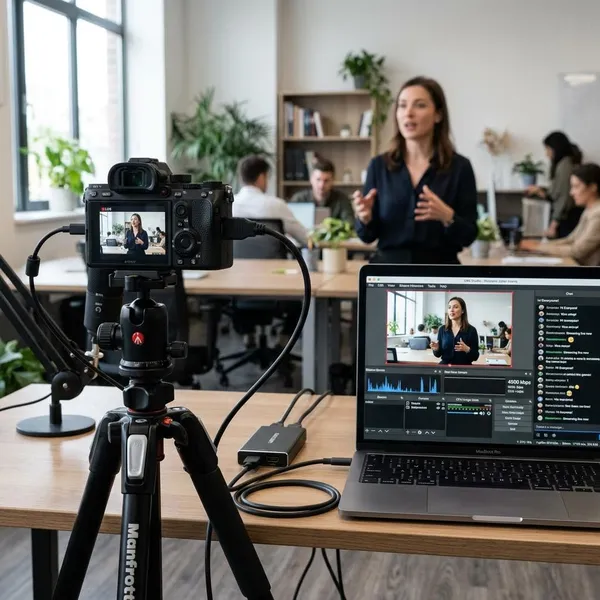
The stream starts with a camera and microphone. On a phone, those are built in. On a more planned setup, they might be a webcam, mirrorless camera, USB microphone, lighting, and screen-sharing software.
This first step matters more than people expect. Poor lighting, echoey audio, or a shaky camera will still look and sound poor after the stream is processed. For a quick casual livestream, a phone may be enough; for a webinar, lesson, product demo, or paid event, clear audio and stable framing are usually worth fixing before anything else.
Encode and compress the stream
Raw video is too large to send smoothly over a normal internet connection, so it has to be encoded. Encoding converts the camera and microphone feed into a stream format that platforms and devices can handle, while compression keeps the data size realistic.
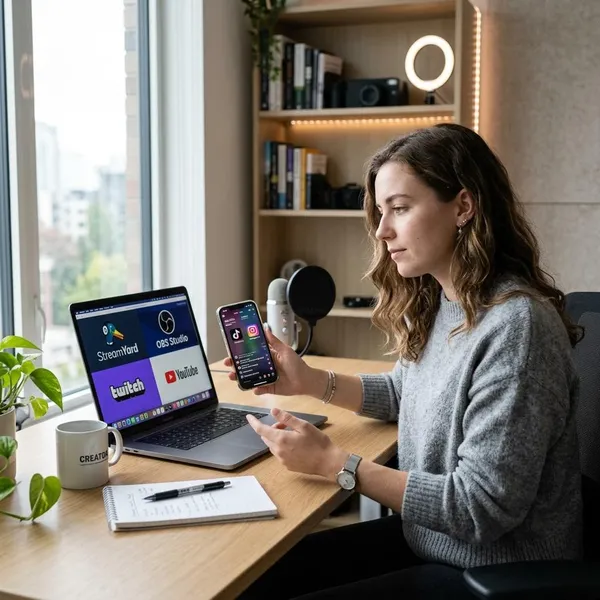
- Software encoders such as OBS Studio are flexible and common for home setups.
- Mobile apps handle encoding automatically when you go live from a phone.
- Hardware encoders are useful for longer events where reliability matters more than convenience.
Send it to a streaming platform
After encoding, the stream is uploaded to a platform such as YouTube, Twitch, Facebook Live, TikTok, Zoom, or another live video service. The platform receives the feed through an ingest server and connects it to the correct account, channel, event, or meeting.
This is where platform features start to appear: privacy settings, live chat, stream keys, recording, moderation, captions, analytics, or monetization. The streamer may only click "Go Live," but the service is already preparing the feed for many different viewers and devices.
Distribute it to viewers
A large livestream cannot usually be sent from one server directly to every viewer. Platforms use distribution systems, often through a CDN, so viewers receive the stream from servers that are closer or less congested.
Decode and play it in real time
The viewer's browser, app, phone, TV, or media player receives small stream segments, decodes them, and plays them in order. It also keeps a small buffer so a tiny network hiccup does not immediately freeze the video.
If several quality versions are available, the player can switch between them while the livestream continues. That is why a stream may briefly look softer and then sharpen again instead of stopping completely.
What happens between the streamer and the viewer?
Between the streamer and viewer, the live feed is packaged, checked, sometimes converted into several quality levels, copied through delivery servers, and selected by the viewer's player. The important point is that the viewer is not receiving one single finished video file. They are receiving a continuous sequence of small pieces.
The encoder prepares the video
The encoder decides how the video is packaged before it leaves the streamer's device. Its settings control bitrate, resolution, frame rate, audio format, and often the codec used for compression.
For a talking-head livestream, modest settings can look perfectly fine. For gaming, sports, or fast camera movement, the encoder needs to preserve more motion detail, which usually requires more bitrate and more processing power.
The platform receives the live feed
When the live feed reaches the platform, the service checks that it belongs to the right stream and that the format is usable. If the upload drops, the stream key is wrong, or the audio format is not accepted, the problem may appear here even if the camera preview looks fine locally.
Transcoding creates multiple quality levels
Transcoding creates different versions of the same live feed, such as a sharper version for strong connections and lighter versions for slower ones. A viewer on home fiber might receive a high-quality stream, while someone on crowded mobile data may get a lower-resolution version that keeps playing.
Not every platform offers the same transcoding options, especially on smaller or cheaper services. If your audience includes people on phones, office Wi-Fi, rural connections, and smart TVs, having multiple quality levels can make the livestream feel much more reliable.
A CDN delivers the stream
A CDN, or Content Delivery Network, spreads stream delivery across many servers instead of forcing every viewer to connect to one central location. This is especially important when a livestream suddenly attracts more viewers than expected.
The player adjusts quality during playback
The player watches how quickly video segments arrive and adjusts quality when needed. If the connection weakens, it may step down to a lower bitrate; if conditions improve, it can move back up.
This is not a failure by itself. For most viewers, a short drop from sharp to soft is better than a frozen stream. Manual quality selection can help when someone wants to save data or stop the player from switching too often.
Why is there a delay in a livestream?
A livestream has delay because every stage needs a little time: encoding, uploading, platform processing, distribution, and playback buffering. Depending on the platform and settings, the delay can feel almost instant or it can be many seconds behind the real moment.
Encoding adds processing time
Encoding takes time because the device has to compress each moment before it can upload it. Higher resolution, higher frame rate, and heavier compression can all increase the workload.
If an older laptop is trying to stream 1080p at 60 fps while also running slides, chat, and recording software, delay and dropped frames become more likely. Lowering settings can sometimes make the stream feel more live because the device is no longer struggling.
Network transmission adds delay
The stream also has to travel from the creator to the platform, and then from the delivery network to the viewer. Weak Wi-Fi, limited upload speed, congested networks, long routes, and packet loss all add small delays that can build up.
- Use wired internet when possible for planned streams.
- Avoid uploading near your limit; leave headroom for normal speed dips.
- Pause heavy household traffic such as cloud backups or large game downloads.
Platforms process and distribute the stream
Streaming platforms do more than pass the video along. They may validate the feed, transcode it, package it for different devices, create a recording, and send it through a CDN.
Those steps add delay, but they also make the stream watchable on more devices. Low-latency modes can reduce the wait, though they may be less forgiving when the streamer's or viewer's connection becomes unstable.
Player buffering improves stability
The viewer's player usually waits until it has a small reserve of video before playback. That buffer is the reason a livestream can survive a brief network wobble without instantly freezing.
What affects livestream quality?
Livestream quality is shaped by the whole chain, but the first things to check are the creator's upload stability, bitrate, encoder load, and whether the chosen resolution is realistic. Chasing the highest setting is a common mistake; the best stream is the one that stays clear and steady for the full session.
| Situation | Smarter priority | Common mistake |
|---|---|---|
| Casual phone stream | Good lighting and steady mobile/Wi-Fi signal | Ignoring audio and shaky framing |
| Webinar or class | Clear voice, readable slides, stable 720p or 1080p | Using too much bitrate on weak upload |
| Gaming or sports | Enough bitrate and frame rate for motion | Running settings the computer cannot sustain |
| Large public event | Reliable platform, testing, backup connection if possible | Testing only the camera, not the full stream path |
Upload speed and connection stability
Upload speed matters because the creator is sending video continuously. If the stream bitrate is too close to the available upload speed, even a brief dip can cause stutter or disconnection.
Bitrate
Bitrate controls how much data is used each second. More bitrate can preserve detail, especially with fast movement, but only if the connection and platform can handle it.
If the bitrate is too low, the image can look blocky or smeared. If it is too high, the stream may buffer or drop frames. A practical setup follows the platform's recommended range, then tests whether the connection can hold it for longer than a few minutes.
Resolution and frame rate
Resolution affects detail; frame rate affects motion. A product demo or cooking stream may benefit from sharper resolution so viewers can see small details. A game stream or sports stream may benefit more from smooth motion.
Higher numbers are not automatically better. If 1080p at 60 fps strains the encoder or upload connection, 720p at 30 fps may create a better real viewing experience. Choose the setting your setup can maintain, not the one that only looks good on paper.
Encoder performance
The encoder must keep up in real time. If the phone overheats, the laptop CPU is overloaded, or the streaming software is doing too much at once, the stream may skip frames before it even reaches the platform.
Viewer connection and location
The streamer can do everything correctly and still have viewers with different experiences. Someone near a good CDN route on fast home internet may see crisp playback, while someone on a crowded train or weak hotel Wi-Fi may get lower quality.
Conclusion
A livestream works best when each stage has enough room to do its job: clean capture, realistic encoding settings, stable upload, platform processing, CDN delivery, and smooth playback. If you plan to stream yourself, fix audio and connection stability before chasing maximum resolution; viewers will forgive a slightly softer picture much faster than constant freezing, echo, or a stream that keeps dropping.