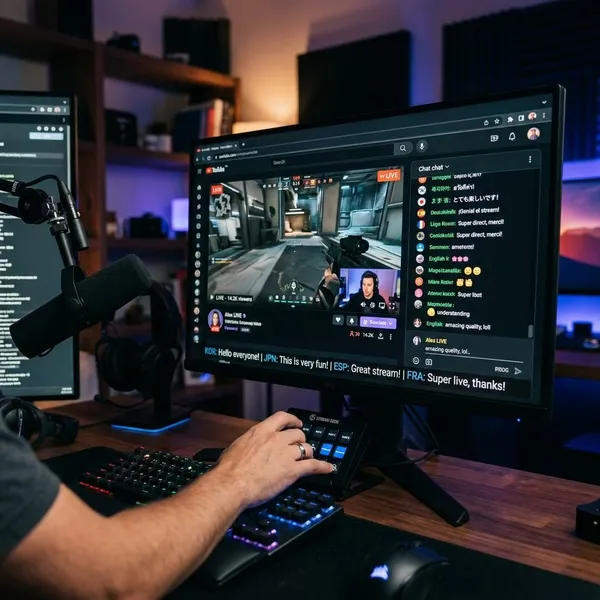
If you are watching a stream where the chat is in another language, the fastest answer is simple: creators and moderators should try YouTube's own translation options first, while regular viewers usually get better results from a desktop browser extension. A youtube livestream chat translator is most useful when it keeps the chat readable without hiding the original message or asking for permissions that feel too broad.
Which YouTube live chat translator should you use?
Start with your role, not with the longest feature list. A moderator needs quick context and original-message access. A casual viewer needs automatic translation that does not make the chat panel messy. Someone watching a fan community may not need machine translation at all if human translators are already posting summaries in chat.
| Use case | Best starting point | Why it makes sense |
|---|---|---|
| Creator or moderator during a live event | YouTube built-in translation, if available | Fewer tools to manage and less risk of extension problems during the stream |
| Viewer following a foreign-language stream | Automatic browser extension | Translates incoming chat without copying messages elsewhere |
| Fan stream with volunteer translators | LiveTL or a filtering tool | Helps surface human-posted translations instead of translating every line |
How to use YouTube's built-in chat translation
If YouTube gives you a built-in translation option, try it before installing anything else. It is usually the lowest-friction route for creators and moderators because it keeps translation inside the same interface you already use to manage chat.
Check your display language
Your YouTube or Google display language can affect the language used for translated chat. If translated messages appear in the wrong language, check this setting before changing tools.
This is an easy mistake on shared computers or older accounts. For example, if your Google account is set to Spanish but you expected English translations, the translator may be following the account preference rather than making a random error.
Read translated messages as a creator or moderator
Creators and moderators should use translated messages as a fast context check, not as a perfect quote. It can help you spot whether someone is asking a real question, reporting a problem, posting spam, or using language that may need moderation.
- For routine chat: a quick machine translation is often enough to follow the conversation.
- For moderation action: compare the original message when possible before timing someone out or deleting a comment.
- For public replies: keep your response simple if the translated meaning is not completely clear.
Hover or tap to see the original
When the interface allows it, hover over or tap a translated message to view the original. This matters because short live-chat messages are full of slang, jokes, abbreviations, emojis, and fandom phrases that can translate badly.
Turn automatic translation off in chat settings
Automatic translation is not always better. In very fast streams, the extra text can make chat harder to scan, especially if you are also watching the video closely.
If the chat panel feels crowded, turn translation off and use it only for specific messages when possible. This approach works well for moderators who need a clean view most of the time but still want help with unfamiliar languages.
How to translate YouTube live chat with an extension
For most ordinary viewers, a desktop browser extension is the most realistic way to translate YouTube live chat automatically. It works best when the extension can read new messages, place translations near the originals, and stay responsive as the chat speeds up.
This route is less dependable on mobile. Desktop Chrome and other Chromium-based browsers usually have the widest support, while Firefox and mobile browsers depend on the specific extension.
Check browser support and permissions
Make sure the extension clearly supports your browser and YouTube live chat, not just general web page translation. If compatibility is vague, the extension may install but fail to detect the chat panel.
Permissions deserve a careful look. A chat translator may need access to the YouTube page to read messages, but it should not ask for more access than its function reasonably requires. If the listing does not explain what it reads or where text is processed, treat that as a warning sign.
Install the extension from its official listing
Use the official browser store listing or the developer's official project page. Browser extensions can interact with pages you visit, so a copied or fake version is not worth the risk.
- Check the last update: old extensions may break after YouTube interface changes.
- Read recent reviews: they reveal current problems better than old ratings.
- Avoid lookalikes: similar names and icons can hide unrelated or unsafe copies.
Open a livestream with chat enabled
Test the extension on an active livestream where the chat panel is visible. Some tools need the standard watch page, a refresh after installation, or an open chat window before they can detect messages.
Use a medium-speed stream for your first test. A tiny chat may not show whether translation is working consistently, while a huge event can make even a decent tool look slow before you know whether it is configured correctly.
Select your target language
Set the language you want to read before the stream gets busy. Changing it during a fast chat is annoying, and some extensions may need a refresh before the new setting applies cleanly.
Auto-detection can help in multilingual chats, but short comments are not always enough for accurate language detection. If you watch one main language most of the time, setting the source or target manually can make the output more stable.
Enable translation and test incoming messages
Turn translation on and watch three things: delay, placement, and whether the original message remains easy to find. Accuracy matters, but a translation that arrives too late or appears in a confusing spot is still hard to use.
Try one calm stream and one faster stream before you trust the tool for regular viewing. A translator that feels fine during a slow interview may struggle during esports, big creator premieres, or concert chats where messages move quickly.
What to check when choosing a chat translator
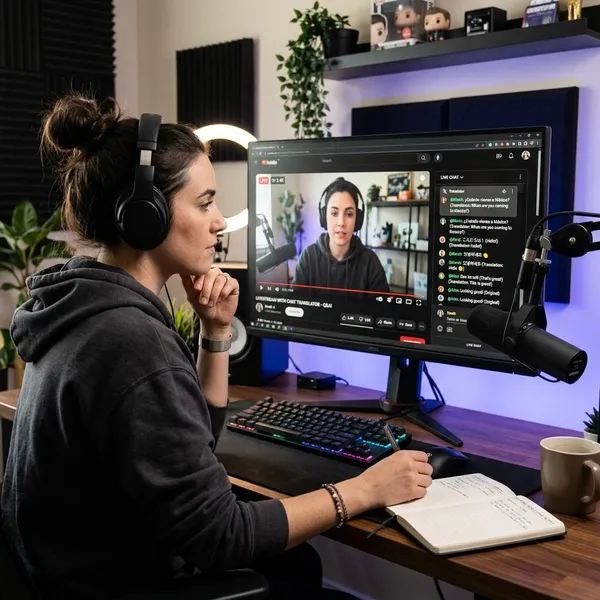
The best chat translator is not always the one with the most features. For everyday use, prioritize language support, access to the original message, readable layout, and sensible permissions. Paid extras only matter if they solve a real problem in the way you watch.
Supported languages
Check the actual languages you need, not just whether the tool claims broad coverage. If you mostly watch Japanese streams with English output, test that pair directly. If you follow multilingual communities where people mix English, Korean, Spanish, emojis, and slang, expect more uneven results.
Access to original messages
Original-message access is one of the most important features. Live chat is too short and informal for machine translation to be trusted blindly.
This matters most in higher-risk situations: moderating a heated chat, replying as a creator, or judging whether a message is offensive. For casual viewing, a rough translation is usually acceptable; for decisions that affect other people, compare the original whenever you can.
Translation speed and readability
A usable translator should keep up with normal chat speed and place translations where your eyes can follow them. If you have to hunt for the translated line, the tool will feel tiring even when the translation quality is decent.
- Acceptable: a small delay in slow or moderate chat.
- Frustrating: translations arriving after the conversation has moved on.
- Not worth using: text overlapping the video, hiding usernames, or separating translations from originals.
Free limits and paid features
Free versions are often enough if you only watch international streams now and then. Still, check whether the tool limits message volume, languages, translation speed, or display settings.
If you watch long events every week, a free cap can become annoying at exactly the wrong moment. A paid plan only makes sense when it improves something you actually notice, such as fewer interruptions, better layout control, or more stable translation during busy streams.
Permissions and data handling
A chat translator may need to read live chat text, but it should explain what it does with that text. Look for a clear privacy policy or listing notes that say whether messages are sent to an external translation service, stored, or used for anything beyond translation.
When two tools seem similar, choose the one that is easier to understand and less demanding with permissions. A slightly simpler translator is often the better long-term choice than a powerful extension that leaves you guessing about data handling.
Conclusion
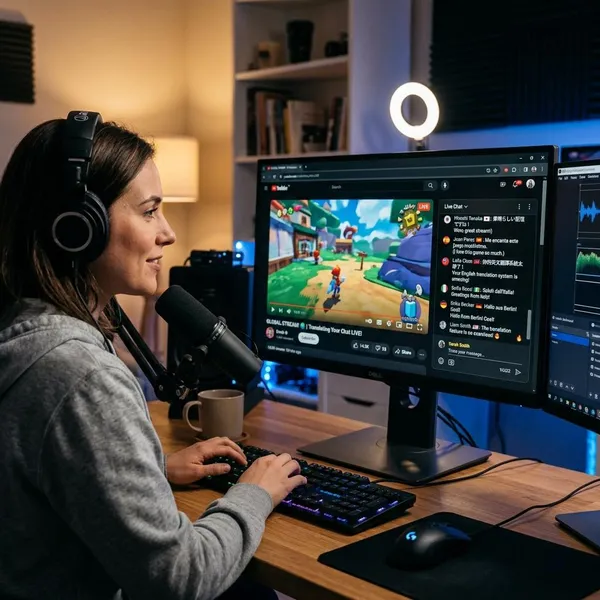
If you can use YouTube's built-in translation as a creator or moderator, start there because it keeps the setup simple and reduces last-minute problems. If you are a regular viewer, a trusted desktop extension is usually the better route, but test it on real streams and pay attention to readability, original-message access, and permissions. The right choice is the one that helps you follow chat without making the stream feel more distracting than before.