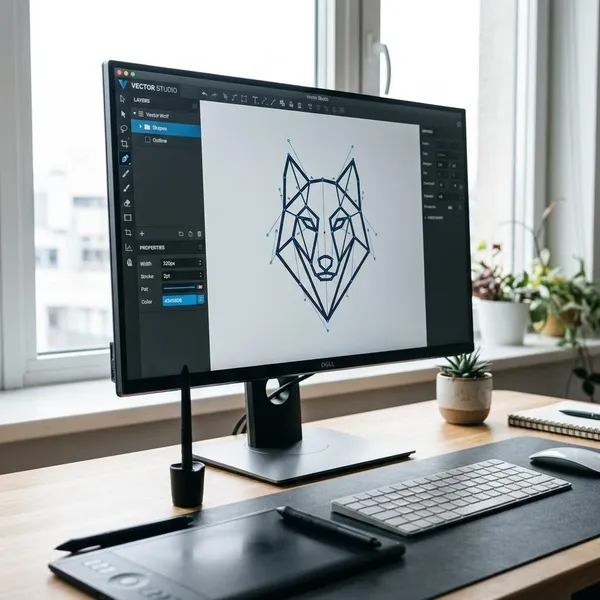
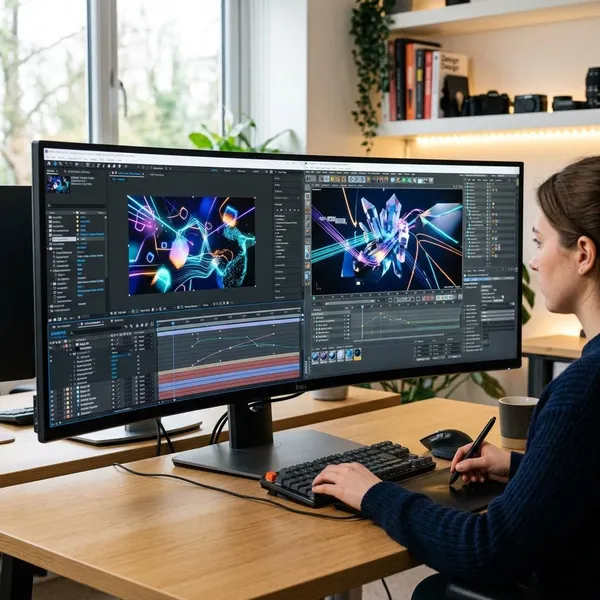
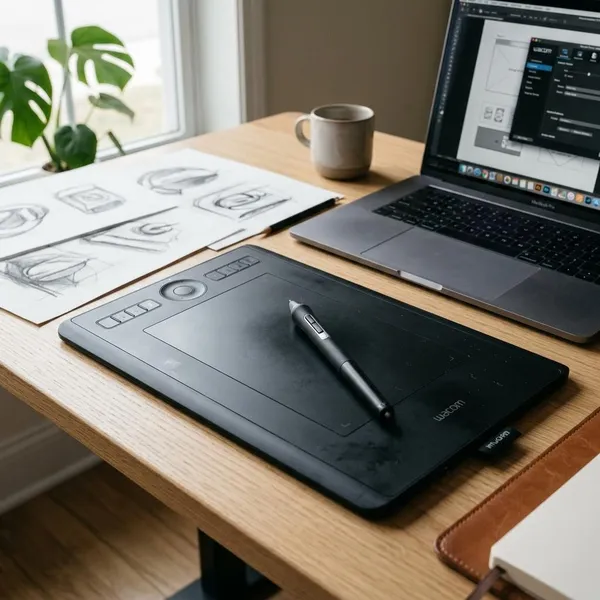
The Wacom Intuos Pro graphic tablet is worth buying if you already know you want a screenless tablet and you use pen input often enough to care about comfort, control, and shortcuts. For occasional sketching or basic photo edits, it can be more tablet than you need. The first thing to check is not the spec sheet, but your actual use: daily creative work, repeated editing tasks, and desk space are what make the Pro model easier to justify.
Wacom Intuos Pro features
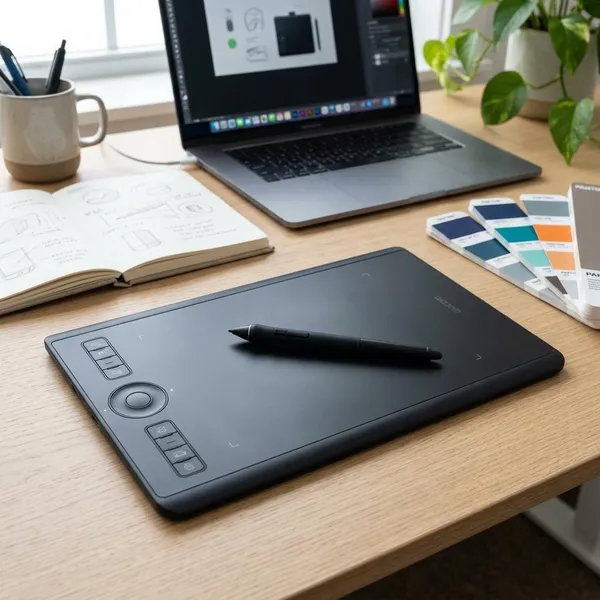
The Intuos Pro is built around a premium screenless workflow: a customizable pen, pressure and tilt input, physical controls, and both wired and wireless connection options. Those features matter most when you spend long sessions retouching, drawing, painting, editing video, or working in apps where small hand movements need to feel predictable.
Pro Pen 3 customization
The Pro Pen 3 is one of the strongest reasons to choose the Intuos Pro over a basic tablet. Its value is not just that it feels "premium"; it gives you more room to adjust grip, balance, and button behavior around the way your hand actually works.
That matters most in longer sessions. A pen that feels fine for a five-minute test can become annoying after an hour of masking hair, inking line art, or sculpting surface details. If you already know you are sensitive to pen weight or side-button placement, this is a practical upgrade rather than a luxury detail.
Pressure and tilt support
Pressure and tilt are where the Intuos Pro earns a lot of its reputation. Wacom lists high pressure sensitivity and tilt support on current models, but the useful part is the smoothness: light strokes should register cleanly, and heavier strokes should build without feeling jumpy.
ExpressKeys and dials
ExpressKeys and dials are easy to underestimate until you set them up for commands you repeat all day. The mistake is filling every button with clever shortcuts before you know what you actually reach for.
Start with friction points: undo, brush size, zoom, pan, rotate canvas, eyedropper, and modifier keys are usually better choices than rarely used menu commands. The dial is especially useful for continuous actions such as zooming, scrolling a timeline, or changing brush size, because it feels less disruptive than tapping keys over and over.
USB and Bluetooth
USB is the safer choice for setup, troubleshooting, and permanent desk use. Bluetooth is cleaner and convenient, especially for a laptop setup, but wired mode removes battery and connection variables when you are trying to work.
Which Intuos Pro size fits you?
Size affects the Intuos Pro more than many buyers expect. The pen technology may be similar across sizes, but the active area changes how much you move your wrist or arm, how the tablet maps to your monitor, and how much desk space you lose.
| Size | Best fit | Main trade-off |
|---|---|---|
| Small | Travel, tight desks, laptop use, light editing | Can feel cramped on large displays |
| Medium | Most home desks, mixed creative work, daily editing | Less portable than Small |
| Large | Wide strokes, large monitors, illustration-heavy work | Needs serious desk space |
Is the Intuos Pro worth it?
The Intuos Pro is worth it when the tablet becomes part of your regular workflow, not when it is bought as a hopeful upgrade that might make you draw more. Its strengths show up through repeated use: better pen control, fewer keyboard interruptions, and a more comfortable screenless setup.
Pen control for detailed edits
Detailed edits are where a pen tablet feels very different from a mouse. In Photoshop, pressure-sensitive control can make masking, brushing, retouching, and local adjustments feel less stiff and more gradual.
Shortcuts for repeat tasks
Shortcut controls are most valuable when they remove interruptions you can feel. If your hand constantly leaves the pen to hit undo, zoom, rotate, or resize the brush, the ExpressKeys and dial can make the whole session feel smoother.
Do not judge them by how many buttons exist. Judge them by how many annoying movements they eliminate from your most common project.
Premium cost for casual use
The Intuos Pro is not the best value if you draw once in a while, use a tablet mainly for signatures, or only need basic cursor control. In that situation, the premium build and pen tuning may be nice, but they will not be used enough to matter.
Screenless drawing takes practice
Screenless drawing has a real learning curve because your hand moves on the tablet while your eyes stay on the monitor. Some people adapt quickly; others need repeated short sessions before it feels natural.
If you want the most paper-like experience immediately, a pen display may feel easier. If you care more about a cooler screen, lower cost than many displays, flexible posture, and a lighter desk setup, a screenless tablet can be a better long-term fit.
How to set up the Intuos Pro
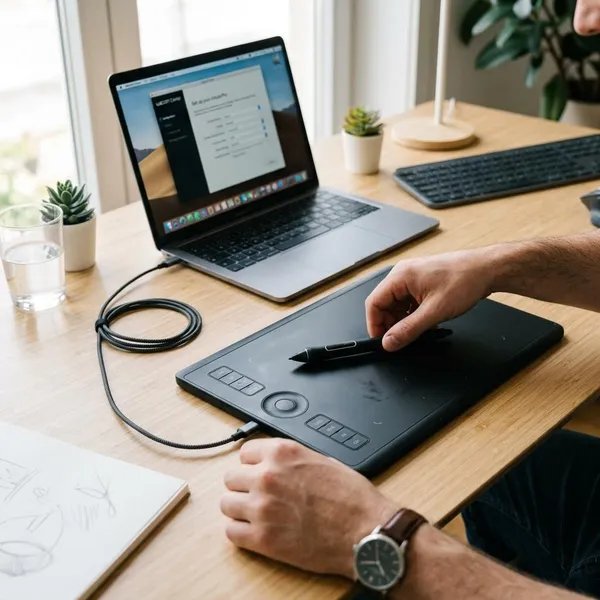
Setup is where many people accidentally make a good tablet feel worse than it is. The defaults may work, but they are rarely ideal for your hand, your monitor, and your main apps.
Install the Wacom driver
Install the current driver from Wacom's official support page before judging the tablet. The driver controls pressure behavior, mapping, ExpressKeys, app profiles, and firmware-related settings.
If you previously used another tablet brand, remove old drivers if you run into pressure or cursor issues. Driver conflicts are a common reason a new tablet feels broken when the hardware is fine.
Connect the tablet
Use USB for the first setup. It is the most predictable way to confirm that the tablet, pen, and driver are all working before Bluetooth adds another variable.
Once everything behaves correctly, Bluetooth is fine for a cleaner desk or a laptop that moves around. Keep the cable nearby if you work for long sessions and do not want charging or connection status to become one more thing to think about.
Map your drawing area
Mapping should match the screen you actually work on. If your creative app is usually on one monitor, map the tablet to that monitor instead of stretching it across every display.
For multi-monitor desks, this one setting can make the biggest comfort difference. A tablet mapped across two wide screens can feel too sensitive because your hand movement covers too much screen space. Start with one display, then expand only if your workflow truly needs it.
Adjust pen pressure
Set the pressure curve to your hand rather than forcing your hand to match the default. A light-handed user may need a softer curve to reach full brush response comfortably, while a heavy-handed user may prefer a firmer curve to avoid accidental thick strokes.
Test pressure inside your main app, not only in the Wacom settings panel. Brush engines vary, so Photoshop, Clip Studio Paint, and other programs may need slightly different adjustments.
Set app shortcuts
App-specific shortcuts are worth setting up, but keep the first version simple. A messy button layout is worse than using the keyboard.
- Create one profile for your main creative app.
- Add only frequent commands such as undo, zoom, pan, brush size, eyedropper, or a modifier key.
- Test it on a real project for 20 to 30 minutes.
- Change what feels awkward after a few days, when your hand has had time to learn the layout.
The goal is not to use every control. The goal is to make the commands you repeat most feel almost automatic.
Conclusion
The Intuos Pro is a strong buy when you want a premium screenless tablet for regular creative work and you are willing to spend time setting it up properly. Choose Medium if you are unsure, go Small for travel or tight desks, and pick Large only when your drawing style or monitor setup truly needs the space. If your use is occasional, a cheaper tablet is the more sensible choice; if pen control and repeat-task speed matter every week, the Pro starts to feel like a tool rather than an expensive accessory.