You can livestream on Instagram from a laptop if your account has Instagram Live Producer and you use software that can send a custom RTMP stream. The first thing to check is not your webcam or OBS settings; it is whether Create > Live video appears on instagram.com for your account. If it does, a laptop setup can be a good choice for tutorials, interviews, product demos, or any live where better audio and a more controlled layout matter.
Can you go live on Instagram from a laptop?
Yes, but usually not by simply opening Instagram in a browser and clicking your laptop webcam. Instagram's desktop live workflow uses Live Producer, which gives you a stream URL and stream key. Your streaming software then sends the video feed to Instagram.
This is worth using when a phone feels too limiting. A casual chat with followers may still be easier from your phone, but a class, webinar-style Q&A, product walkthrough, or guest interview is often easier to manage from a laptop.
Use Instagram Live Producer in your browser
Instagram Live Producer is the browser page where you create the live session, add a title, choose the available audience option, and get the streaming details. If your account has Practice mode, use it before your first real broadcast; it lets you check the full setup without notifying followers.
If Live Producer is missing, do not spend an hour changing OBS settings. Try a current browser, refresh your login, and check your account status first. If the option still is not there, the account may not have access yet.
Send video through compatible streaming software
The laptop sends video through a tool such as OBS Studio, Streamlabs, StreamYard, or another studio that supports custom RTMP. That tool becomes the place where you choose your camera, microphone, screen share, scenes, and graphics.
- Use a laptop when you need screen sharing, better sound, overlays, or a guest workflow.
- Use a phone when the live is quick, informal, and does not need production controls.
- Test first if the live is public-facing for a launch, paid class, or client event.
What do you need for Instagram desktop livestreaming?
The setup has four real requirements: eligible Instagram access, a laptop browser that can open Live Producer, streaming software with RTMP support, and a stable audio-video setup. If one part is missing, the stream may fail even if everything else looks correct.
An eligible account with Live Producer access
Your account needs access to Instagram Live Producer and live features in general. Access can vary, and Instagram may limit live tools for newer accounts, restricted accounts, or accounts that do not currently meet its platform rules.
A simple check saves time: log in on instagram.com, choose Create, and look for Live video. If it is not there, switching from Mac to Windows or reinstalling OBS will not automatically unlock it.
A laptop with a supported browser
Both Mac and Windows laptops can work. Use an up-to-date browser, close heavy apps before going live, and avoid running downloads, cloud backups, or video calls in the background. Streaming software plus Instagram's preview can use more system resources than a normal browser session.
OBS or another compatible streaming tool
OBS Studio is a common choice because it is free and flexible, but it is not the only option. The important requirement is that the tool lets you enter Instagram's stream URL and stream key as a custom RTMP destination.
- OBS is better if you want detailed control over scenes, sources, and recording.
- A browser-based studio may be easier if you mainly need guests and simple branding.
- A mobile-only live is still simpler if you do not need screen sharing or overlays.
A camera, microphone, and stable connection
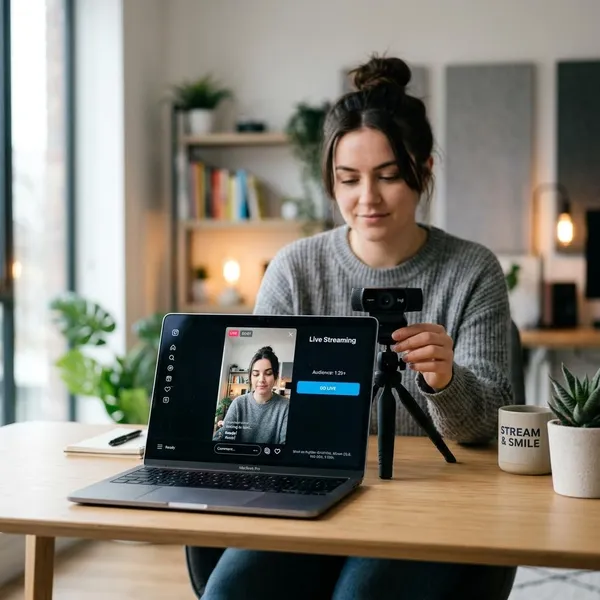
Clear audio matters more than a fancy camera. A basic external microphone placed close to you often improves the stream more than a sharper lens. For video, design the scene for a phone screen rather than a wide desktop canvas.
- Frame vertically: use a 9:16 layout when possible so faces and text do not look tiny on mobile.
- Check the mic in the room: listen for echo, fan noise, keyboard taps, or low volume.
- Protect upload stability: pause large uploads and use wired internet if Wi-Fi is unreliable.
How to livestream on Instagram from a laptop
The workflow happens in two places at once: Instagram creates the live destination, and your streaming software sends the video. Keep that order in mind, because starting OBS alone does not make you live on Instagram.
Open Instagram and select Create then Live video
Log in to Instagram on your laptop, open Create, and choose Live video. If the option is missing, try another current browser and check whether your account can use Live features before troubleshooting your camera or encoder.
Add a title and choose the available audience option
Use a title that tells viewers what they are joining, not just a vague label like "Live now." If Practice is available, choose it for your first test or for a high-pressure stream where a muted mic or wrong layout would be embarrassing.
Copy the stream URL and key
Live Producer will show a stream URL and stream key. Copy both carefully and treat the stream key like a password. For a new broadcast, copy the fresh details instead of relying on an old key that may no longer work.
Enter both in your streaming software
In OBS, this is usually under Settings > Stream, where you choose a custom RTMP server and paste the URL and key. Other streaming tools use different labels, but the idea is the same: Instagram is the destination, and the software is the sender.
Before moving on, check for extra spaces or missing characters. A tiny copy-and-paste mistake can look like a platform problem because Instagram will simply fail to show the incoming preview.
Set up vertical video and microphone audio
Build your scene for vertical viewing. A 9:16 canvas, readable text, and a camera framed around your face or product will usually work better than a wide desktop layout squeezed into a phone screen.
If you are teaching from slides or sharing a screen, do a quick phone-view test. Small menu text that looks fine on your laptop can be unreadable for viewers watching Instagram Live on a mobile screen.
Start sending video and check Instagram's preview
Click Start Streaming in your software, then wait for Instagram Live Producer to show the preview. Use this pause to check the practical things viewers will notice first: voice level, framing, sync, and whether the scene fills the screen correctly.
- No preview: recheck the stream URL and key.
- No sound: confirm the correct microphone source is active.
- Cropped layout: adjust the scene before going public.
Click Go Live in Instagram
When the preview looks right, click Go Live inside Instagram. This final click is what makes the broadcast public; starting the stream in OBS only sends the feed to Live Producer.
How to end your Instagram desktop livestream
Ending the broadcast in the right order prevents the stream from looking like it froze. Plan the final minute just like the opening: give viewers a clear sign-off, then close the live session on Instagram before stopping the software feed.
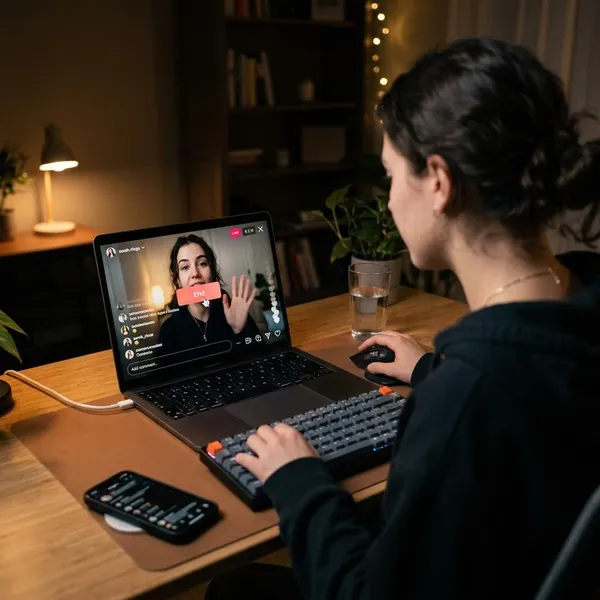
End the broadcast in Live Producer
Click the end option in Instagram Live Producer first. This tells Instagram the public broadcast is finished and avoids leaving viewers with a frozen last frame from your encoder.
Stop streaming in your software
After Instagram has ended the live video, return to OBS or your chosen studio and stop the stream there. If you were recording locally, stop the recording only after you are sure the live session has fully ended.
Save or share the recording if available
Instagram may offer replay, archive, or sharing options depending on your account settings and current platform features. If the live contained useful teaching moments, product demos, or Q&A answers, also keep a local recording when possible so you have cleaner material for clips later.
Conclusion
A laptop is the better Instagram Live setup when you need control, cleaner sound, screen sharing, or a more prepared presentation, but it only works if your account has Live Producer and your software can send a custom RTMP stream. Check access first, test in Practice mode if available, and keep the setup simple enough that you can manage it while talking to viewers.