Canva graphic design software is a good fit when you need clean everyday visuals quickly, not when you need deep professional editing control. Start by choosing where the design will be used, then let Canva's templates, assets, and sharing tools do the setup work so you can focus on the message.
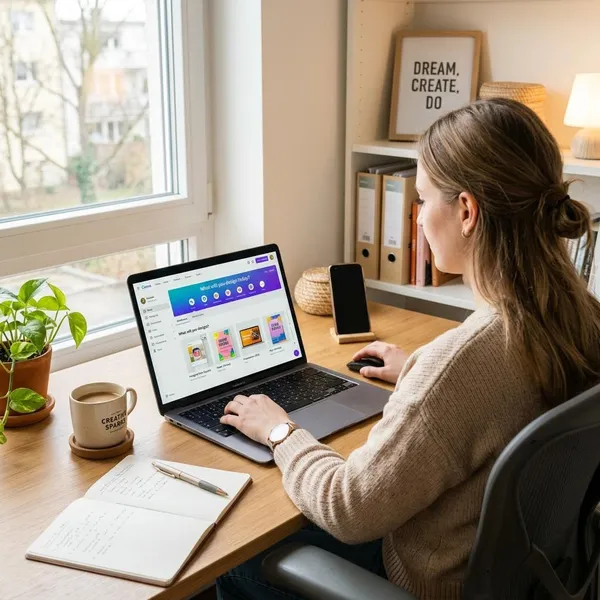
What can you create in Canva?
Canva is strongest for practical, repeatable projects: social posts, presentations, flyers, simple videos, and quick web pages. It is less suited to work that needs advanced retouching, complex vector illustration, or highly technical print production.
Social posts and ads
Social content is one of Canva's easiest wins. You can choose formats for Instagram posts, stories, Facebook ads, LinkedIn graphics, Pinterest pins, YouTube thumbnails, and more without looking up dimensions each time.
For a small shop running a weekend sale, a template can become a usable promo by swapping the headline, product photo, colors, and call to action. The main mistake to avoid is cramming in too much text; social graphics usually work better when one message is obvious at a glance.
Presentations and infographics
Canva works well for presentations when you care more about clarity than advanced slide automation. Templates help keep title slides, section breaks, charts, and image-heavy slides visually consistent.
Infographics are useful when a topic needs to be scanned quickly, such as a class summary, a simple report, or a process explanation. Keep the structure tight: one main idea, a few supporting points, and visuals that explain rather than decorate.
Flyers and business cards
Flyers, postcards, menus, labels, and business cards are all common Canva projects. The preset print-style layouts save time because spacing, hierarchy, and basic proportions are already built in.
Videos and animations
Canva's video tools are best for short clips, simple ads, slideshow-style videos, animated text, and lightweight social content. They are not a replacement for advanced editing software, but they are much easier for beginners.
Simple websites
Canva can publish simple one-page websites for portfolios, event pages, link hubs, class projects, or quick campaign pages. It is a convenient option when you need something online without learning web design.
Use a dedicated website platform instead if you need advanced SEO controls, ecommerce, databases, custom development, or a larger site structure. Canva websites are best for simple pages where speed matters more than technical flexibility.
Key Canva design tools
The most useful Canva tools are the ones that remove small points of friction: templates, built-in media, brand controls, resizing, quick image edits, AI assistance, and shared feedback. These features matter because everyday design work is often slowed down by setup, not by creativity.
Templates and layouts
Templates are useful because they solve the blank-page problem. A good layout already has sensible spacing, font pairing, image placement, and visual order, so you can spend your time improving the message.
Pick templates by purpose first and style second. A sale graphic needs strong headline space; an invitation needs clear event details; a presentation needs slides that stay consistent from start to finish.
Photos, fonts, and graphics
Canva includes stock photos, icons, shapes, illustrations, stickers, video clips, audio, and many fonts. That all-in-one library saves time because you do not have to download assets from several places before you can begin.
Be selective. Mixing too many font styles or unrelated graphics is one of the fastest ways to make a design feel amateur. Two fonts and a small group of matching visual elements are usually enough.
Brand Kits
Brand Kits help when you use the same logos, colors, and fonts across many designs. For a weekly newsletter graphic, monthly flyer, or regular social schedule, this saves more time than manually rebuilding your look each time.
Resizing and image editing
Resizing is valuable when one idea needs several versions, such as a square post, story graphic, banner, and flyer. Paid resize tools can speed this up, but you should still review the result because automatic resizing can move text or crop images awkwardly.
- Check the crop: faces, products, and logos should not be cut off.
- Check text size: a headline that works on a flyer may be too small on mobile.
- Check contrast: filters and background blur should make text easier to read, not harder.
AI design tools
Canva's AI tools can help with first drafts, image ideas, layout suggestions, text variations, and routine edits. They are useful when you know the goal but do not want to start from a blank canvas.
Treat AI output as a starting point, not a finished design. Review wording, licensing details, brand fit, image realism, and spacing before using the result publicly.
Comments and collaboration
Comments and shared editing are practical when a design needs approval. Feedback stays attached to the actual file, which is much clearer than sending screenshots back and forth.
For a family invitation, this may simply mean one person fixes a date before printing. For a small business, it can mean the owner, designer, and social media helper all review the same campaign asset without losing track of the latest version.
How to create your first design
The easiest first Canva project is something small: one social post, one flyer, one invitation, or one simple slide. Do not start by exploring every feature. Start with the final use, then make the design clear enough that someone understands it in a few seconds.

Choose a format
The format should match where the design will appear. A YouTube thumbnail, Instagram story, A4 flyer, and business card all need different proportions, so choosing the right canvas first prevents resizing headaches later.
If you do not know the dimensions, search by project name inside Canva. Typing "presentation," "business card," or "Facebook ad" is usually faster and safer than guessing a custom size.
Pick a template
Choose a template that needs the fewest structural changes. If you have to move every element, shrink every text box, and replace the whole layout, it was probably the wrong template.
Add text and images
Replace placeholder content with your own, then cut anything that does not help the viewer act. A good first design usually has one main headline, one supporting detail, and one clear visual.
Images should explain the message. A real product photo, event image, or relevant portrait usually works better than a pretty but unrelated stock photo.
Adjust colors and spacing
Colors and spacing are where many beginner designs improve quickly. Use enough contrast for text to be readable, leave breathing room around important elements, and avoid using every color in the template just because it is available.
- Too crowded? Remove an element before shrinking everything.
- Hard to read? Increase contrast or use a simpler background.
- Feels messy? Align edges and keep spacing more consistent.
Download or share
Export the design based on how it will be used. PNG is often fine for digital graphics, JPG can keep image files lighter, PDF is usually better for documents or print, and MP4 fits most simple video exports.
Before you send, print, or post it, do one slow final check for spelling, dates, prices, links, margins, and cropped images. These small errors are much easier to fix before the file leaves Canva.
Which Canva plan fits you?
The right Canva plan depends less on features and more on your actual workflow. Occasional users can often stay on Free; frequent creators may save time with Pro; teams need stronger brand and approval controls; larger organizations usually care about governance and security.
| Plan type | Best fit | Upgrade when |
|---|---|---|
| Free | Occasional personal, school, or simple business designs | You keep hitting asset, resizing, or brand limits |
| Pro | Solo creators and small businesses designing often | Premium assets, Brand Kits, background removal, or resize tools save real time |
| Business | Teams that need shared branding and review workflows | Several people create public-facing content |
| Enterprise | Larger organizations with admin, security, and governance needs | Brand control and permissions matter across departments or locations |

Conclusion
Canva is at its best when you need attractive everyday design without turning the project into a full design job. Start with Free if your needs are simple, move to Pro when repeated tasks start costing time, and consider team plans only when brand consistency and approvals become part of the workflow.