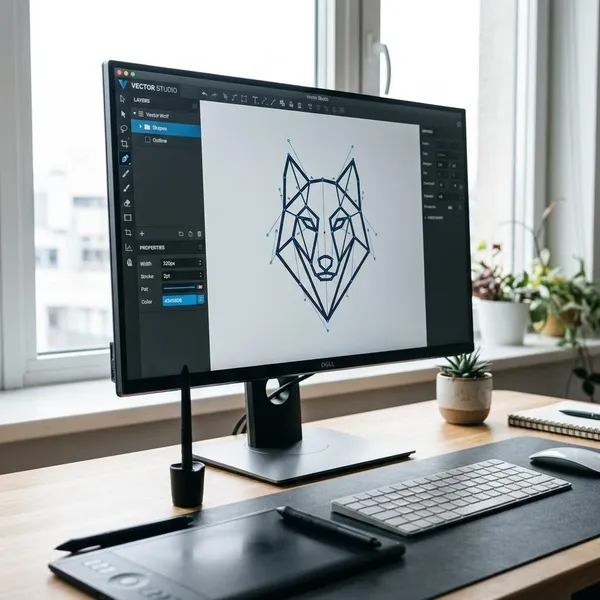
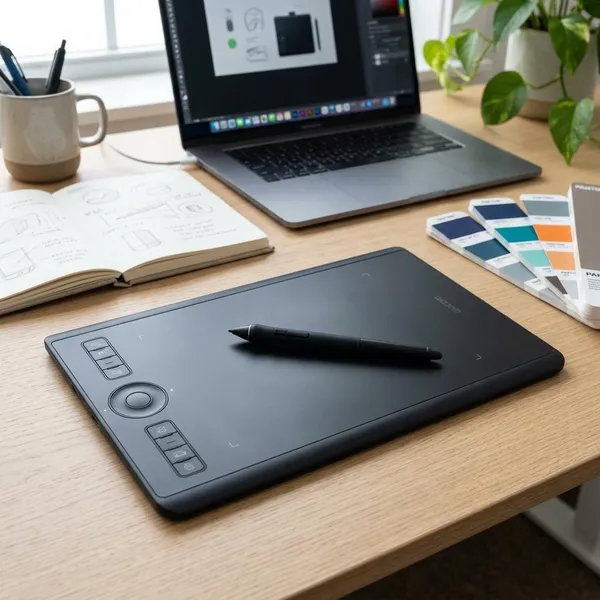
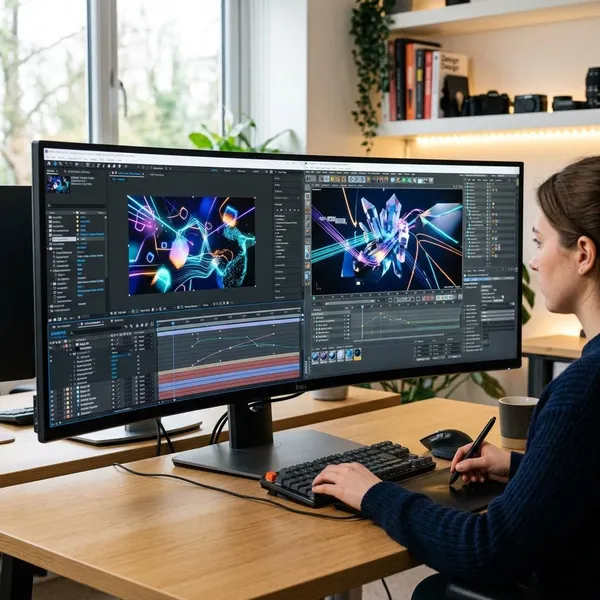
If you are choosing a drawing and graphics tablet, decide first where you want to draw: at a desk, directly on a screen, or anywhere without a computer. A screenless pen tablet is usually the best-value starter choice, a pen display feels more natural for detailed artwork, and a standalone tablet is the easiest option if portability matters more than price.
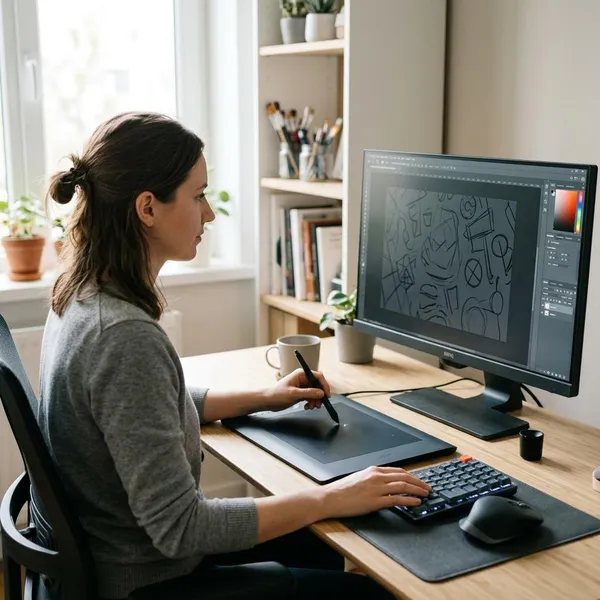
What is a graphics tablet?
A graphics tablet is a pen-based device for drawing, painting, handwriting, retouching photos, or controlling creative software more precisely than you can with a mouse. Some tablets are just input pads, some include a screen, and some work as full tablets with their own apps.
The best choice depends less on the biggest spec number and more on your working habit. If you already sit at a computer, a connected tablet can make sense. If you like drawing on the sofa, during travel, or between classes, a standalone model may be worth the extra cost.
Drawing tablet types
Most buyers should compare three categories before looking at brands. This prevents a common mistake: buying a powerful tablet that does not match the way you actually want to work.
| Tablet type | Best fit | Main trade-off |
|---|---|---|
| Screenless pen tablet | Beginners, photo editors, desktop users on a budget | You draw on the tablet while looking at another screen |
| Pen display | Artists who want to draw directly on the artwork | Usually costs more and often needs a computer |
| Standalone tablet | People who want to draw anywhere without a separate computer | Higher total cost, especially with stylus and storage upgrades |
Drawing tablets to consider
These models are worth comparing because they cover different needs rather than one narrow price range. Treat them as starting points: the right pick is the one that fits your device, apps, space, and budget.
Wacom Intuos Small for beginners
The Wacom Intuos Small is a safe first tablet if you want to learn digital drawing without spending much. It is compact, widely supported, and simple enough for sketching, retouching, note-taking, and basic creative work.
Choose it if your budget is tight, your desk is small, or you are not yet sure whether digital art will become a regular habit. Skip it if you already know you dislike drawing while looking at a separate monitor.
Huion Inspiroy 2 S for budget buyers
The Huion Inspiroy 2 S is attractive when price matters most. It gives beginners a usable pen tablet experience with shortcut controls and a portable size, often at a lower cost than premium-brand alternatives.
It is a sensible choice for occasional drawing, school use, and light editing. Before buying, check recent reviews for your operating system because budget tablets can vary more in driver polish and setup experience.
Wacom Intuos Pro Medium for desktop work
The Wacom Intuos Pro Medium is better suited to regular desktop work than quick experimentation. The larger active area gives your hand more room, which helps with smoother strokes and less cramped movement during longer sessions.
This is the model to consider if you already draw, edit photos, or design often and want precision without moving to a display. It is not the cheapest route, but it can be a smarter long-term buy than replacing a small beginner tablet after a few months.
Wacom Movink 13 for a portable display
The Wacom Movink 13 fits the person who wants to draw on a screen but does not want a large studio display taking over the desk. It gives a more direct drawing experience while staying easier to pack beside a laptop.
iPad Air for standalone drawing
The iPad Air is a strong middle choice for standalone drawing. It runs popular creative apps, has enough performance for most hobby and semi-serious art, and also works as a normal tablet for notes, browsing, reading, and streaming.
Remember to include the Apple Pencil in your budget. Storage also matters if you keep many high-resolution canvases or layered project files.
iPad Pro for a premium setup
The iPad Pro is the premium standalone option for buyers who want strong performance, a high-end screen, and enough power for heavier creative projects. It makes the most sense if drawing is already a serious hobby, study need, or paid work.
For casual sketching, it may be more device than you need. For large files, demanding brushes, color-focused work, or a setup that also handles communication and file management, the higher price can be easier to justify.
What to check before buying
Once you know the tablet type, check the details that affect daily comfort. Start with compatibility and drawing area, then look at pen feel, screen quality, power, and the full accessory cost.
Drawing area
The drawing area is the active surface that tracks your pen. Small tablets are easy to carry and fine for photo edits or casual sketches, but they can feel tight if you draw with broad arm movements.
For most desktop beginners, a medium size is the safer comfort pick if the budget allows. A tiny tablet can work for temporary use, but it is not always pleasant for long drawing sessions or large monitors.
Pen feel and pressure
A pressure sensitivity drawing tablet changes line weight, opacity, or brush behavior based on how hard you press. High pressure-level numbers look impressive, but smooth response matters more than the headline spec.
- Initial activation: the pen should start drawing without needing an awkward amount of pressure.
- Line control: look for reviews mentioning wobble, lag, or uneven curves.
- Grip comfort: a pen that feels good for ten minutes may still be tiring after an hour.
- Surface feel: glass is smooth; textured surfaces can feel more controlled for sketching.
Screen quality
Screen quality matters only if you are buying a pen display or standalone tablet. For artwork, check brightness, glare, color performance, and whether the size feels usable in your real workspace.
A 13-inch display is easier to carry and store, while a larger screen gives more room for panels, reference images, and detailed brushwork. If you mostly draw at a desk, size may matter more. If you move around often, weight and brightness can become more important than a bigger canvas.
App and device support
Compatibility should be checked before price comparisons get too serious. Make sure the tablet works with your operating system, your ports, and the apps you actually plan to use.
- Confirm the platform: Windows, macOS, iPadOS, Android, and ChromeOS support can differ by model.
- Check the app version: Procreate, Photoshop, Krita, Clip Studio Paint, and Affinity do not behave identically on every device.
- Look at recent setup feedback: driver problems and app support can change over time.
This is especially important when comparing iPad vs Wacom for drawing. An iPad gives freedom and excellent mobile apps, while a Wacom connected to a computer may suit people who need full desktop software and keyboard-heavy workflows.
Connections and power
Cable requirements can make or break the experience. Some tablets need only one USB cable, while some pen displays may need USB, video output, and extra power.
If you plan to carry the tablet between home, school, and work, favor a simple connection. If it will stay on one desk, a less tidy cable setup may be acceptable as long as it is reliable. For standalone tablets, shift the same question to battery life: will it last through the kind of session you actually draw in?
Pens and accessory costs
The listed tablet price may not include everything you need. Check whether the pen is included, whether replacement nibs are easy to buy, and whether you will need a stand, case, screen protector, cable, adapter, or paid drawing app.
Conclusion
Pick the tablet that removes the biggest barrier in your own routine. If cost and control matter most, start with a screenless pen tablet; if drawing directly on the artwork matters most, consider a pen display; if you want to create wherever you are, a standalone tablet is usually the easier everyday choice. The best purchase is the one you will actually keep using, not the one with the longest spec sheet.