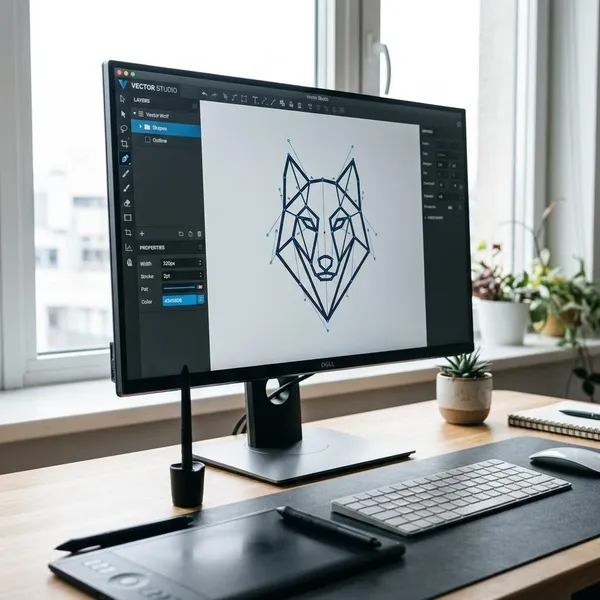
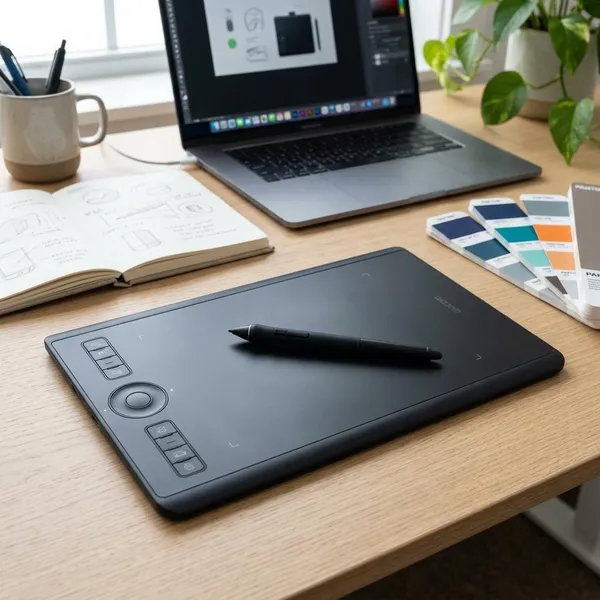
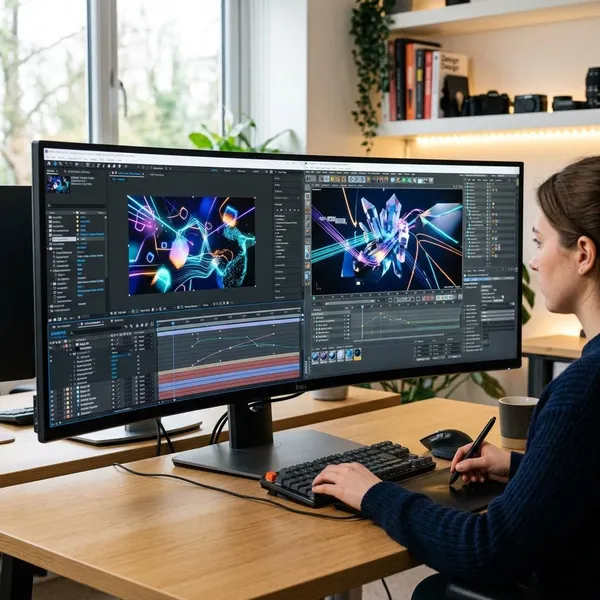
If you are choosing between dual monitor or ultrawide for graphic design, start with your workflow rather than the screen size. Dual monitors usually suit designers who want a main canvas plus a separate space for references, briefs, messages, or client calls. An ultrawide is better when you want one continuous workspace for wide layouts, timelines, or several panels without a bezel in the middle.
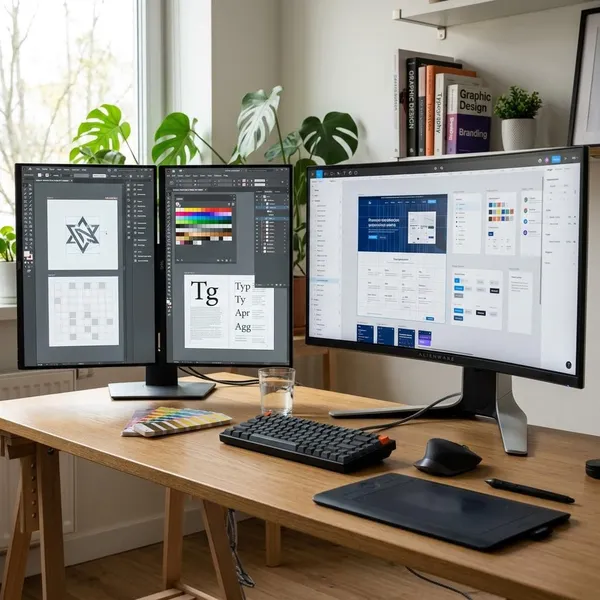
Which setup suits your design work?
The fastest way to decide is to picture a normal project, not an ideal desk setup. If you spend most of the day moving between Illustrator, Photoshop, Figma, a browser, a PDF brief, file folders, and chat, the layout of your windows matters as much as the monitor itself.
For general graphic design, dual monitors are often the safer default because they create clear zones. An ultrawide feels cleaner and more spacious when your work benefits from one wide visual field. The first question is simple: do you want separation, or do you want continuity?
Dual monitors for separate apps and references
Choose dual monitors if your design work usually has a "main task" and a "support task." One screen can hold the active design file, while the other holds references, brand guidelines, feedback, email, exported proofs, or a shared call window.
The weak point is consistency. Two screens can differ in brightness, white point, sharpness, or scaling, especially if they are not the same model. For color-critical work, treat one display as the trusted primary screen and use the other for support material.
Ultrawide for one continuous workspace
An ultrawide makes sense if you dislike the hard break between two displays. A 21:9 screen can keep a large canvas, tool panels, browser references, and file windows visible without the center bezel that interrupts wide layouts.
Dual monitors vs ultrawide
Dual monitors and ultrawides solve different annoyances. Dual monitors reduce window overlap by giving each task a physical place. Ultrawides reduce visual breaks by giving you one large desktop. Neither is automatically more professional.
Canvas space and bezels
The bezel question matters only if your work crosses the middle of the screen. A website mockup, video timeline, panoramic image, or dashboard can feel better on an ultrawide because your eyes move across one uninterrupted surface.
Dual monitors are better when you rarely stretch one item across both screens. In that case, the split becomes useful: canvas on the main display, references and notes on the second. A designer working on social graphics with constant client comments may benefit more from that separation than from one wider panel.
- Better fit for dual monitors: reference-heavy branding, print layouts, client review calls, mixed app use.
- Better fit for ultrawide: wide mockups, timelines, multi-artboard views, dashboards, cleaner single-screen setups.
Window layouts
Window management is where dual monitors feel easiest. Maximize the design app on one screen and place the brief, browser, assets, or chat on the other. You do not need much setup, and the layout stays predictable.
An ultrawide can be just as efficient, but it needs better habits. Use Windows Snap Layouts, FancyZones, macOS tiling tools, or the monitor's own software to create zones. Without that, one large desktop can quickly become a messy spread of half-overlapping windows.
Resolution and text clarity
Screen size can be misleading. A large monitor with low pixel density may feel spacious but soft, while a smaller high-resolution setup can feel clearer and more useful for typography, UI details, and long editing sessions.
| Setup | What it feels like in design work | Watch out for |
|---|---|---|
| Two 27-inch 4K monitors | Very sharp text, lots of total workspace, strong separation | Higher cost and more demand on the computer |
| 34-inch 3440x1440 ultrawide | Comfortable width for everyday design, web work, and timelines | Less total detail than two 4K displays |
| 49-inch 5120x1440 ultrawide | Feels like two 27-inch 1440p screens joined together | Needs a large desk and disciplined window placement |
Color accuracy and uniformity
For color-sensitive work, panel quality matters more than the dual-versus-ultrawide debate. A single excellent monitor is usually better than two average displays if you need to trust color, gradients, skin tones, product images, or brand colors.
An ultrawide is easier to manage because you only need to calibrate one panel. Dual monitors can work well too, but matching them takes more care. Even two identical models can drift slightly over time.
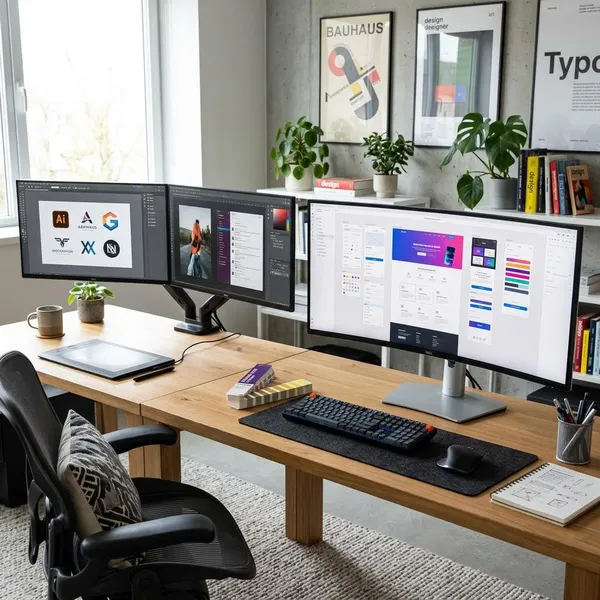
How to choose your monitor setup
Before comparing prices, decide what problem you are trying to remove. Are you tired of hiding references behind your design app? Are timelines too cramped? Do client calls feel awkward because you need to share one window and hide another? The right answer becomes clearer when you name the daily friction first.
Map your apps and references
Open one recent project and list the windows you actually used. If you had a design app, browser references, a PDF brief, file folders, chat, and feedback open at the same time, dual monitors may reduce daily rearranging.
If your work is mostly one large canvas with panels around it, an ultrawide may feel calmer. A UI designer comparing several artboards or a video editor working across a timeline may get more value from horizontal continuity than from a separate second screen.
Compare usable screen space
Treat resolution, aspect ratio, and scaling as the real workspace measurement. "34-inch" or "49-inch" tells you the physical size, but not how much sharp, usable room you get for panels, text, previews, and references.
- Need maximum detail: compare 4K options before choosing a larger but lower-density screen.
- Need wide layouts: look at ultrawide resolutions and how many columns or panels fit comfortably.
- Need separation: two screens may feel more useful than one wider screen with the same total width.
Check color specs
Start with the work you deliver. For web, social, and UI design, strong sRGB coverage is usually the minimum worth caring about. For print, photography, packaging, or brand-critical work, look more carefully at Adobe RGB, DCI-P3, calibration options, and real-world reviews.
Do not buy two cheaper panels just because the total screen area looks impressive. If color matters, a better primary monitor will usually improve your work more than extra inches.
Measure your desk
A monitor that fits on paper can still feel wrong in daily use. Measure desk width and depth, then think about where your keyboard, drawing tablet, speakers, laptop stand, dock, and notebooks will sit.
Large ultrawides need enough viewing distance so the edges do not feel too close. Dual monitors need more horizontal room, but you can angle them inward and use monitor arms to free desk space. If your desk is shallow, this may decide the choice before the specs do.
Check display connections
Ports are a quiet deal-breaker. A laptop may support one external monitor easily but struggle with two high-resolution displays or a large ultrawide at the settings you want.
- Check the maximum external display count for your exact laptop or desktop model.
- Confirm supported resolution and refresh rate for each port, not just the connector shape.
- Avoid weak adapter chains if you need stable daily use for client work.
- Plan for a dock if your laptop has limited USB-C or Thunderbolt ports.
Budget for stands and calibration
The monitor price is rarely the full setup cost. Dual monitors may need arms, matching cables, a dock, and more desk management. An ultrawide may cost more upfront but can reduce the number of stands and cables.
Set aside money for the parts that affect comfort and trust: a stable arm or stand, the right cable, a reliable dock if needed, and calibration if your work depends on accurate color. A cheaper screen setup is not really cheaper if it leaves you fighting glare, bad positioning, mismatched color, or unstable connections every day.
Conclusion
For most graphic designers, dual monitors are the better choice when references, feedback, calls, and app switching are part of every project; an ultrawide is the better choice when wide layouts, timelines, and an uninterrupted desktop matter more. Check your workflow first, then desk depth, resolution, color quality, ports, and full setup cost. The best setup is the one that removes daily friction without making color, comfort, or window management harder.