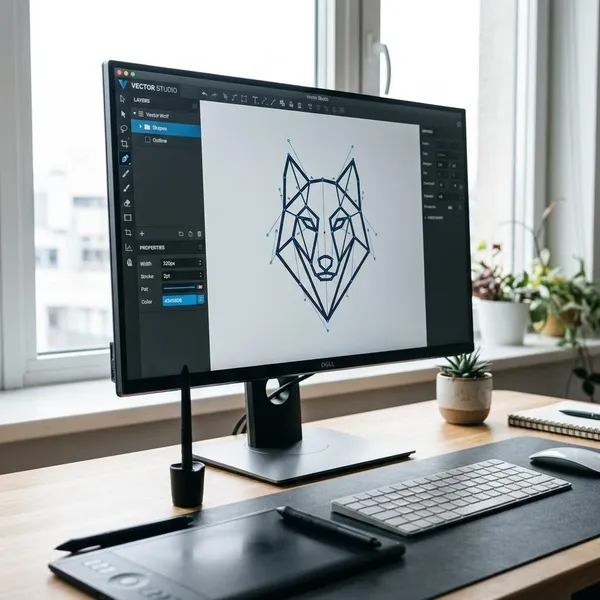
The safest way to choose free graphic design software is to start with the file you need to finish, not with the longest feature list. Canva is best for fast layouts, Inkscape for logos and vectors, GIMP for photo editing, Figma for UI screens, and Krita for drawing or painting.
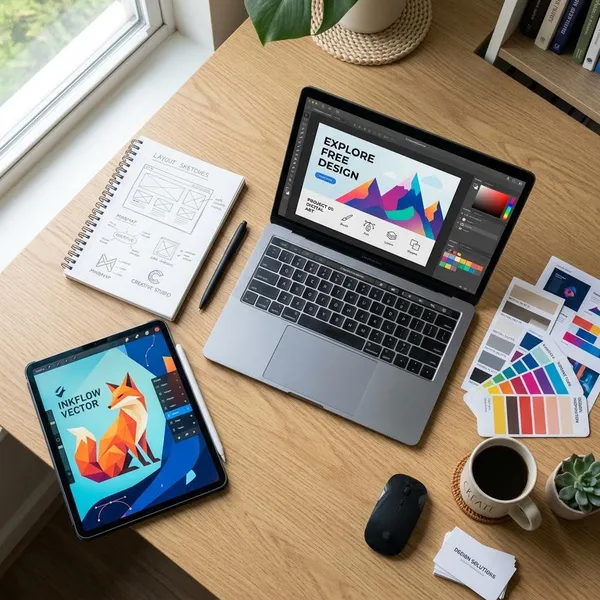
Free graphic design software to try
Most people do not need five design apps. They need one tool that matches the job in front of them. A school poster, a logo for a small shop, a cleaned-up product photo, and an app mock-up all ask for different strengths.
| Pick this tool | When your main project is | Watch out for |
|---|---|---|
| Canva | Social posts, flyers, invitations, quick layouts | Premium templates and locked assets |
| Inkscape | Logos, icons, SVG files, scalable artwork | A more technical learning curve |
| GIMP | Photo edits, retouching, layered raster images | PSD compatibility is not always perfect |
| Figma | Website screens, app UI, wireframes, prototypes | Free-plan team and file limits |
| Krita | Digital painting, illustration, comics, concept art | Less useful for template-based layouts |
Fully free tools vs free plans
"Free" can mean two very different things. Some tools are fully free desktop programs, while others are free plans designed to introduce you to a paid platform. That difference matters most when the project is important, repeatable, or for someone else.
Open-source tools without subscriptions
Open-source tools such as Inkscape, GIMP, and Krita are strong choices when you want long-term access without monthly fees. You install them, keep your files locally, and usually get direct control over common export formats.
- Best for: repeated work, offline use, local storage, and deeper editing control.
- Less ideal for: people who want ready-made templates and instant polished layouts.
- First check: whether the tool exports the exact format your project needs.
The trade-off is comfort. These programs can feel denser at the beginning, especially if you are used to browser apps with drag-and-drop templates. They reward patience more than they reward rushing.
Free plans with paid extras
Free plans from tools such as Canva, Figma, Adobe Express, or similar web platforms are often easier to start with. You can open a browser, choose a template, invite someone to comment, and finish a simple design without installing anything.
The risk is finding the limit at the wrong moment. A transparent background, premium photo, brand kit, resize feature, team space, or higher-quality export may be paid. That is not a problem for every user, but it is a bad surprise when a print deadline or client delivery is already close.
Free-plan limits to check
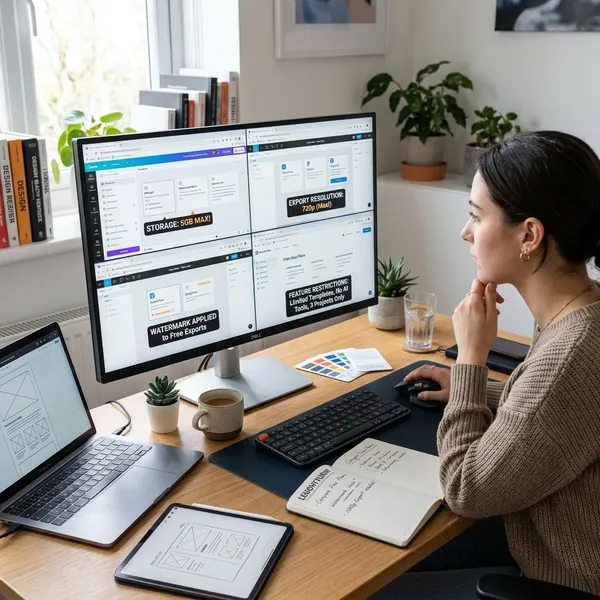
Before building an important design in a free plan, check the final step first: can you export the right file, at the right quality, with the assets you used? Many free tools feel generous while editing, then become restrictive when you try to finish the job.
Premium templates and assets
Template libraries can look huge until you filter out the paid items. If you are making an event poster, menu, or social post on a deadline, start with free-only templates and free-only assets so you do not have to replace half the design at the end.
Also check usage rights for stock photos, icons, fonts, and music if the design is for a business or client. The software may be free to use, but individual assets can have separate rules.
Export restrictions
Export limits decide whether the tool is actually usable for your project. A social post may only need a clean PNG or JPG, but a logo often needs SVG or PDF, and a print flyer may need a high-resolution PDF with the correct size settings.
- For logos: look for vector export such as SVG or a print-friendly PDF.
- For photos: check image size, compression, and whether layers matter later.
- For print: confirm the print shop's preferred format before designing the final file.
- For web graphics: test whether the exported file looks sharp at the display size you need.
Storage and team limits
Storage and collaboration limits are easy to ignore on day one. They become real when you have several drafts, seasonal campaigns, shared folders, or people who need different editing permissions.
A solo user making one flyer may never notice these limits. A small business posting weekly, a student saving class projects all semester, or a freelancer handling several clients can hit them much sooner. If you expect repeated work, check project limits and sharing rules before settling into one platform.
AI usage caps
AI tools can be useful for background removal, resizing, image generation, copy suggestions, or quick variations, but free plans often cap how many times you can use them. Treat AI features as a bonus unless the free allowance clearly covers your normal workflow.
If you only need to clean up one profile photo, a small cap may be fine. If you plan to create weekly marketing graphics with AI-generated images or automatic resizing, the cap may become the main reason the free plan no longer feels free.
Conclusion
The best choice is the one that lets you finish your real project without fighting the tool at the export stage. Use Canva for quick layouts, Inkscape for scalable logo work, GIMP for photo edits, Figma for UI screens, and Krita for art; then test one small file before committing to a full design, especially if the work is for print, business, or a client.