You can stream Xbox gameplay to YouTube, but not with a simple built-in YouTube button on the console. For most players, the real choice is between Streamlabs Console for the least hardware, Remote Play with OBS if you already have a Windows PC, or a capture card if you want the most reliable setup for regular streaming.
Can Xbox stream directly to YouTube?
No. Xbox does not currently offer native YouTube livestreaming in the same simple way many players expect from a console broadcast menu.
That means you need one extra layer between the Xbox and YouTube. The easiest layer is Streamlabs Console, the cheapest if you already own a PC is Remote Play with OBS, and the most dependable long-term setup is usually a capture card with OBS.
Choose your streaming method
Pick the method before changing settings, because each setup solves a different problem. A casual player streaming from a living room does not need the same setup as someone planning weekly streams with a webcam, overlays, and separate microphone control.
| Method | Best fit | Main tradeoff |
|---|---|---|
| Streamlabs Console | Fast setup without a PC or capture card | Usually depends on Twitch as part of the route |
| Remote Play and OBS | Testing YouTube streaming with a Windows PC | Quality depends heavily on your home network |
| Capture card and OBS | Regular streaming with better control | Costs more and takes longer to set up |
Enable YouTube livestreaming
Check YouTube before troubleshooting Xbox settings. A perfect OBS or Streamlabs setup still cannot go live if the channel has not been verified and approved for livestreaming.
Verify your channel
Sign in to the YouTube channel you plan to use, choose Create, then Go Live. If YouTube asks for phone verification, complete that step for the exact channel you want to stream from.
Be careful if one Google account controls multiple channels. Verifying the wrong channel can make everything look connected while the creator channel you actually want to use still cannot go live.
Turn on live access
After verification, follow YouTube's prompts to enable livestreaming. For OBS-based methods, you will use YouTube's streaming software option and connect OBS with your account or stream key.
- Keep the stream key private. Anyone with it may be able to broadcast to your channel.
- Match the account. The YouTube account in Streamlabs or OBS must be the same one with live access.
- Check privacy settings. Use unlisted for tests before going public.
Allow up to 24 hours for activation
Newly enabled YouTube live access can take up to 24 hours to become available. If YouTube shows that livestreaming is still being activated, changing Xbox or OBS settings will not fix it.
Once access is active, run a short unlisted stream. Check video, game sound, microphone volume, and stream health before inviting viewers.
Stream with Streamlabs Console
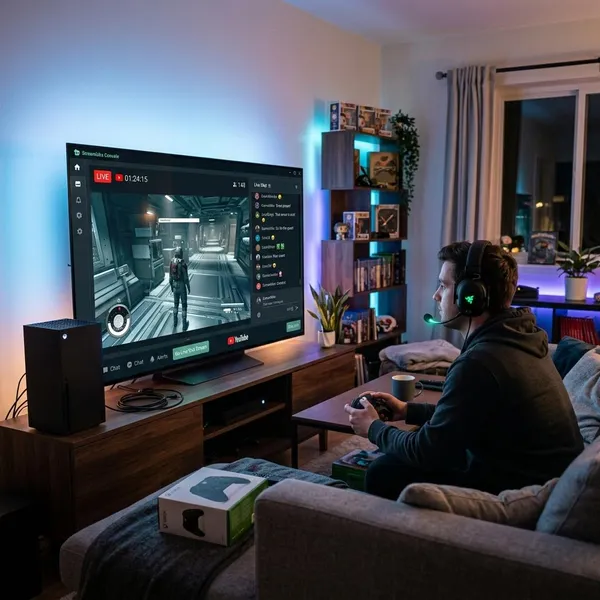
Streamlabs Console is the most convenient route when you do not want a capture card or a full PC streaming station. The tradeoff is that the stream path is less direct than OBS sending straight to YouTube.
Use this method when convenience matters more than maximum control: a bedroom setup, a living-room console, or an occasional stream where you mainly need gameplay, a title, and basic branding.
Connect Twitch and YouTube
Open Streamlabs Console on a browser, phone, or tablet and connect the required accounts. In many Xbox setups, Twitch is part of the source broadcast, while YouTube is added as a destination through Streamlabs.
Before moving on, confirm that the YouTube channel shown in Streamlabs is the same one that has live access enabled. This one check prevents a lot of "connected but not live" confusion.
Enable both destinations
Linking accounts is not always enough. Make sure the destinations you want are switched on inside Streamlabs Console, especially if YouTube was added after Twitch.
- Twitch on: needed for the Xbox broadcast route in this workflow.
- YouTube on: needed for the stream to appear on your YouTube channel.
- Scene checked: make sure your layout fits a normal horizontal YouTube stream.
Open Xbox Live streaming
Start your game, press the Xbox button, then go to Capture & Share and open Live streaming. Choose the Streamlabs option if it is available in your console's streaming menu.
Do not rush past the audio settings. If your mic is muted here, or party chat is not allowed into the broadcast, Streamlabs cannot magically fix it later.
Select Streamlabs and go live
Set the title, confirm Streamlabs as the destination, and start the broadcast. Then open YouTube on another device to make sure the stream actually appears there, not only inside the Xbox or Streamlabs dashboard.
For a first test, keep it unlisted if possible and play for a few minutes. Listen with headphones on another device so you can catch missing mic audio, doubled audio, or game sound that is much louder than your voice.
Stream with Remote Play and OBS
Remote Play with OBS is the budget-friendly middle option. It gives you OBS scenes, overlays, microphone sources, and YouTube control without buying a capture card.
This is best for testing ideas or streaming occasionally. If you already notice lag when using Remote Play normally, fix that first or choose a capture card instead.
Enable Xbox remote features
On your Xbox, open Settings and enable the remote access or remote features option. Menu names can vary slightly by console update, but the goal is to allow your computer to connect to the console.
A wired connection for either the Xbox or the PC helps. If both are on weak Wi-Fi, Remote Play may look acceptable for casual play but become unstable once OBS and YouTube are added.
Open Remote Play on your computer
Open the Xbox app on your Windows computer, sign in with the same Microsoft account, and start Remote Play. Let the Xbox screen run for a few minutes before opening OBS.
Use movement-heavy gameplay for the test, not just the dashboard. Fast camera movement makes compression, delay, and dropped quality much easier to spot.
Capture gameplay and audio in OBS
In OBS, create a scene and add the Remote Play window using Window Capture. If that does not capture correctly, try Display Capture, but be aware that it may show anything visible on that monitor.
- Add your microphone as its own audio source.
- Check whether game sound appears under desktop audio.
- Record a short local sample before going live.
If the OBS meters do not move while the game is making sound, solve that before opening YouTube. A silent preview almost always becomes a silent stream.
Connect YouTube and start streaming
In YouTube, create a livestream using streaming software. In OBS, choose YouTube in Settings > Stream, then connect your account or paste the stream key YouTube provides.
Start with modest output settings rather than pushing your PC and upload speed immediately. For Remote Play, stability matters more than chasing the sharpest possible image on the first day.
Stream with a capture card
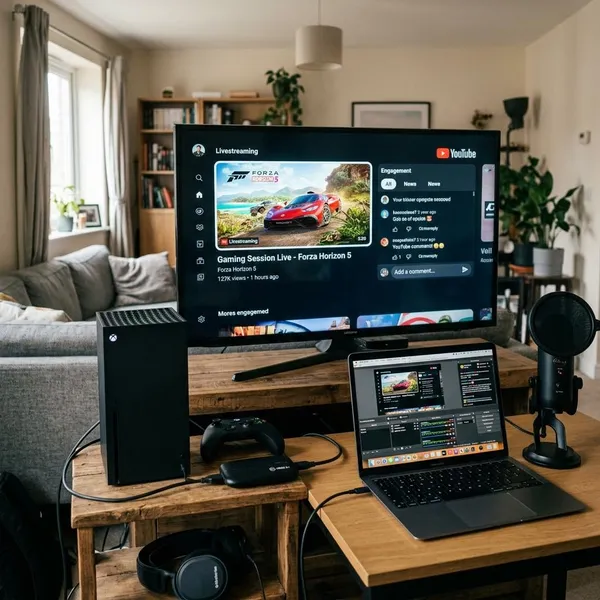
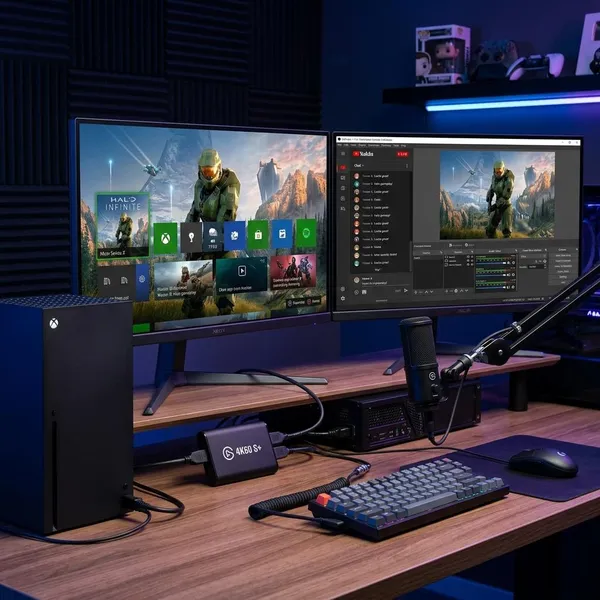
A capture card is the strongest setup if you plan to stream Xbox gameplay regularly. It avoids the extra Remote Play step and gives OBS a direct video feed from the console.
This is the setup to choose when streaming is more than a one-time experiment: scheduled streams, a webcam, separate microphone control, alerts, scenes, and a cleaner upgrade path later.
Connect Xbox, capture card, and computer
Connect the Xbox HDMI output to the capture card input. Then connect the capture card output to your TV or monitor, and connect the card to your computer with the required USB or other cable.
Install any drivers or software recommended by the capture card maker. If OBS does not see the card, check the manufacturer app first before assuming the HDMI cable is bad.
Add video and audio in OBS
Open OBS, create a scene, and add the capture card as a Video Capture Device. Your Xbox picture should appear in the preview.
For audio, watch the OBS meters while a game is actively making sound. Some menus are quiet, so test with real gameplay before deciding audio is missing.
- Game too loud? Lower the capture card or desktop audio level.
- Mic too quiet? Raise the mic source, not the whole stream.
- Echo present? Check for duplicate desktop and capture audio sources.
Connect OBS to YouTube
Create a YouTube live event and choose streaming software. In OBS, select YouTube as the service and connect the account or enter the stream key.
Test your setup and go live
Test the whole chain, not just each device by itself: Xbox to capture card, capture card to OBS, and OBS to YouTube. A setup can look fine in OBS but still have muted audio or a stretched preview once it reaches YouTube.
Party chat deserves its own test. Depending on headset routing and privacy settings, viewers may hear the game but not the people in your party.
Use this final check before a real stream:
- Watch the YouTube preview on a second device.
- Record or stream at least ten minutes unlisted.
- Test with the same headset and mic you will use live.
- Confirm game audio, your voice, and chat audio separately.
Conclusion
The best setup is the one that matches how often you will stream and how much control you need. Streamlabs Console is fine for a quick, low-hardware start, Remote Play with OBS is useful for testing on a budget, and a capture card is the better investment when you want a stable routine instead of a workaround.