You can livestream PS5 gameplay straight from the console by linking Twitch or YouTube, opening the Create menu, and starting a Broadcast. The built-in option is enough for a first stream, especially if you mainly want gameplay, voice audio, and basic chat without a PC or capture card. The checks that matter most are simple: make sure your account is allowed to go live, your upload connection is stable, and your microphone is actually included before you press Go Live.
Set up your PS5 for livestreaming
Before starting your first broadcast, handle the boring setup once so you are not fixing account or audio problems while viewers are waiting. For a quick test stream, the basics are enough. For a longer session with friends, spend a little more time checking party audio, privacy, and connection stability.
Link your Twitch or YouTube account
On your PS5, go to Settings > Users and Accounts > Linked Services, then choose Twitch or YouTube. Sign in, scan the QR code if prompted, and approve the connection from your phone or browser.
You can also link an account from the Broadcast menu, but doing it ahead of time is cleaner. It avoids the common first-stream problem where you are ready to play but stuck on a login screen instead.
Confirm your account can go live
Do this before the time you actually want to stream. Twitch usually works once the account is verified and in good standing, but YouTube may require live streaming to be enabled first, and that can take time to activate.
- Check YouTube early: open YouTube Studio and confirm live streaming is enabled.
- Verify the account: finish any email, phone, or security checks the platform asks for.
- Look for restrictions: recent strikes, age settings, or account limits can block a broadcast.
Check your connection and microphone
Treat upload stability as more important than chasing the highest video quality. A wired Ethernet connection is usually the safest choice for longer streams, while Wi-Fi can be fine for a short casual test if the router is close and the signal is steady.
Test your microphone before going live, not after. A headset mic is often good enough for a beginner stream, but make sure the PS5 is using the correct input and that your voice is not muted in the broadcast settings. If friends are in party chat, tell them before you include their voices publicly.
Start your PS5 livestream
Once the account and audio are ready, the actual broadcast flow is quick. The main mistake to avoid is starting too fast and forgetting the title, mic, or party audio setting.
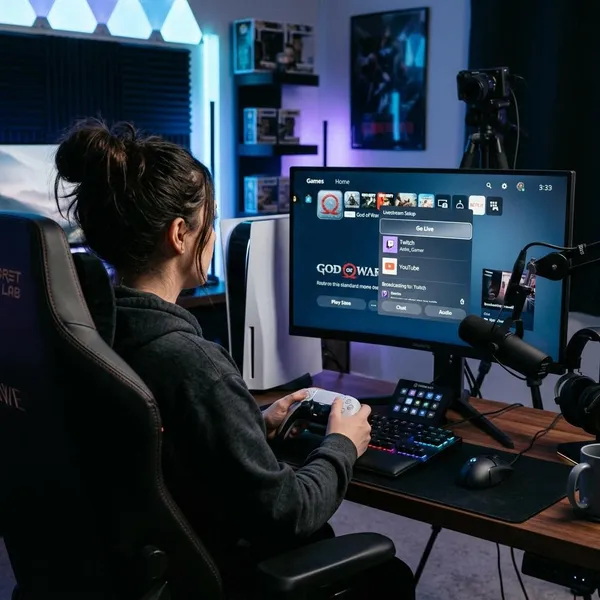
Launch the game
Open the game first, then start the broadcast. PS5 streaming is built around gameplay rather than showing your whole console dashboard, so launching the game first gives viewers a cleaner start.
Some games block certain scenes for copyright or spoiler reasons. If the stream suddenly shows a restricted screen while the game still works normally on your TV, it may be the game's rule rather than a broken PS5 setting.
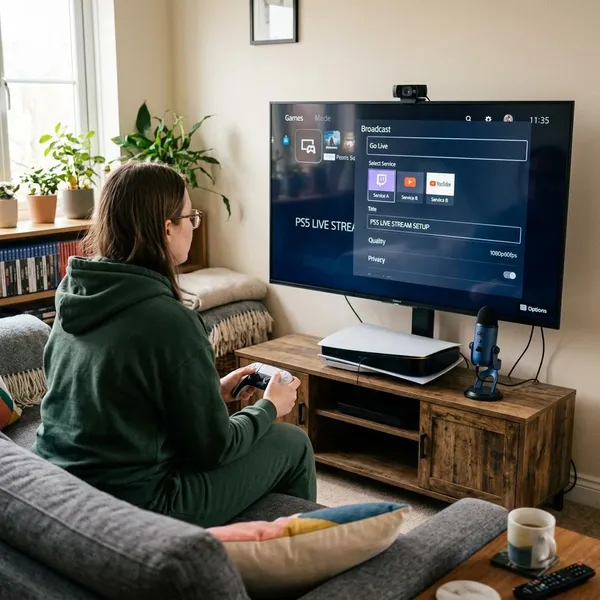
Press Create and select Broadcast
Press the Create button on the DualSense controller, then choose Broadcast. If no streaming service is linked yet, the console may ask you to connect Twitch or YouTube before you can continue.
Choose Twitch or YouTube
Pick the platform that fits how you plan to use the stream. Twitch is usually better if you want a live-first gaming audience and chat interaction. YouTube makes more sense if you already post videos there or want streams connected to your channel archive.
For a one-off stream with a few friends watching, either platform can work. If you plan to stream regularly, choose the one where you are more likely to keep posting and responding to viewers, because switching back and forth can split your small early audience.
Add a title and check broadcast options
Use a title that tells people what they are about to watch, such as the game name, mode, challenge, or story point. Then review the broadcast options before going live.
- Microphone: turn it on if you want commentary, off if you only want gameplay audio.
- Party audio: include it only if everyone in the party knows they may be heard.
- Camera: check that it does not cover maps, subtitles, or health bars.
- Comments: enable them on screen if you do not have another device for chat.
Select Go Live
Select Go Live when the title and options look right. The PS5 will start sending the broadcast to Twitch or YouTube, and you can manage the live session from the broadcast card in the control center.
Adjust your PS5 broadcast settings
After the first test, improve the stream in order of impact: stable video first, clear voice second, camera and overlays last. The PS5 settings under Settings > Captures and Broadcasts > Broadcasts let you fine-tune the parts that viewers actually notice.
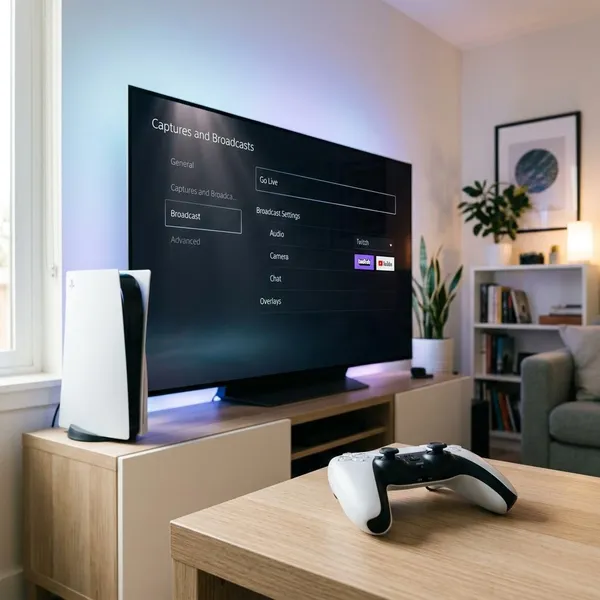
Video resolution and frame rate
Choose a broadcast quality your connection can hold consistently. A slightly lower setting that stays smooth is usually better than a sharper stream that freezes, buffers, or turns blocky during action scenes.
For slow story games, a softer image may still be watchable. For shooters, racing games, or sports games, motion matters more, so reduce quality if viewers mention stutter or if your stream preview looks unstable.
Microphone and party audio
Voice audio is where beginner streams often lose viewers fastest. If your voice is too quiet, distorted, or mixed under the game, lower the game volume or adjust your mic level before worrying about camera layout.
- Solo stream: use a headset mic and keep party audio off.
- Co-op stream: confirm friends are comfortable being broadcast.
- Late-night stream: check for fan noise, keyboard clicks, or room echo before going live.
Camera position and size
A compatible camera, such as the PlayStation HD Camera, can make the stream feel more personal, but it is optional. Use it when reactions matter, such as horror games, competitive matches, or story moments; skip it if it distracts you or blocks the game interface.
Place the camera in a corner that stays out of the way. Because every game puts maps, subtitles, and health bars in different places, recheck the position when you switch games instead of assuming last session's layout still works.
Viewer comments and activity overlays
Viewer comments on screen are useful if you do not have a phone, tablet, or second monitor nearby. They let you reply without stopping the game, but they can also clutter the screen in games with busy interfaces.
Pause or stop your PS5 livestream
You do not have to end the stream for every interruption. The broadcast card lets you pause for a short break, resume the same session, or stop cleanly when you are done.
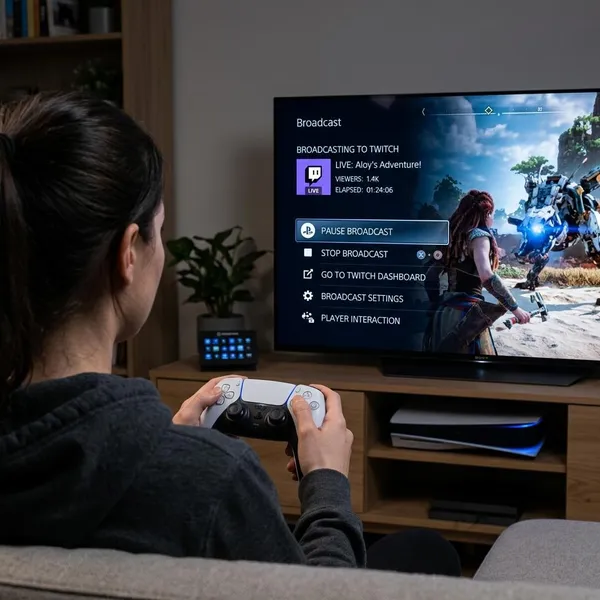
Open the broadcast card
While live, press the PS button to open the control center and find the broadcast card. This is the fastest place to check whether the stream is still active, how long you have been live, and whether your mic or camera needs a quick change.
Select Pause Broadcast for a break
Choose Pause Broadcast when you need a short break but plan to continue. This is useful for grabbing a drink, answering the door, dealing with background noise, or stepping away between matches.
Do not use pause as a substitute for ending a stream you are finished with. If you may be gone for a while, it is usually better to stop the broadcast and start fresh later.
Resume when ready
Before resuming, check that your headset is back on, the room is quiet, and the camera still points where you expect. Then resume from the broadcast controls so viewers stay in the same live session.
Select Stop Broadcast to finish
Use Stop Broadcast when the session is over. Give viewers a quick verbal sign-off first if anyone is watching, then stop the stream from the broadcast card instead of shutting down the console abruptly.
Conclusion
The easiest way to stream from a PS5 is to keep the setup simple: link Twitch or YouTube, start the game, open Broadcast from the Create menu, and check audio before going live. If the stream is just for friends, the built-in tools are more than enough; if you want custom scenes, advanced alerts, or heavy editing control, that is when a capture card and PC setup starts to make sense.