If you are trying to figure out how to livestream with Meta glasses, check the model first: Ray-Ban Meta Gen 1 can be used for Facebook Live and Instagram Live, while Gen 2 does not offer the same native livestreaming flow. Your phone still starts and controls the live session; the glasses only become the camera source once they are paired and detected correctly.
Which Meta glasses support livestreaming?
Do not troubleshoot the Live button until you know your exact glasses model. If the model is not supported, Facebook or Instagram will not show the glasses camera no matter how many times you restart Bluetooth or reinstall the apps.
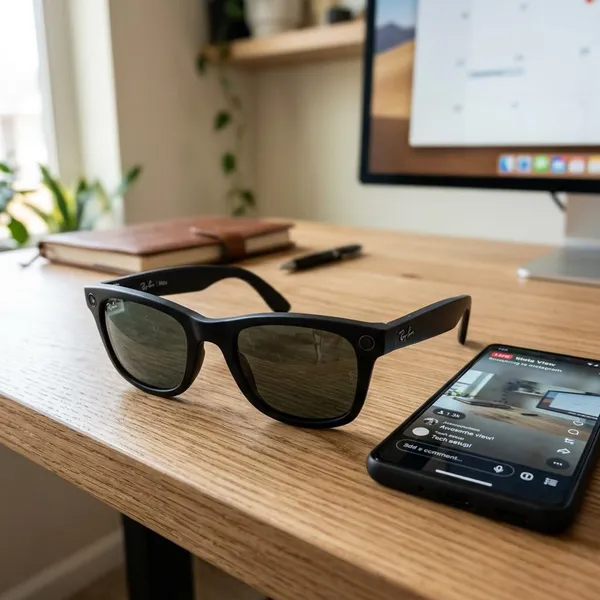
Ray-Ban Meta Gen 1 supports Facebook and Instagram Live
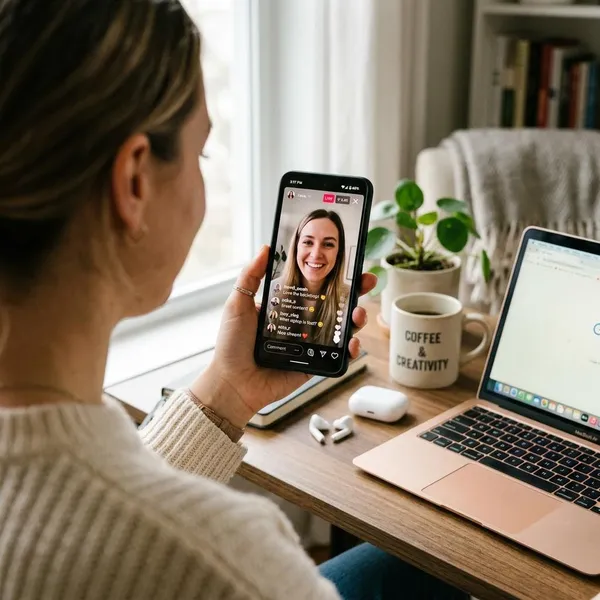
For Gen 1 owners, the normal workflow is to start a Facebook Live or Instagram Live session on the phone, then select the glasses as the camera source. That gives viewers a first-person view while your phone handles the broadcast, comments, privacy controls, and the final Go Live button.
This setup makes the most sense for casual hands-free moments: a walking tour, a cooking demo, a quick event view, or showing something while your hands are busy. It is less ideal if you need polished framing, because the camera follows your head movement rather than a fixed tripod angle.
Gen 2 does not support native livestreaming
A newer pair can be confusing here: Gen 2 does not support the same native Facebook or Instagram livestreaming flow described for Gen 1. If the glasses icon never appears, that may be a feature limitation rather than a pairing mistake.
Before doing a factory reset, confirm current support in the Meta app and Meta's help pages for your exact model. Recording a clip and uploading it later may still work even when direct livestreaming does not.
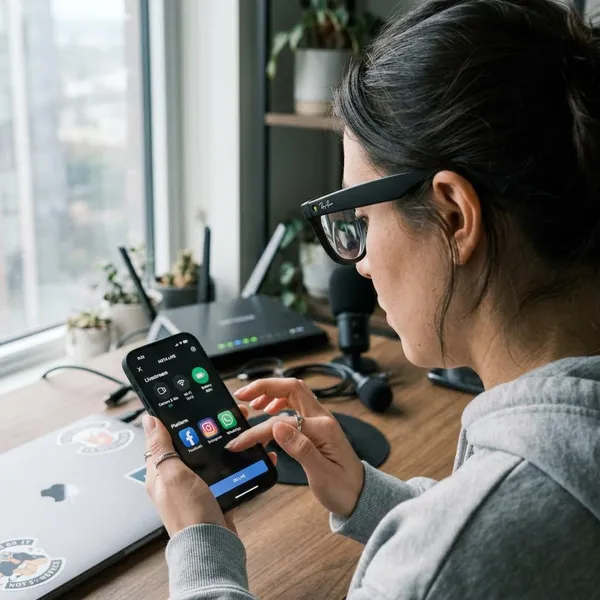
What to check before going live
Run these checks in order. The most important question is whether your glasses support livestreaming at all; after that, the likely problems are pairing, account access, battery, and connection quality.
Your glasses model
Start with the device name shown inside the Meta AI app or Meta View. Product names used in conversations are often too loose, so the app is a better reference than memory, packaging, or a seller listing.
If you borrowed the glasses or bought them second-hand, this check matters even more. Two pairs can look similar but behave differently in Live setup.
Pairing in the Meta AI app
Pairing has to be active before Facebook or Instagram can offer the glasses as a camera. Open the Meta AI app or Meta View and make sure the glasses show as connected, not merely listed from a previous setup.
If the connection looks uncertain, turn Bluetooth off and on, reopen the Meta app, and wait for the glasses to reconnect before opening the social app. Re-pair only after the quick checks fail.
Facebook or Instagram Live eligibility
Live access is separate from the glasses. Test whether you can start a normal Live session with the phone camera first; if that option is missing or blocked, the glasses cannot fix it.
Account restrictions can depend on platform rules, region, account history, or app changes. Treat this as a platform issue until Live works without the glasses.
Phone connection and battery levels
Treat the phone as the broadcast hub. The glasses supply the camera view, but the phone manages the app, network upload, preview, comments, and controls.
For a quick private test, a partly charged setup may be fine. For a public stream, start with both devices comfortably charged and test from the exact place where you plan to stream, because a good signal in one room does not guarantee a stable upload outside or in a crowded venue.
How to start a livestream with Meta glasses
Once the checks are done, keep the order simple: connect the glasses, open Live on your phone, select the glasses camera, confirm the preview, then start the broadcast. Do not tap Go Live until the preview clearly shows the glasses view.
Turn on your glasses and connect your phone
Power the glasses on and give them a few seconds to reconnect to your phone through the Meta app. Rushing this step is a common reason the glasses icon does not appear later.
Open Facebook or Instagram and select Live
Use the normal Live tool inside Facebook or Instagram. Avoid testing through extra streaming tools or complicated workflows at first, because the built-in path is the easiest way to confirm whether the glasses integration is working.
Tap the glasses icon to connect
The glasses icon is the handoff point between your phone camera and the glasses camera. If it appears, tap it and wait for the preview to change before moving on.
If the icon is missing, stop there. Going further will usually just start a phone-camera stream, so return to model support, pairing, permissions, and Live eligibility.
Double-press Capture to switch to the glasses camera
Double-press Capture only after the Live setup screen recognizes the glasses. Watch the phone preview for a moment and check whether the angle, lighting, and head movement are comfortable for viewers.
For moving content, such as a market walk or event coverage, slow head turns look much better than quick scanning. What feels natural to you can look jumpy on a livestream.
Tap Go Live on your phone
Start from the phone once the selected preview is correct. Keep the phone within reach during the stream so you can read comments, switch views if the app allows it, or end the broadcast quickly if the connection drops.
A short limited-audience test is worth doing before an important stream. It shows whether the glasses view, microphone pickup, and network quality are good enough for the real session.
How to improve your glasses livestream
The biggest quality improvements usually come from boring setup choices: keep the phone close, use a stable connection, reduce wireless clutter, and avoid audio conflicts. The glasses may feel hands-free, but the livestream still depends heavily on the phone.
Keep your phone close and in front of you
A front pocket, chest pocket, or small front bag is usually better than a backpack or rear pocket. Your body can weaken the wireless link, especially while walking, turning, or moving through a crowd.
Use a strong Wi-Fi or mobile connection
Livestreaming cares more about stable upload than impressive peak speed. A crowded café Wi-Fi network or busy event venue can look fine for browsing but still cause a soft, delayed, or dropped live video.
If the stream matters, test from the same location and connection you plan to use. A private one-minute test tells you more than a generic speed test taken somewhere else.
Disconnect unnecessary Bluetooth devices
If detection is flaky, simplify the wireless setup. Disconnect spare earbuds, speakers, car systems, or controllers you are not using so the phone has fewer active connections to manage.
Avoid playing music from your phone
Phone music is one of those small choices that can make a livestream feel messy. It may interfere with audio routing, get picked up poorly by the microphones, or make your voice harder to hear.
If background music is part of the scene, test it privately first. For most casual streams, clear speech is more valuable than atmosphere.
What to check if the glasses camera is unavailable
When the glasses camera is unavailable, troubleshoot from the outside in: model support first, then connection, app condition, permissions, and finally account access. Changing everything at once makes it harder to know what actually fixed the problem.
Model support for livestreaming
If the model is unsupported, the missing camera option is expected. Confirm the device name in the Meta app and compare it with current Meta support information before spending time on resets.
Glasses pairing and connection status
A saved device is not the same as an active connection. The glasses should show as connected in the Meta app before you open Facebook or Instagram Live.
Try this order: close the social app, reopen the Meta app, reconnect the glasses, then open Live again. If that fails, remove the glasses from the app and pair them again.
App updates and permissions
Update the Meta app, Facebook or Instagram, and your phone software if updates are pending. Then check that camera, microphone, Bluetooth, and nearby-device permissions are allowed where your phone requires them.
Permissions can change after an operating system update or privacy reset, so it is worth checking even if the setup worked before.
Account access to Facebook or Instagram Live
Try a phone-camera livestream without the glasses. If that does not work, solve the account or platform issue first; the glasses cannot connect to a Live session your account is not allowed to start.
Conclusion
The practical answer is to confirm support before doing anything else: Ray-Ban Meta Gen 1 is the model to use for native Facebook or Instagram livestreaming, and the phone remains the control center throughout. If the glasses camera does not appear, work through model, pairing, app permissions, and account Live access in that order instead of guessing.