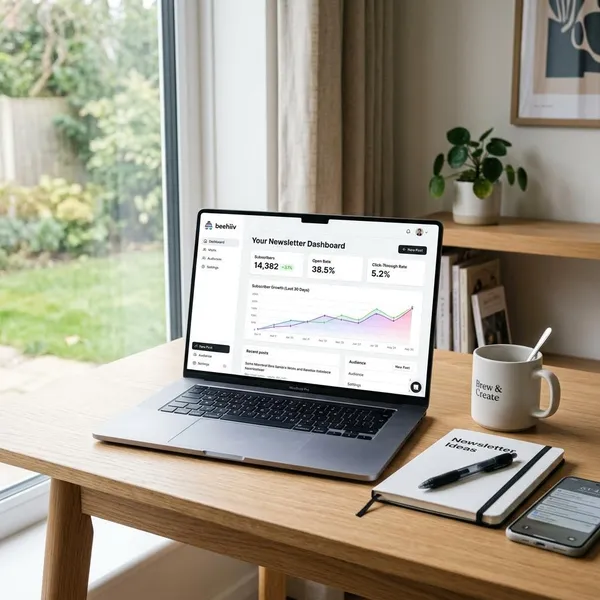
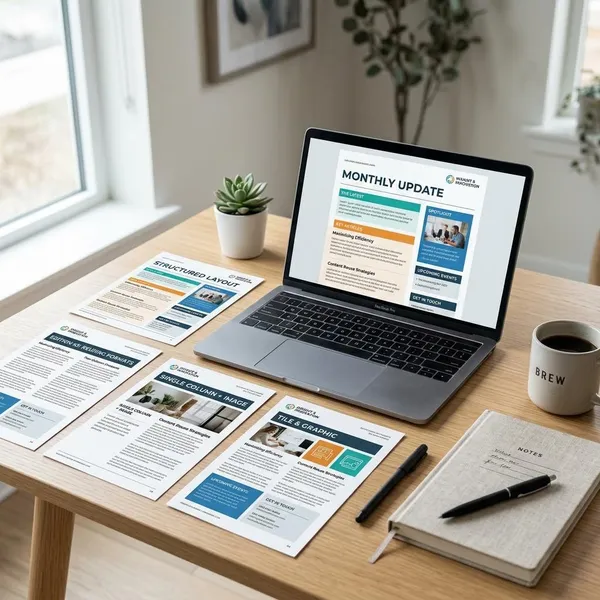
You can make a newsletter in Word either by starting with a ready-made template or by building a simple layout yourself. Use a template if you need a clean result quickly; start from a blank document if you need tighter control over columns, branding, image placement, or repeated issues.
Use a Word newsletter template
A template is the easiest route for a school update, club bulletin, church newsletter, or small business announcement where the layout does not need to be unusual. The main job is to choose a design that fits your content, then replace the sample text without overcrowding the page.
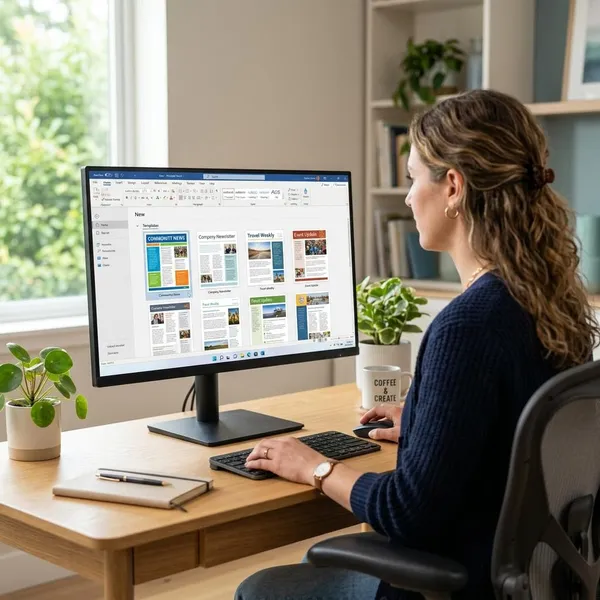
Find a newsletter template
Open Word, go to File > New, and search for newsletter. Depending on your version of Word, you may see built-in templates and online templates that can be downloaded directly.
Choose a suitable layout
Match the layout to the type of newsletter. A one-page event update works best with short blocks, clear dates, and only one or two images. A monthly community or business newsletter usually needs a stronger title area, one main story, and smaller supporting sections.
- Use two columns for most text-heavy newsletters.
- Use several small blocks for reminders, dates, and announcements.
- Avoid crowded templates if the sample version already looks tight.
Replace the text and images
Click each placeholder and replace the sample content with your own title, date, headings, and article text. Work section by section so you do not accidentally leave template wording behind.
To replace an image, select the placeholder picture or use Insert > Pictures. Keep images close to the section they support. A photo from a recent event beside that event recap is more useful than a decorative image placed only to fill space.
Adjust fonts, colors, and spacing
Small changes are usually enough. Keep one font style for headings and one for body text, then use one main color and one accent color if needed.
Spacing deserves just as much attention as color. If the page feels cramped, remove a sentence, reduce an image, or move a lower-priority item to the next issue instead of squeezing everything together.
Save your finished newsletter
Save the Word file before you do heavy editing, then save again when the layout is finished. A clear file name such as Club Newsletter April 2026 is much easier to manage than a vague name like final-version-2.
- Keep the Word file for later edits and future issues.
- Export a PDF when the design is ready to print or email.
- Store images with the document if you reuse the layout often.
Build a newsletter from scratch
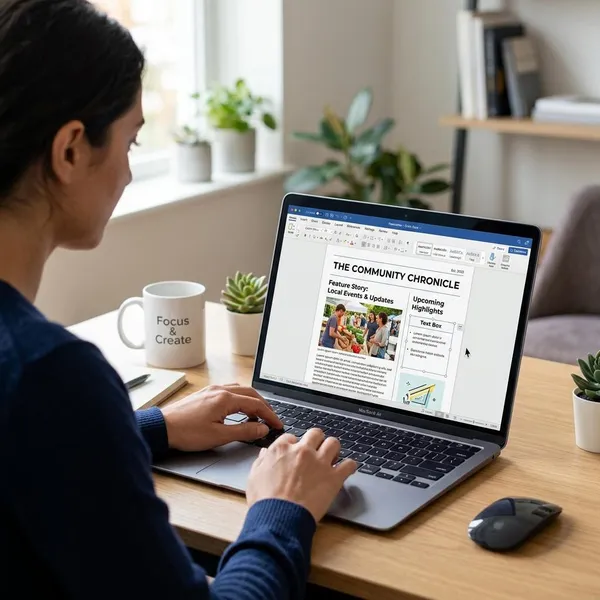
Starting from a blank document takes longer, but it is the better choice when the newsletter needs a specific structure. For example, a local club sending a quick update can use a template, but a small business newsletter with brand colors, product sections, and recurring monthly features may be easier to control from scratch.
Set the page size and margins
Choose the page size before adding content. In Word, go to the Layout tab and select the paper size you need, such as Letter or A4.
Use margins that leave enough white space around the page. Very narrow margins may seem like a good way to fit more text, but they often make printed newsletters feel cramped and can cause problems on home printers.
Add a title and date
Place the newsletter name and issue date at the top. The title should be the most obvious text on the page, while the date can be smaller but still easy to find.
Create columns
Go to Layout > Columns and choose two columns for a classic newsletter layout. Two columns usually give you readable line lengths without making the page feel packed.
Three columns can work for short announcements or event lists, but they are not ideal for longer paragraphs. If you find yourself using a very small font to make three columns work, switch back to two.
Add section blocks
Think of the page as a set of blocks instead of one long document. Useful blocks might include a featured story, upcoming dates, reminders, contact details, a staff note, or a member spotlight.
- Main item: give the most important story the most space.
- Quick updates: keep these short and easy to scan.
- Contact or deadline details: place them where readers can find them fast.
Insert and position images
Add images through Insert > Pictures, then resize them before you adjust text wrapping. One strong image is often better than several small images competing for attention.
Format headings and body text
Use larger or bolder text for section headings, and keep body text simple. In many newsletters, body text around 10 to 12 points is easier to read than smaller text forced into tight columns.
Format your newsletter in Word
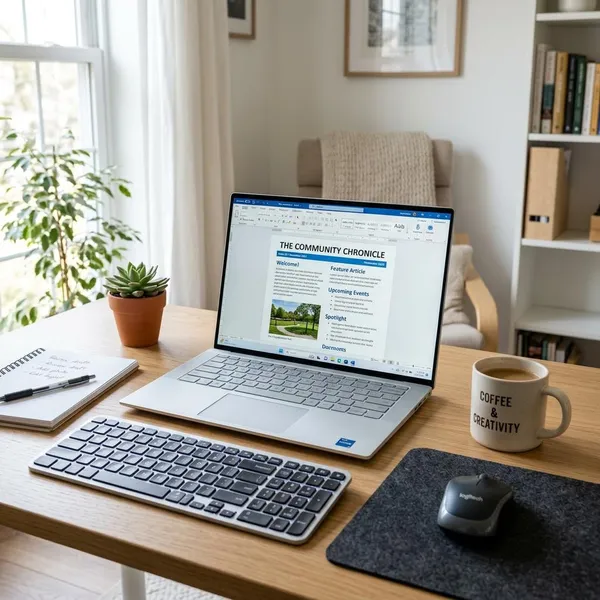
Good formatting in Word is less about decoration and more about control. Use Word's layout tools instead of trying to fix everything with spaces, extra blank lines, or manual alignment that can shift later.
Use styles for consistent headings
Apply Word styles to your headings so repeated sections stay consistent. If you later decide to change the heading color or size, update the style once instead of fixing every heading by hand.
Styles are especially helpful for recurring newsletters because the second issue becomes much easier to build from the first.
Use text boxes for featured content
Text boxes work well for a deadline, quote, editor note, donation reminder, or important announcement that should stand apart from the main text.
- Use one or two on a page, not one in every section.
- Keep borders light so the box does not overpower the page.
- Reserve them for priority content, not ordinary paragraphs.
Use tables for structured sections
Use a table when the information needs alignment, such as event dates, meeting times, office hours, volunteer slots, or contact details. A table is more stable than lining up text with spaces or tabs.
Adjust image wrapping and alignment
Select an image and use Word's wrapping options, such as Square or Top and Bottom, to control how text flows around it. For beginners, Top and Bottom is often the safest option because it reduces awkward text gaps beside images.
After placing images, zoom out and look at the full page. Misaligned photos, uneven gaps, and oversized visuals are easier to catch when you are not editing close up.
Add headers, footers, and page numbers
For a one-page newsletter, a header or footer may only need the organization name, website, or issue date. For a multi-page newsletter, page numbers are useful because printed pages can easily get separated.
Make your newsletter look professional
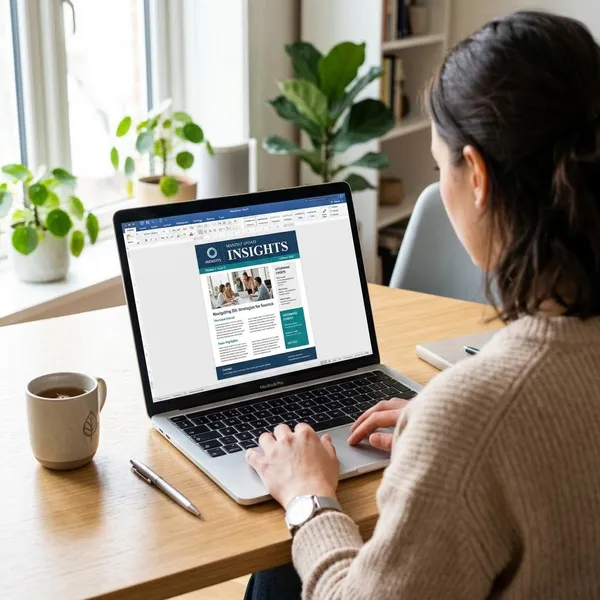
A professional-looking newsletter usually comes from restraint. Clear spacing, readable type, useful images, and a visible content order matter more than decorative borders or complicated effects.
Keep fonts and colors consistent
Choose a small design system and stick with it. One heading font, one body font, one main color, and one accent color are enough for most newsletters.
Use clear spacing
White space helps readers understand where one section ends and the next begins. If a page feels too dense, the best fix is often editing the content, not making the font smaller.
Keep sections easy to scan
Use direct section names such as Upcoming Events, Important Dates, Volunteer News, or Monthly Highlights. Readers should be able to understand the page in a few seconds before deciding what to read closely.
- Put dates and deadlines near the start of the relevant section.
- Use short paragraphs instead of dense blocks.
- Highlight only the key detail, not every sentence.
Avoid overcrowding the page
Overcrowding is usually an editing problem, not a Word problem. If every item feels important, the reader has no clear path through the page.
Decide what must be included in this issue and what can wait. A clean one-page newsletter with five useful items is better than a packed page with twelve updates that no one wants to read.
Check image quality
Use images that are clear, relevant, and not stretched out of proportion. A slightly smaller sharp image looks better than a large blurry one.
For email-only newsletters, check how the PDF looks on a normal screen. For printed newsletters, print one copy and look at the photos, margins, and contrast in real conditions before making multiple copies.
Save and share your newsletter
The final version should be easy to edit later and easy for readers to open now. That usually means keeping a Word master file and sharing a PDF copy.
Keep an editable Word copy
Save the original .docx file as your working version. This is the file you will use for corrections, updates, and future issues.
Keep the file name practical, such as Community-Newsletter-May-2026.docx. If several people review the newsletter, add version numbers or dates so the final copy does not get mixed up with drafts.
Export it as a PDF
Use File > Save As or File > Export, then choose PDF. A PDF is usually the safest format because it preserves fonts, spacing, images, and page breaks more reliably than a Word file opened on another device.
Always open the exported PDF once before sending it. Check the first page, final page, image placement, and any text close to the margins.
Print a test copy
If the newsletter will be handed out, print one test copy first. Printed pages can reveal problems that are easy to miss on screen, such as low contrast, cramped margins, or text that feels too small.
- Check the title from arm's length.
- Scan the page for crowded areas.
- Look at photos for blur or dark printing.
- Confirm page order if there is more than one page.
Share it as an email attachment
Attach the PDF when you email the newsletter. If someone needs to edit it, send the Word file separately and make it clear which file is the editable version.
If the PDF is large because of images, compress the pictures in Word before exporting or use a cloud link. A smaller file is easier for recipients to open, especially on phones or slower connections.
Conclusion
Word is a sensible newsletter tool when you keep the layout simple and make clear choices early: template for speed, blank document for control, PDF for sharing. The strongest newsletters are not the ones with the most design effects; they are the ones where readers can quickly find the main update, the key dates, and the next action.