You can send a newsletter in Gmail, but the best method depends on whether you need a polished design, privacy for a small group, or personalization for a larger list. For a one-off update, BCC or a Google Docs design is usually enough; for a more branded or recurring newsletter, Gmail Layouts or mail merge is the cleaner choice.
Choose your Gmail newsletter method
Start by choosing the sending method before you design the email. It affects the layout, how you add recipients, whether people can see each other's addresses, and how easy the newsletter will be to repeat later.
| Use case | Best Gmail option | Watch out for |
|---|---|---|
| Small club, family, or community update | BCC | Easy to manage badly if the list keeps growing |
| Small business or school update with a cleaner look | Gmail Layouts | May not appear in every Gmail account |
| Larger list where names or details should be personalized | Mail merge | Contact data must be clean before sending |
| Simple visual newsletter without Layouts access | Google Docs | Formatting can shift after pasting into Gmail |
Create a newsletter with Gmail Layouts
If Layouts are available in your Gmail account, use them when appearance matters and you want a faster editing process. The biggest advantage is consistency: you can start from a structured email instead of fighting with spacing, image sizes, and buttons manually.
Open Gmail Layouts
Open Gmail on a desktop browser, click Compose, and look for the Layouts icon in the compose toolbar. If you do not see it, your account may not support the feature, especially if you are using a free personal Gmail account.
Do not spend too long searching for a hidden setting if the icon is missing. Move to the Google Docs method instead, because it is usually faster than trying to recreate a branded layout manually.
Choose a newsletter layout
Pick the layout that matches the message, not the one that looks the most decorative. A single announcement usually needs a simple layout with one image and one clear link. A roundup or monthly update may need several short sections.
- One main update: choose a short layout with a clear headline and button.
- Several updates: use a layout with separate blocks so readers can scan quickly.
- Event email: make sure the date, place, and action link are visible near the top.
Add your text and images
Replace the placeholder text with your own copy and keep the first screen focused on the main point. If someone opens the email quickly on a phone, they should understand what the newsletter is about before scrolling.
Customize fonts and branding
Use the available styling options to add a logo, brand color, or consistent font if Gmail offers them. Small branding choices are enough; the newsletter still needs to be easy to read in a crowded inbox.
Preview the newsletter
Send a test email to yourself before sending the final version. Open it on desktop and mobile, then check the subject line, links, images, spacing, and any button text.
- Links: click them, do not just glance at them.
- Images: check that they load and are not oversized.
- Mobile view: make sure paragraphs are short and buttons are easy to tap.
Create a newsletter with Google Docs
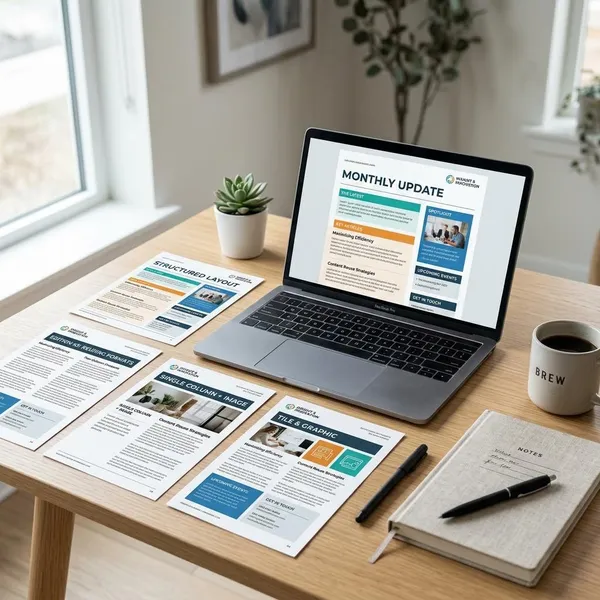
Google Docs is a good option when you want more structure than a plain Gmail message but do not have access to Layouts. It is especially useful for a simple school update, community notice, or small business announcement where the design only needs to be clean, not advanced.
Choose a newsletter template
Open Google Docs and check the template gallery for a newsletter-style template. Choose one with simple sections rather than a design that depends on complicated columns or heavy formatting.
If no template fits, create your own basic version with a title, short intro, clear section headings, and one or two images. That kind of layout usually transfers into Gmail more reliably.
Edit the content and design
Put the most important information near the top: the announcement, deadline, event details, or link readers need most. Then remove anything that is only there to make the document look full.
- Use short paragraphs: email readers skim more than document readers.
- Keep fonts simple: unusual fonts may not carry over cleanly.
- Avoid tight columns: they can break or look cramped in Gmail.
Copy it into Gmail
When the newsletter is ready, select the content in Google Docs, copy it, and paste it into a new Gmail compose window. Wait a moment after pasting so images and formatting can load before you start editing.
- Review the finished Google Docs version first.
- Copy the full newsletter, including images and links.
- Paste it into the Gmail message body.
- Adjust spacing, image size, and line breaks inside Gmail.
Check the formatting
The pasted version is the one that matters, not the Google Docs version. Check headings, links, image placement, and spacing directly inside Gmail, then send yourself a test copy.
If the layout looks unstable, do not keep patching a complex design. Simplify it into clear sections with normal text, because a clean email that displays correctly is better than a fancy one that breaks on mobile.
Add your newsletter recipients
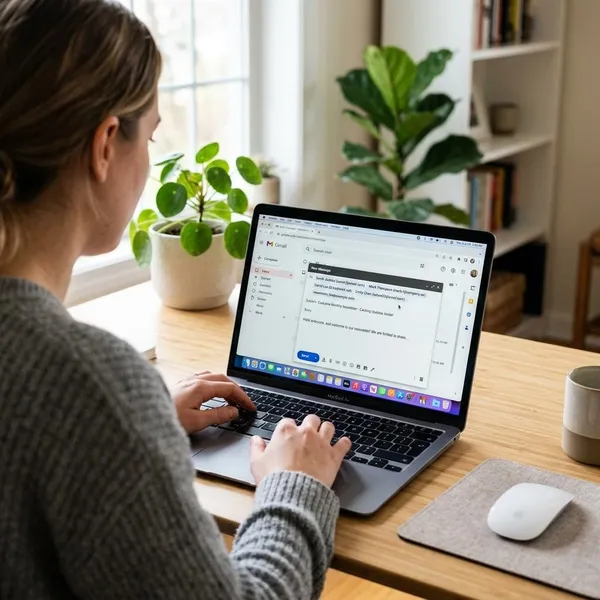
Recipient setup is where Gmail newsletters most often go wrong. Before sending, decide whether the list belongs in a contact label, mail merge, or BCC, then check that everyone on the list should actually receive the email.
Organize contacts with labels
Use Google Contacts labels for groups you email more than once, such as customers, volunteers, parents, members, or event attendees. A label saves time because you can reuse the same group instead of typing addresses one by one.
Labels are also useful for cleanup. If someone should stop receiving updates, remove them from the label before the next send instead of trying to remember later.
Use mail merge when available
Mail merge is the better choice when your list is too large or too important for a casual BCC send. It helps you personalize the newsletter and avoids exposing recipient addresses.
Before sending, scan the data source for missing names, duplicate contacts, and old addresses. A personalized email looks worse than a plain one if the merge fields are wrong.
Use BCC for recipient privacy
For a small group, add your own email address to To and place recipients in BCC. This keeps email addresses private and avoids the awkward mistake of sharing a full list with everyone.
BCC is sensible for low-risk, occasional updates. If you are sending to customers, subscribers, or a list that keeps growing, use mail merge or a dedicated email tool when available so list management does not become messy.
Check your mailing list
Do one final recipient check before clicking send. Look for outdated addresses, accidental duplicates, the wrong contact label, and anyone who should no longer be included.
- First check: are these the right people for this specific newsletter?
- Privacy check: should recipients be hidden with BCC or handled through mail merge?
- Expectation check: will people understand why they are receiving it?
Conclusion
Gmail works best for newsletters when you keep the job simple and choose the method before you start designing. Use BCC for a small private group, Google Docs when you need a basic visual layout, Layouts when you want a branded email, and mail merge when the list is larger or needs personalization; if the newsletter becomes frequent, commercial, or hard to manage, it may be time to move beyond Gmail.