A livestream e-commerce platform obs integration works when your live shopping tool can accept an external RTMP feed from OBS Studio. Check that first: if the platform gives you a Server URL and Stream Key, you can usually send your OBS scene output into the live event while the platform handles products, checkout, chat, and orders.
Does Your Live Shopping Platform Support OBS?
The first thing to confirm is not your camera, microphone, or OBS layout. It is whether the platform accepts video from an external encoder. Some live shopping tools are built for mobile-only streaming, while others allow OBS through RTMP.
Look for external encoder support
Look inside the platform's live event setup, help center, or seller documentation for wording such as external encoder, stream with encoder, or OBS Studio. That language usually means the platform can receive a finished broadcast from software instead of only using its own camera tool.
Check for a custom RTMP option
A custom RTMP option is one of the clearest signs that OBS can connect. OBS sends your final video output to an RTMP destination, and the platform then displays that feed inside the live shopping event.
- Good sign: "Custom RTMP," "Use Stream Key," or "External Encoder."
- Possible limitation: only "Go live from mobile app" or "Use webcam."
- Worth checking: RTMP may be available only on certain plans or approved seller accounts.
Confirm access to a Server URL and Stream Key
OBS needs both fields. The Server URL tells OBS where to send the stream, and the Stream Key tells the platform which live event should receive it.
If you can create an event but never see those two details, do not spend hours adjusting OBS settings yet. The issue may be platform access, not your local setup.
Check whether live access needs approval
Some marketplaces and social commerce platforms require seller approval before live access or RTMP streaming is unlocked. Approval may depend on business verification, region, account age, or platform policy.
What Does OBS Handle in Live Commerce?
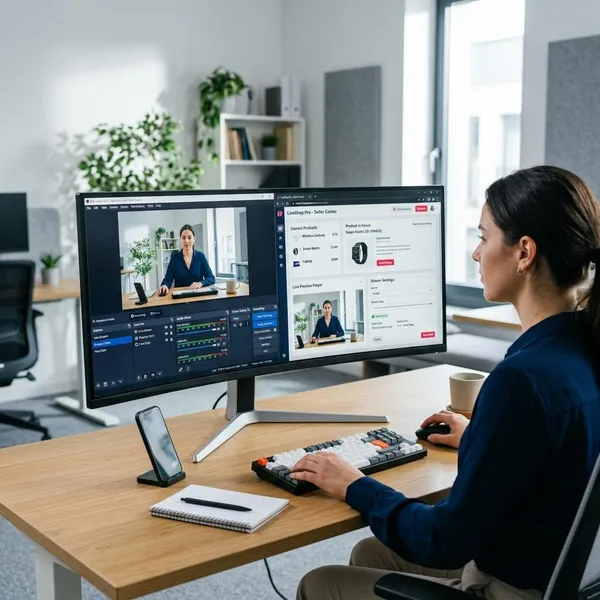
OBS is the production tool, not the store. It controls what the video looks and sounds like, while the live shopping platform controls the buying experience around that video.
OBS sends the video and audio feed
OBS combines your cameras, microphones, media files, browser sources, and screen captures into one outgoing stream. The shopping platform receives that stream as the live video feed for the event.
For live commerce, audio deserves extra attention. Viewers may forgive a slightly softer image, but if they cannot hear product names, prices, variants, or buying instructions clearly, the stream quickly becomes frustrating.
OBS controls cameras and scenes
Scenes are saved layouts inside OBS. One scene might show the host full screen, another might show a close-up product camera, and another might show a product slide with a short offer message.
OBS adds visual product overlays
OBS can add on-screen text, lower-thirds, logos, countdowns, coupon reminders, and "next product" graphics. These help viewers understand what is being shown, especially if they join halfway through the stream.
Keep overlays readable on mobile screens. A small price label that looks fine on your monitor may be too tiny for someone watching vertically on a phone.
The platform manages products and checkout
Product cards, pinned items, inventory, discount setup, cart behavior, and payment are usually handled by the live shopping platform. OBS can show a visual reminder, but it does not create the actual product link or process the order.
That separation is important when planning who does what during the event. You may switch scenes in OBS while someone else pins the current product inside the platform dashboard.
The platform usually manages chat and orders
Chat, comments, reactions, order notifications, and buyer questions normally live inside the platform, not OBS. OBS can capture a chat window as a visual source, but it is not the system managing the conversation.
- Solo seller: use a second monitor, tablet, or phone for chat and order activity.
- Small team: let one person run OBS and another handle product pins and comments.
- Busy launch: separate production from customer support so neither gets ignored.
How to Connect OBS to the Platform
The basic connection is usually: create the live event, choose the external encoder option, copy the RTMP details, paste them into OBS, start streaming, then check the platform preview. The names of the buttons may change, but the order is usually the same.
Create a live event
Create the live event in the shopping platform first. Many platforms only generate the Server URL and Stream Key after an event exists.
Add the basics early: title, schedule, cover image, category, and featured products if the platform supports them. For a low-pressure test, create a private or draft event if that option is available.
Select the external encoder option
Choose the broadcast method that mentions an external encoder, RTMP, or stream key. Do not choose mobile streaming or browser webcam mode if your goal is to send video from OBS.
If the encoder option is missing, check account permissions before assuming OBS is impossible. Some platforms hide RTMP access until live selling is approved or a higher plan is active.
Copy the Server URL and Stream Key
Copy both values exactly as shown. Avoid typing them manually because one missing character, extra space, or swapped field can stop the stream from connecting.
Treat the stream key like a password. If it is shared in a screenshot, sent to the wrong person, or used on an untrusted computer, reset it before the public event.
Open Stream settings in OBS
In OBS Studio, open Settings, then go to Stream. This is where you set the destination for the outgoing broadcast.
Choose a custom streaming server
If your platform is not listed as a built-in OBS service, choose the custom server option. Many e-commerce and live shopping platforms are not included in the default service list, but they can still work through RTMP.
Paste the RTMP details
Paste the Server URL into the server field and the Stream Key into the stream key field. Save the settings, then check both fields once more before starting the stream.
- Server field: use the platform's RTMP Server URL.
- Stream key field: use the event's Stream Key only.
- Region choice: if several ingest servers are offered, choose the nearest reliable option.
Start the stream and check the preview
Click Start Streaming in OBS, then return to the platform and wait for the preview to appear. A short delay is normal.
Do not go public just because the preview loads. Check sound, image sharpness, lip sync, product overlay size, and the active camera angle. A muted mic or unreadable offer banner is easy to fix before viewers arrive and awkward to fix once orders are coming in.
Which OBS Settings Should You Use?
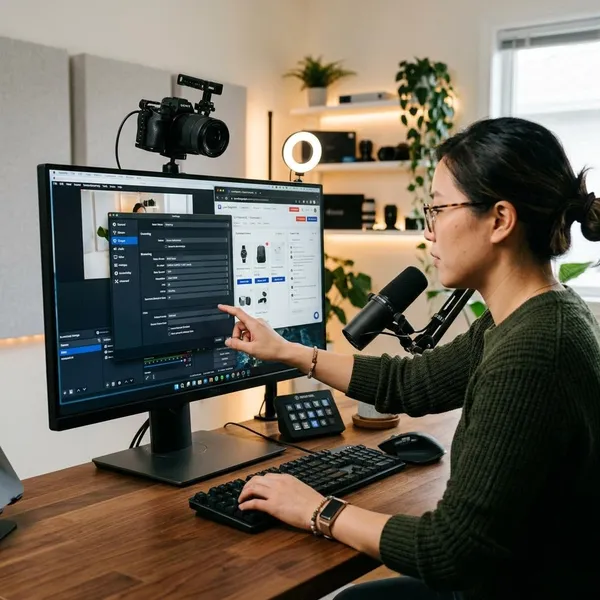
Use the platform's required settings first, then adjust for what your computer and upload connection can hold steadily. For live shopping, a stable stream is usually better than chasing the highest possible resolution.
Match the required resolution
Use the resolution recommended by the platform. Common choices are 1280x720 and 1920x1080, but the platform's own limit matters more than a generic preset.
Match the supported frame rate
For many live shopping streams, 30 fps is enough. It works well for talking, product close-ups, packaging demos, and most tabletop presentations.
Consider 60 fps only when motion is central to the sale, such as fitness gear, toys, tools in use, or clothing try-ons. If the platform recommends 30 fps, start there unless you have tested 60 fps successfully with the same setup.
Keep bitrate within the platform limit
Bitrate affects both image quality and reliability. Too low can make textures, labels, and motion look muddy; too high can cause buffering, dropped frames, or platform rejection.
If the platform gives a range, start near the middle for your first full test instead of jumping to the maximum. Mobile shoppers and unstable networks are common in live commerce, so consistency usually matters more than squeezing out a tiny quality gain.
Match the required codec and keyframe interval
Use the codec and keyframe interval required by the platform. Many RTMP workflows use H.264 video, AAC audio, and a 2-second keyframe interval, but you should still follow the platform's own documentation.
If OBS says it is streaming but the platform preview stays blank or shows an ingest error, check these settings early. Codec and keyframe mismatches can look like a connection failure even when the Server URL and Stream Key are correct.
Choose an encoder your computer can handle
Pick an encoder that keeps OBS stable during the whole show. Hardware encoding such as NVENC, AMD, or Quick Sync can reduce CPU load when your computer supports it, while x264 may be fine for a simpler one-camera setup.
Set clear audio levels
Set audio so speech is clear without distortion. Watch the OBS audio meters while speaking at your normal selling volume, not in a quiet test voice.
- Too quiet: viewers miss prices, sizes, and checkout instructions.
- Too loud: clipping makes the host sound harsh and unprofessional.
- Uneven levels: switching between host, guest, and media clips becomes distracting.
Conclusion
If your platform provides external encoder access, a Server URL, and a Stream Key, OBS is a strong choice for a more controlled live shopping setup. Keep the first test simple, prove that the feed reaches the platform cleanly, then add extra scenes, overlays, and production polish only after the basics are stable.