If you want one live stream to appear on YouTube, Facebook, LinkedIn, Twitch, or other channels at the same time, a restream livestream is usually the simplest route. Restream does not replace your content planning, camera, or audio setup, but it does remove the need to start a separate broadcast on every platform. The main decision is whether to use Restream Studio for a quick browser-based stream or OBS when you need more control.
How does Restream work?
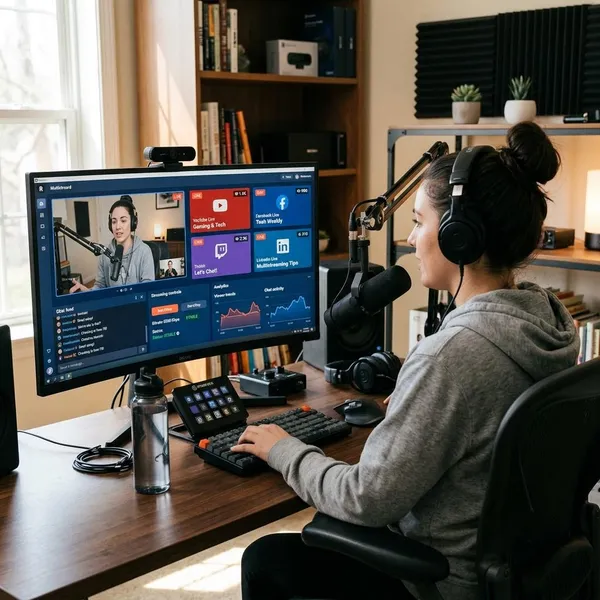
Restream sits between your live video source and the platforms where viewers watch. You send one live feed into Restream, then choose which connected destinations should receive it. That is why it is useful for a webinar, interview, product demo, church service, gaming stream, or live Q&A where the same broadcast should reach different audiences.
Send one broadcast to multiple destinations
The core idea is simple: one source feed goes in, multiple platform streams go out. Instead of opening separate live dashboards for each site, you manage the distribution from Restream and let each audience watch where they already spend time.
Create the stream in Studio or an encoder
You can create the broadcast directly in Restream Studio or send it from streaming software such as OBS. Studio is the easier choice when you want to open a browser, invite a guest, share a screen, and go live without building a technical production.
OBS is better when the show has moving parts: multiple scenes, custom overlays, separate audio sources, video clips, browser sources, or a more polished layout. Many people do not treat Restream vs OBS as an either-or choice; they use OBS to produce the stream and Restream to send it to multiple destinations.
What to check before using Restream
Before building the stream, check the things that can stop it from going live: destination access, channel limits, quality settings, branding options, and recording rules. The most common mistake is assuming that because a channel is connected, it is fully ready to receive a public live broadcast.
| Check first | Why it matters | Practical action |
|---|---|---|
| Live access | A platform may block live video until the account is verified or approved. | Open each destination and confirm live streaming works before event day. |
| Plan limits | Your plan may limit simultaneous destinations or features. | Count the channels you need for this specific stream, not your ideal future setup. |
| Audio and video | Viewers leave quickly when sound is unclear, even if the video looks fine. | Run a short private test and listen back with headphones. |
| Recording | Replays and downloads may depend on settings or plan level. | Confirm whether the recording is saved, where it appears, and how long it stays available. |
How to go live with Restream Studio
Restream Studio is the faster path when you want to stream from a browser without setting up OBS. It is a good fit for interviews, coaching sessions, simple presentations, live Q&A, and screen-sharing sessions where ease matters more than advanced production control.
Create a new Studio stream
Log in to Restream and create a new Studio stream. If the stream is tied to a scheduled event, create it early rather than ten minutes before you go live, because titles, thumbnails, guest links, and destination settings are easier to fix when no one is waiting.
Allow camera and microphone access
Allow your browser to use the camera and microphone, then choose the exact devices you want. This step is worth slowing down for because laptops, USB microphones, Bluetooth headsets, and external webcams can easily create the wrong input combination.
Say a few sentences and watch the audio meter before you move on. If the meter barely moves, jumps into the red, or reacts to the wrong microphone, fix that before adding guests or scenes.
Add scenes, guests, or screen sharing
Add only the elements the audience actually needs: a camera view, a guest layout, a shared screen, or a few simple scenes. A beginner stream often looks better with two or three clean scenes than with too many overlays and layout changes.
- Interview: prepare a host-and-guest scene plus a solo host scene for the opening.
- Teaching session: use a camera scene, a screen-share scene, and a closing scene.
- Quick announcement: keep it simple and focus on sound, framing, and the correct destination.
Set your title and description
Write a title that tells viewers why they should join. "Weekly Marketing Q&A for Small Business Owners" is stronger than "We're Live" because it sets the topic and audience immediately.
Enable your destination channels
Turn on the destinations where this specific stream should appear. Do not enable every connected channel by habit, especially if you manage several pages, client accounts, private test channels, or old groups.
For private livestream testing, enable only a limited destination such as an unlisted video or private group. That lets you check title formatting, audio, video, and distribution without notifying your full audience by mistake.
Click Go Live
When the stream is ready, click Go Live and stay focused on the first minute. Watch the preview, speak normally, and confirm that comments or platform signals are working as expected.
If possible, open the stream on another device or ask someone else to check it. Restream may show that the broadcast has started, but each platform can still have its own delay, privacy setting, or display issue.
How to stream through Restream with OBS
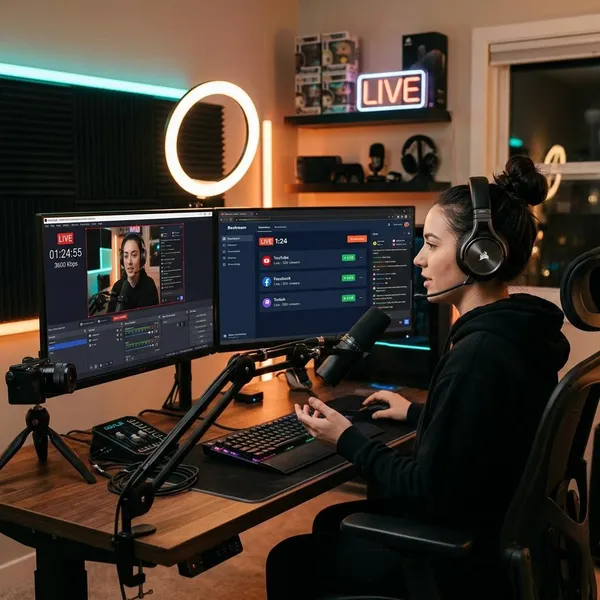
Use OBS with Restream when the broadcast needs stronger production control than a browser studio can comfortably provide. This setup takes longer to prepare, but it is better for webinars, recurring shows, gaming, church services, podcasts, multi-camera sessions, and presentations with several visual sources.
Create a streaming software broadcast
Inside Restream, create a broadcast for streaming software rather than Studio. This gives OBS a destination to send the live feed to, usually through a stream key, server details, or a direct account connection.
Name the broadcast clearly if you run more than one event. A vague event name can lead to sending the OBS signal to the wrong scheduled stream, which is especially easy to do when you manage client work or recurring sessions.
Connect OBS to your Restream account
Open OBS and connect it to Restream using the available login method or stream key. If you paste a key manually, copy it carefully and avoid sharing it publicly, because it gives software permission to send video to your stream.
After connecting, run a short test signal before the real event. The goal is to confirm the full path: OBS sends the video, Restream receives it, and the selected destinations are ready to publish it.
Set up scenes and audio in OBS
Build your scenes in OBS, then test them in the order you will actually use them. Add your camera, microphone, slides, browser sources, media files, overlays, or screen captures, but keep a backup scene with only your camera and microphone in case a source fails.
Audio deserves the most attention. Watch the meters, listen through headphones, and check for echo, distortion, or background noise. A stream with basic visuals and clear sound is usually easier to watch than a polished layout with bad audio.
Enable destinations in Restream
Return to Restream and enable the channels for this broadcast. OBS controls the production, but Restream controls where that production goes.
This separation is useful for repeat workflows. You can reuse the same OBS scene collection for a weekly show while changing the destinations in Restream depending on whether the episode is public, internal, client-facing, or platform-specific.
Start streaming from OBS
Click Start Streaming in OBS only after scenes, audio, and destinations are ready. Watch for dropped frames, high CPU usage, unstable upload, or audio meters that stop moving.
If your computer starts struggling, close unnecessary apps before changing too many stream settings mid-broadcast. For an important event, avoid updating OBS, drivers, plugins, or browser sources right before going live unless you have time to test afterward.
Confirm the broadcast on each platform
Always confirm the public result on each platform, not just inside OBS or Restream. A stream can leave OBS correctly and still fail on one destination because of privacy settings, permission issues, a wrong event selection, or platform delay.
If one destination has trouble, you may still be live on the others. That is one practical advantage of multistreaming: you can keep serving the active audiences while you fix or disable the problem destination.
Conclusion
Restream is worth using when your audience is spread across platforms and you do not want to run separate live setups for each one. Start with Studio if you need a clean, low-friction broadcast, and use OBS when the show needs custom scenes, tighter audio control, or a more produced feel. The safest workflow is to check destination access first, test privately, then confirm the live result on every platform after you start.