The main youtube livestream requirements are simpler than many new creators think: verify the channel, avoid recent livestream restrictions, enable live access before the first broadcast, and use the right streaming method for your account. The part that catches most people is mobile streaming, because the YouTube app requires at least 50 subscribers while desktop webcam and encoder streaming do not.
What are the basic YouTube livestream requirements?
Before worrying about cameras, thumbnails, or stream software, check the account rules first. A channel usually needs four things in place: the host must be old enough, the channel must be verified, there must be no recent livestream restriction, and livestreaming must be enabled before the first broadcast.
Be at least 16 to stream on your own
You generally need to be at least 16 to host a YouTube livestream by yourself. If the visible host is younger, YouTube may limit or remove live access, especially because live video is harder to moderate than an uploaded video.
Verify your channel
Channel verification is usually the first practical step. It normally means confirming the channel with a phone number, and without it the Go Live option may stay locked even if the channel already has videos or subscribers.
Do this before the day you plan to stream. Verification itself may be quick, but if you discover the missing step five minutes before a webinar, class, or live Q&A, you may not have enough time to fix the rest of the setup.
Have no livestream restrictions in the past 90 days
Your channel also needs a clean recent livestream record. If YouTube has restricted livestreaming on the channel within the past 90 days, live access may stay unavailable until the restriction ends.
Enable livestreaming before your first broadcast
First-time live access is not always instant. After you enable livestreaming, YouTube may take up to 24 hours before the channel can actually broadcast.
- For a casual test stream: enable it the day before and run a private or unlisted test.
- For a timed event: enable it earlier, then confirm the live control room opens before announcing the link.
- For an encoder setup: check the stream key and software connection after activation, not during the event.
How many subscribers do you need to go live?
The subscriber rule depends on the streaming method. The YouTube mobile app has a 50-subscriber requirement, but desktop webcam streaming and encoder streaming do not have a subscriber minimum.
| Streaming method | Subscriber requirement | Best use case |
|---|---|---|
| YouTube mobile app | At least 50 subscribers | Quick phone streams once the channel has some basic trust |
| Desktop webcam | No subscriber minimum | Simple first streams, lessons, meetings, updates, or Q&A sessions |
| Encoder streaming | No subscriber minimum | Gaming, podcasts, events, multi-camera setups, or more polished broadcasts |
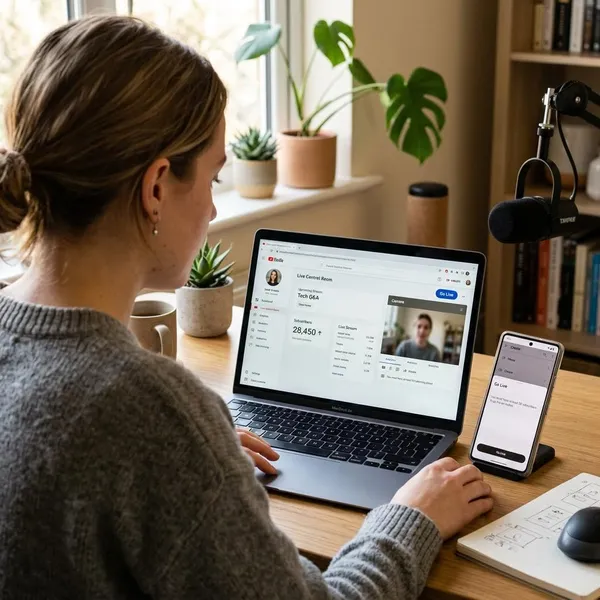
How to enable YouTube livestreaming
Enable livestreaming from the channel that will host the broadcast, not just from any account you can access. The safest order is: confirm the channel, complete phone verification, choose Create and Go Live, then wait for first-time activation if YouTube asks for it.
Sign in to the correct channel
Start by checking the channel name, profile image, and YouTube Studio dashboard. This sounds basic, but it is a real problem for people who manage a personal channel, a brand account, and a work channel from the same Google login.
If you activate the wrong channel, the stream key, scheduled event, moderators, and permissions may not match the channel your audience expects. For teams, this is the first thing to confirm before anyone touches stream settings.
Complete phone verification
Phone verification confirms control of the channel and unlocks live eligibility. If YouTube asks for a code, complete that step and then return to the live setup screen rather than opening a different channel or browser session.
Select Create and Go Live
After verification, select Create, then Go Live. If something is missing, YouTube will usually show a prompt for verification, activation, account eligibility, or another blocked requirement.
- Open the correct channel.
- Click Create and choose Go Live.
- Pick the streaming method: webcam, mobile, or encoder.
- Follow any YouTube prompts before scheduling the real stream.
Allow up to 24 hours for first-time activation
If this is the first livestream on the channel, allow up to 24 hours for activation. That delay can apply even when the channel is verified and otherwise eligible.
Use the waiting time for things that actually prevent bad first streams: test the microphone, check camera framing, confirm chat settings, review the privacy setting, and run a private or unlisted test if the stream matters. A launch, interview, or paid workshop should never depend on activating live access at the last minute.
What to check if YouTube won't let you go live
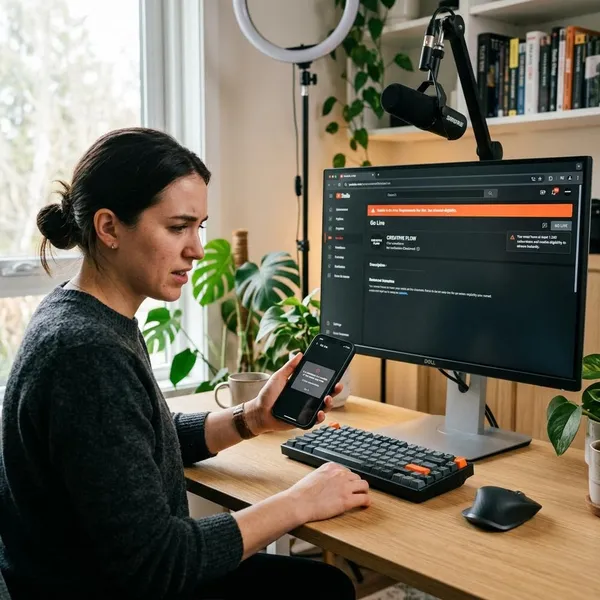
When YouTube will not let you go live, check the account requirements before blaming the camera or internet connection. The fastest order is verification, activation status, age eligibility, recent restrictions, mobile subscriber count, then device or app issues.
Channel verification and activation status
A verified channel is not always an activated livestreaming channel. If you recently enabled live access, wait the full activation window and check that you are still signed in to the same channel you activated.
Age and account eligibility
Age can block live access even when the rest of the setup looks correct. If the account or visible host does not meet YouTube's age rules, the channel may not be allowed to stream independently.
If the stream involves younger participants, plan the format more carefully: use adult supervision, avoid risky live chat situations, and check the channel's eligibility before inviting viewers. For a school presentation or family livestream, this matters more than it might for a simple adult-hosted desktop stream.
Recent livestream restrictions
A recent live restriction can stop livestreaming while leaving other channel features available. Open YouTube Studio and read any warnings, strikes, or live access notices instead of assuming the channel is fully clear because uploads still work.
Do not try to work around a live restriction by switching to another linked channel. YouTube may treat that as circumvention, which can create a bigger account problem than simply waiting out the restriction.
Mobile subscriber count
If the problem happens only in the YouTube mobile app, check the subscriber count next. Fewer than 50 subscribers usually means mobile livestreaming is not available yet.
The practical fix is not to wait doing nothing. Use desktop webcam streaming or an encoder from a computer until the channel reaches the mobile threshold.
Device support and app updates
If the account is eligible but the live option still does not work, look at the device. Update the YouTube app, check that the operating system can run the current app properly, and allow camera and microphone permissions.
- On mobile: update the app, restart the device, and check camera and mic permissions.
- On desktop: allow browser access to the webcam and microphone.
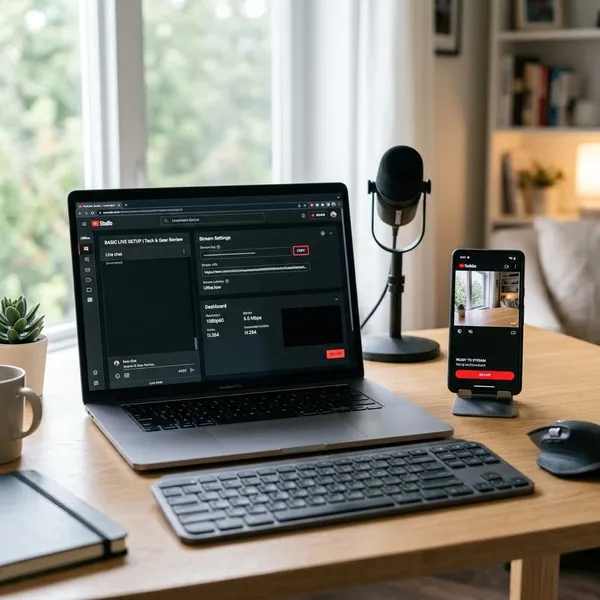
- For encoders: confirm the stream key, server URL, and software connection.
- For unstable streams: test upload speed and close apps using bandwidth.
Conclusion
If you are stuck, separate the problem into two questions: is the channel eligible, and is the chosen streaming method allowed for that channel? A verified, activated channel with no recent live restrictions can usually stream from desktop even with very few subscribers, while mobile streaming needs at least 50 subscribers. The best move is to enable live access early, test privately, and avoid discovering a missing requirement when viewers are already waiting.