If you are choosing the best graphic design software, start with the kind of work you need to make most often. Logos need vector tools, photo-heavy designs need image editing, long documents need layout software, and quick social content often needs speed more than advanced control.
Best graphic design software at a glance
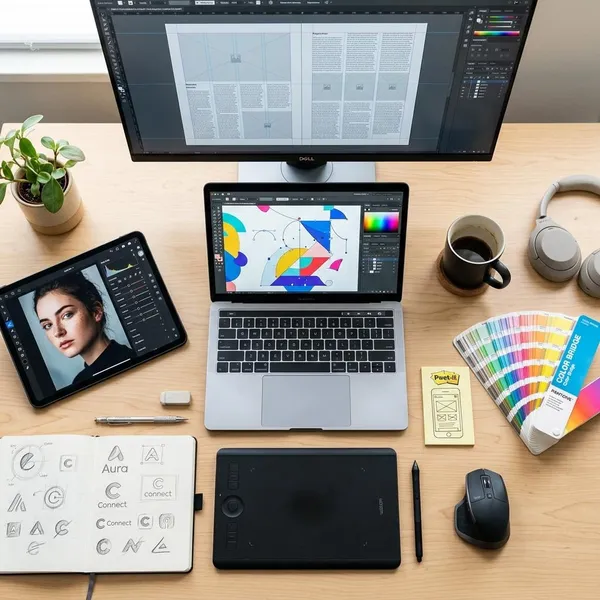
There is no single design app that is best for every project. A freelancer making brand identities has different needs from a small business owner creating weekly Instagram posts, and both have different needs from someone preparing a printed catalog.
Adobe Illustrator for vector design
Adobe Illustrator is the strongest choice when artwork has to stay sharp at any size. It is the tool to pick for logos, icons, badges, packaging graphics, simple illustrations, brand marks, and files that may be used on everything from a website header to a shop sign.
Adobe Photoshop for photo-based design
Adobe Photoshop is best when the design starts with pixels: photos, scanned artwork, textures, product images, digital painting, or image composites. It gives detailed control over layers, masks, selections, retouching, color correction, and background removal.
Adobe InDesign for page layouts
Adobe InDesign is made for multi-page documents where text, images, grids, and repeated page styles need to stay consistent. It is the sensible choice for brochures, magazines, reports, books, catalogs, menus, and lookbooks.
- Use InDesign when you have several pages, repeated sections, long text, or print-ready layout needs.
- Do not use it as your main editor for heavy photo retouching or original logo drawing.
Canva for quick and simple design
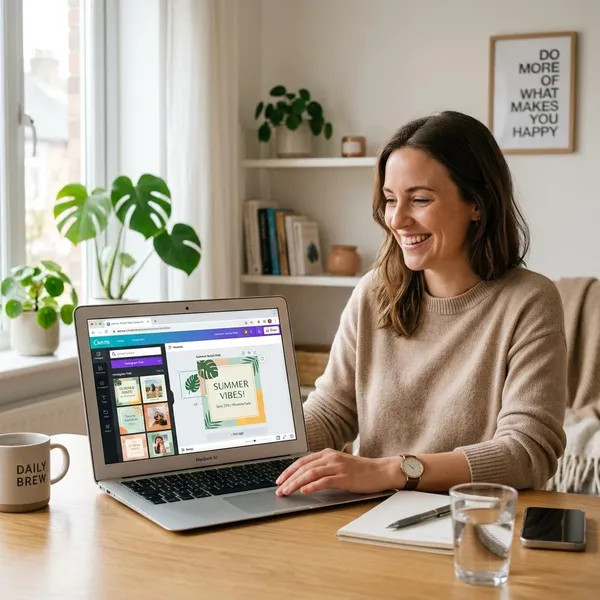
Canva is the easiest practical option for fast, everyday design work. It is useful for social media graphics, presentation slides, simple flyers, invitations, classroom materials, and small business posts that need to look clean without a long learning curve.
The trade-off is control. Canva is great when speed matters more than precision, but it becomes limiting for advanced logo systems, detailed print production, custom illustration, or projects where a client expects editable professional source files.
Affinity for free professional design
Affinity is not usually free, so it should not be treated as a no-cost option. Its real appeal is that Affinity Designer, Affinity Photo, and Affinity Publisher offer serious design tools at a lower long-term cost than many subscription-based suites.
It makes sense if you want more control than Canva but do not want to commit to Adobe right away. A student, solo creator, or new freelancer can learn vector work, photo editing, and page layout without jumping straight into several monthly subscriptions.
CorelDRAW for vector and print work
CorelDRAW is still a strong option in print-focused workflows, especially for signage, apparel graphics, labels, promotional items, and production environments where vector design connects closely with output.
It may not be the first tool every beginner should learn, but it can be the practical choice if your printer, production team, or local industry already uses it. In that situation, file compatibility and workflow speed matter more than general popularity.
GIMP for free raster editing
GIMP is one of the most useful free options for photo editing and raster graphics. It can handle cropping, retouching, color adjustments, layers, masks, and simple image composites.
Best graphic design software for beginners
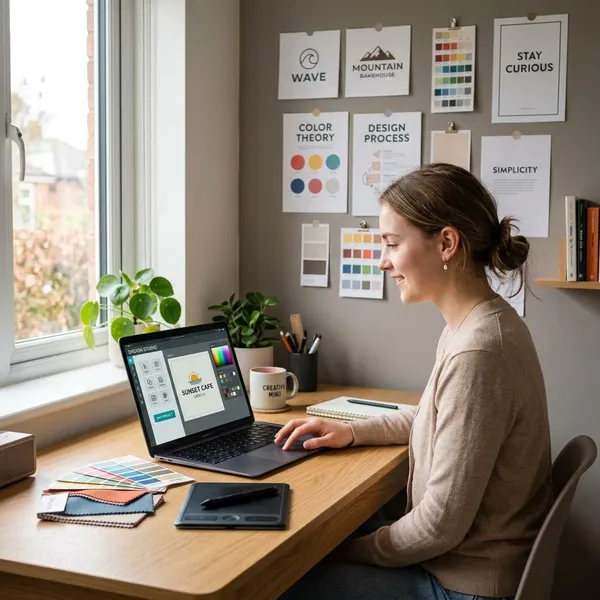
Beginners should choose based on the result they need now and the skills they want later. If you only need a flyer for a weekend event, Canva is the fastest path. If you want to build a portfolio or take client work seriously, learning a more flexible tool is worth the extra effort.
Canva for the easiest start
Canva is the easiest starting point for most non-designers because templates remove the blank-page problem. You can replace images, adjust text, change colors, and export a usable design without learning vector paths, masks, or print settings first.
Affinity for broader design skills
Affinity is a better beginner path when you want to learn how design software really works. It introduces layers, masks, paths, layout setup, export choices, and more precise control while staying more affordable for many users than a full Adobe subscription.
Illustrator for a professional path
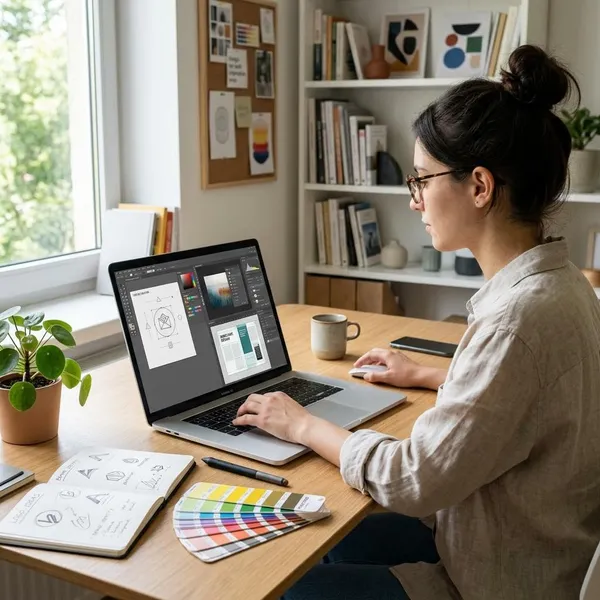
Illustrator is harder at the start, but it is one of the best early investments if your goal is professional branding, logo design, icon design, or vector illustration. The learning curve pays off because you learn how to build clean, scalable artwork instead of only adjusting templates.
Best free graphic design software
Free design software can be enough when your projects are occasional, simple, or still experimental. The key is to separate truly free tools from paid tools that are simply cheaper over time, because that difference matters when you are planning a budget.
If you are choosing only by cost, check three things before you commit: whether the free plan exports the file types you need, whether you can use the assets commercially if that matters, and whether the tool can handle your most repeated task without constant workarounds.
Affinity
Affinity is not the literal answer if you need free software. It belongs here only as a low-cost professional alternative for people who are comparing long-term value rather than a zero-dollar download.
If you design regularly and want stronger tools than Canva Free, Affinity may be the better bargain. If you only need one quick poster or a few social graphics, start with a free option first and upgrade only when the limits become annoying.
GIMP
GIMP is the clearest free choice for raster image editing. It is useful for cropping, resizing, retouching, removing simple backgrounds, adjusting colors, and creating basic web graphics.
Its interface can feel less smooth than paid software, so it is best for patient beginners, hobbyists, students, or anyone who needs capable image editing without paying. For daily professional photo work, Photoshop may save enough time to justify the cost.
Canva Free
Canva Free is the easiest no-cost option for quick visual content. It covers social posts, simple flyers, cards, slides, thumbnails, and basic branded graphics with very little setup.
- Good fit: casual creators, teachers, students, small clubs, and local businesses making simple graphics.
- Possible limit: premium templates, brand tools, some assets, and advanced export options may require a paid plan.
How to choose graphic design software
The safest way to choose is to match the software to your most common project, not the most impressive feature list. A tool that is perfect for a magazine designer may be too slow for a creator making daily social posts, while a simple template tool may be too limited for a brand identity project.
Start with your project type
Start by naming the output you actually need to create. If it is a logo, icon set, or packaging graphic, look at vector software. If it is a product photo, banner with image editing, or composite, choose a raster editor. If it is a brochure, report, or catalog, use layout software.
Consider your skill level
Your skill level should affect your starting point, not limit your long-term choice. If you need something finished today, use the tool that lets you finish cleanly. If you want to become more capable, choose software that teaches transferable skills.
- Occasional user: Canva or Canva Free is usually enough.
- Growing beginner: Affinity gives more control without going straight to Adobe.
- Professional path: Illustrator, Photoshop, and InDesign are worth learning by project type.
Check file and collaboration needs
File requirements can decide the tool before features do. If a printer, client, agency, or teammate needs specific formats, editable source files, shared templates, comments, or brand libraries, choose software that fits that workflow from the start.
For solo personal projects, exporting a PNG, JPG, or PDF may be enough. For paid client work or print production, ask what file type is expected before you build the design, because rebuilding a finished project in another app is a frustrating waste of time.
Compare cost and learning curve
Compare the total cost with how often you will use the software. A free tool is sensible for occasional graphics, while a paid tool can be worth it if it saves time every week or helps you produce work that free tools cannot handle well.
Conclusion
The smartest choice is usually not the biggest or most famous app, but the one that matches your regular work. Pick Illustrator for scalable brand graphics, Photoshop or GIMP for photo-based editing, InDesign or Affinity Publisher for serious layouts, Canva for fast everyday designs, and Affinity or CorelDRAW when cost, ownership, or print workflow makes them a better fit.