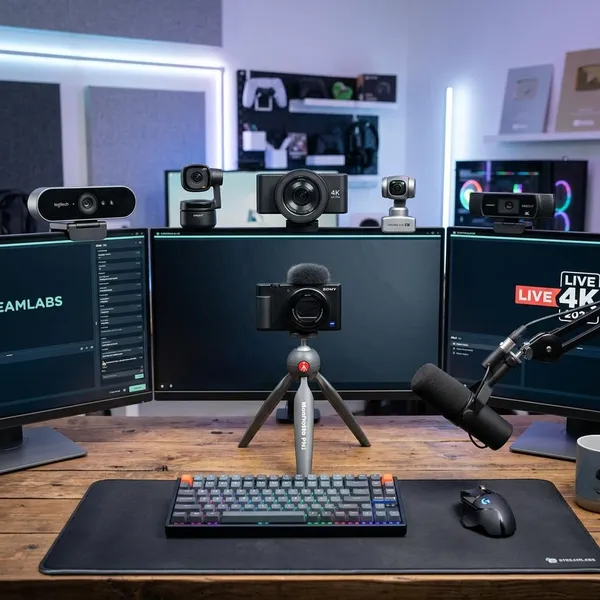
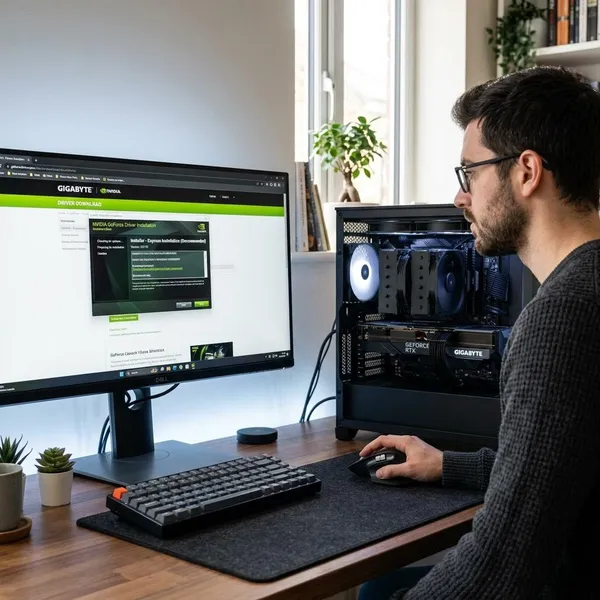
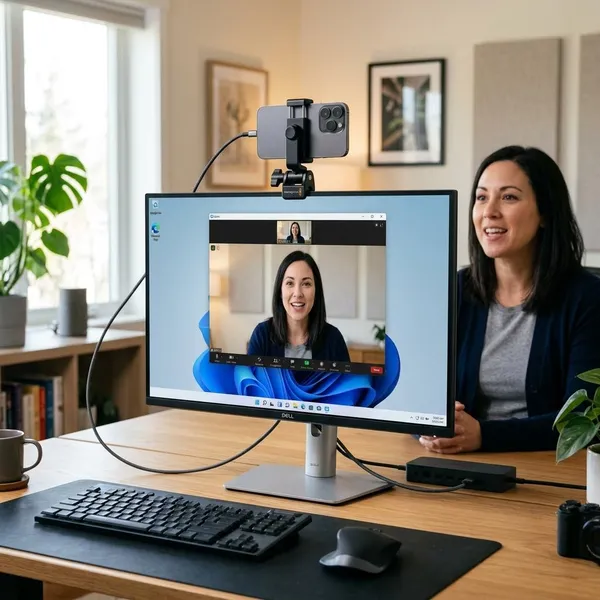
If you want the best webcams for streaming, start with your actual setup instead of the biggest resolution number. A seated gaming stream needs different strengths than a tutorial where you move around, and a dark bedroom setup needs better low-light handling before it needs 4K. For most people, the safest choice is a webcam with stable exposure, natural color, reliable software, and enough control to stop the image changing mid-stream.
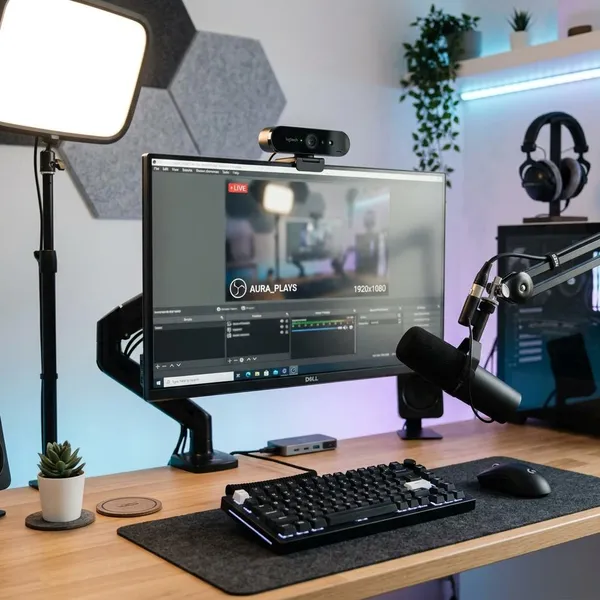
Best webcams for streaming
The strongest webcam for you depends on whether you sit still, move around, stream in low light, or want one camera for both work and content. If you mainly go live from a desk, manual controls matter more than AI tracking. If you teach, demonstrate products, or create fitness-style content, smart framing can be worth more than extra sharpness.
| Webcam | Best fit | Why it makes sense |
|---|---|---|
| Elgato Facecam MK.2 | Dedicated desk streaming | Stable image controls and strong OBS-friendly setup |
| YoloCam S3 | Clean 4K image quality | Sharp detail, strong color, and useful crop flexibility |
| Insta360 Link 2 | Movement and presentations | AI tracking keeps you framed without constant adjustment |
| OBSBOT Meet 2 | Compact 4K setups | Small body with modern framing features |
| Anker PowerConf C200 | Budget upgrades | Good 2K quality without paying for premium features |
| Logitech MX Brio | Premium all-purpose use | Polished 4K video and broad everyday compatibility |
What to look for in a streaming webcam
The first thing to check is not 4K. Check your lighting, your streaming style, and whether you need stable manual settings or automatic framing. Once you know that, the spec sheet becomes much easier to read.
For a seated streamer, prioritize exposure control, color, and OBS behavior. For a moving presenter, prioritize tracking and autofocus. For a beginner on a limited budget, choose a camera that looks decent in normal room light before paying for features you may not use.
Resolution and frame rate
1080p is still enough for many live streams, especially where the platform compresses video heavily. A good 1080p60 webcam can look smoother and more natural than a weaker 4K webcam locked to 30fps, particularly for gaming reactions, hand movement, or energetic talking.
Choose 4K when you want crop flexibility, sharper recordings, or a camera feed that can be reused in edited content. Choose 1080p60 when live motion matters more than raw detail.
Sensor and low-light quality
Low-light quality is where many cheap webcams fall apart. If your room is dim, a weak sensor will add grain, smear facial detail, or make skin tones look strange. That can happen even if the product page says "4K."
Autofocus
Autofocus matters most when your distance from the camera changes. If you lean forward, hold products up to the lens, or move around during tutorials, slow or hunting autofocus becomes distracting quickly.
If you sit at the same distance every time, autofocus is less important once the shot is set. Some streamers even prefer fixed focus for a more stable image, but beginners are usually better served by a webcam that focuses quickly without fuss.
Exposure and color controls
Manual exposure and white balance are worth paying attention to because auto settings often react to the wrong thing. A bright game menu, white webpage, or lamp in the background can make your webcam darken your face or shift color mid-stream.
- Lock exposure if brightness keeps jumping.
- Lock white balance if your skin turns too orange or too blue.
- Adjust field of view if your room looks too wide or cluttered.
OBS and software support
Most modern USB webcams work with OBS, but "works" is not the same as "works well." The better experience comes from a webcam app that remembers settings, updates reliably, and gives you enough control before you open OBS.
This matters more for long-term use than for a one-off stream. If you go live every week, having to fix exposure, color, and framing every session gets old fast. Stable software saves time and makes your stream look more consistent.
How to improve webcam stream quality
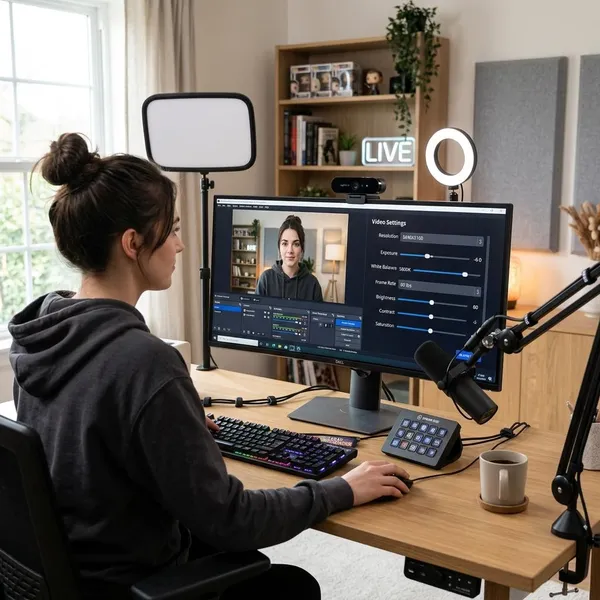
A better webcam helps, but setup changes often make the bigger difference. Before replacing your camera, fix the basics: light your face, raise the lens, lock unstable settings, simplify the background, and avoid relying on the webcam microphone.
Improve your lighting
Put your main light in front of you, slightly above eye level if possible. A soft desk lamp, LED panel, or window in front of your face will usually improve sharpness, color, and autofocus more than changing one camera setting.
Avoid strong backlighting. If the brightest thing in the shot is a window behind you, the webcam may expose for the window and leave your face dark. Closing a curtain or turning your desk around can be a free upgrade.
Position the camera at eye level
Eye-level placement makes the stream feel more natural. A laptop camera looking up from the desk is rarely flattering, and it can make eye contact feel off. Use a monitor mount, laptop stand, small tripod, or even a stable stack of books to bring the lens closer to your eyes.
Adjust exposure and white balance
Once your lighting is set, open the webcam software and watch what happens when you switch between bright and dark windows on your screen. If your face keeps changing brightness, lock exposure. If the color shifts when your screen content changes, set white balance manually.
You do not need perfect camera settings. You just need the image to stay steady during a normal stream. Stable and slightly imperfect usually looks better than automatic settings that keep correcting themselves.
Improve framing and background
Frame yourself with a little space above your head and keep your eyes around the upper third of the shot. If your webcam has a very wide field of view, narrow it unless you actually want to show the room. Wider often means more distractions, not a better stream.
- For casual chatting: a clean wall or tidy shelf is enough.
- For gaming: avoid bright objects behind you that pull attention from your face.
- For teaching or demos: leave space where your hands or objects need to appear.
Use a separate microphone
A separate microphone is often the smartest upgrade after basic lighting. Viewers may tolerate average video, but thin, echoey, or distant audio makes a stream hard to watch for long.
You do not need an expensive setup. A basic USB microphone placed closer to your mouth can sound much clearer than most webcam microphones. If your budget is tight, a good budget webcam plus a simple external mic is usually better than spending everything on a premium camera.
Conclusion
The right webcam is the one that solves your biggest setup problem first. Pick the YoloCam S3 if you want strong 4K detail, the Elgato Facecam MK.2 if you care about stable desk-stream controls, the Insta360 Link 2 if you move while presenting, the OBSBOT Meet 2 if you want compact 4K, the Anker PowerConf C200 if value matters most, and the Logitech MX Brio if you want a premium all-rounder. After that, spend time on lighting, camera height, and audio, because those basics decide whether the webcam actually looks good on stream.