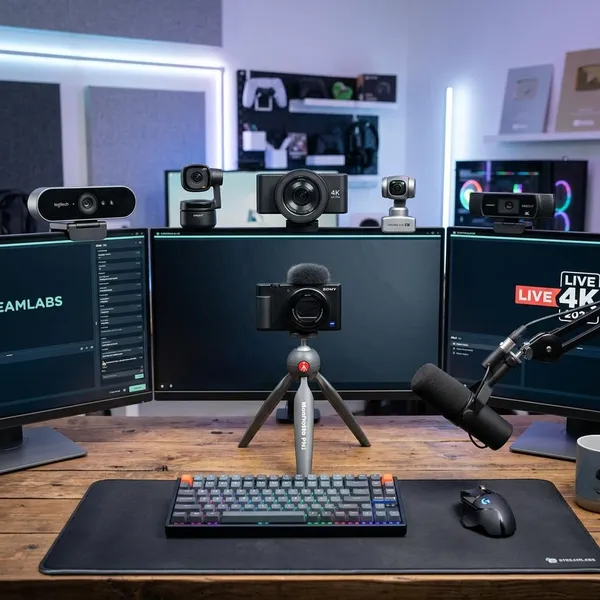
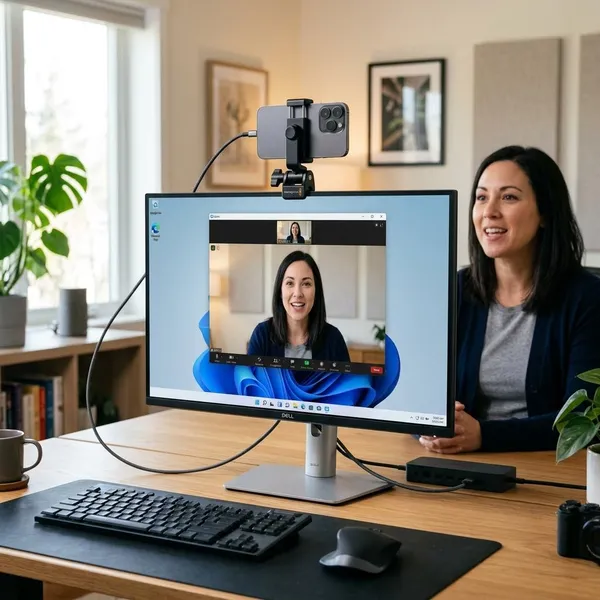
If you want to look clearer on Zoom, do not start by chasing the most expensive camera. For most people, the best webcam is the one that handles average room lighting, keeps your face framed naturally, and works without fiddly software before every call. The Logitech Brio 500 is the safest all-around pick, the Anker PowerConf C200 is the value choice, and the OBSBOT Meet 2 makes sense if you want compact 4K flexibility.
Best webcams for Zoom
The right pick depends less on one headline spec and more on how you use Zoom. A student joining a few classes a week does not need the same setup as someone doing client presentations every morning. Start with how often you are on camera, how controlled your lighting is, and whether your background needs a tighter crop.
| Webcam | Best fit | Why it stands out |
|---|---|---|
| Logitech Brio 500 | Most remote workers | Reliable 1080p image, useful framing, easy setup |
| Anker PowerConf C200 | Budget buyers | Strong value, 2K detail, privacy slider |
| OBSBOT Meet 2 | Compact 4K setups | Sharper source image and smart framing in a small body |
What matters in a Zoom webcam
For Zoom, the order of importance is usually simple: lighting performance first, framing second, resolution third, and microphone quality only if you do not already use a headset. A high-resolution webcam can still look mediocre in a dark room, while a well-placed 1080p camera in good light can look clean and professional.
Resolution and image quality
For most Zoom users, 1080p is the practical sweet spot. It gives enough detail for meetings, keeps prices reasonable, and avoids paying for a spec you may not fully use. Choose 4K if you want cleaner cropping, better source detail, or a camera that also works for recorded video.
Do not judge image quality by resolution alone. Color, exposure, sensor quality, and processing all affect whether your face looks natural or washed out.
Autofocus and light correction
Autofocus matters if you lean forward, move in your chair, or occasionally hold something up to the camera. Light correction matters if your room changes from bright daylight to dim evening calls. Together, these features reduce the small adjustments that make video meetings annoying.
If your workday includes calls at different times of day, prioritize light handling over 4K. A camera that keeps your face visible in mixed lighting will usually feel like a bigger upgrade than extra pixels.
Field of view and framing
Field of view decides how much of your room appears behind you. A wide view helps if two people sit together or you show objects on a desk, but solo calls usually look better with a tighter head-and-shoulders frame.
- Small desk or cluttered room: choose adjustable or narrower framing.
- Teaching, demos, or two-person calls: a wider view can be useful.
- Interviews and client calls: tighter framing usually looks more focused.
Microphone quality
Webcam microphones are fine for quick calls in a quiet room, but they should not be the main reason you buy one model over another. Room echo, keyboard noise, and distance from the camera can make even a decent built-in mic sound thin.
Privacy and mounting
A privacy shutter is a small feature that matters in daily use. It gives you a visible way to block the lens when the webcam stays connected to a work laptop or family computer.
Mounting is just as practical. Before buying, look at your screen thickness and desk layout: a webcam that slips, tilts, or points upward will become frustrating quickly, no matter how good the sensor is.
How to choose a webcam for Zoom
Choose a webcam by solving your biggest problem first. If your current image is blurry, prioritize image quality. If your face is dark, prioritize light correction. If your room shows too much background, prioritize field-of-view control.
Start with your budget
If you only use Zoom a few times a month, a budget webcam can be enough. If Zoom is part of your job every day, spending more for steadier focus, better color, and easier framing is easier to justify.
Consider your lighting
Look at your camera preview at the time you usually take calls. If your face is dim, grainy, or backlit, a webcam with better light correction will help, but a small front light may help even more.
Match the field of view to your space
A narrow or adjustable field of view is better for small rooms, shared spaces, and desks with distracting backgrounds. A wider view works when you need to show a whiteboard, product, desk setup, or a second person.
For formal calls, aim for a frame that shows your head and shoulders with a little space above your head. Too much ceiling or desk makes the call feel less polished.
Check Windows and Mac compatibility
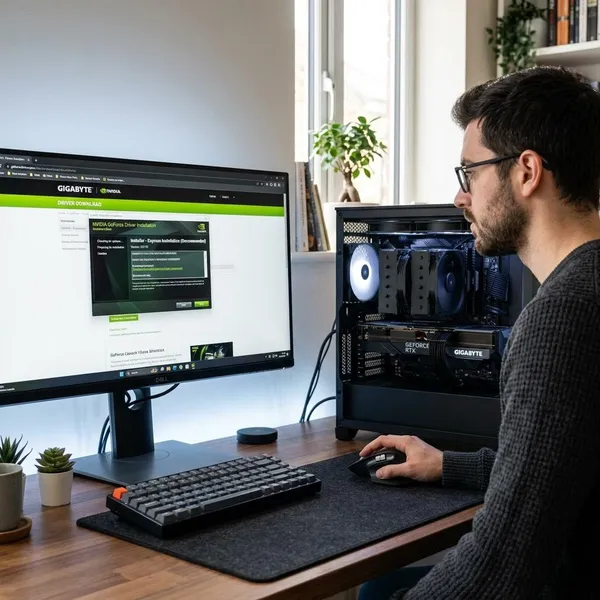
Most mainstream webcams work on Windows and Mac for basic video, but the extra software can differ. If you want manual exposure, firmware updates, AI framing, or custom field-of-view controls, check that those features are supported on your operating system.
This matters even more on managed work laptops. The webcam may plug in and work, while the companion app may be blocked by company permissions.
Decide which extra features matter
Auto-framing is useful if you move during calls. A privacy shutter is useful if the camera stays attached all day. 4K is useful if you crop, record, or care about a more refined image. Built-in microphones are useful for a simple travel setup, but less important if you already use a headset.
Skip features that do not match your routine. The best buying decision is not the longest spec list; it is the camera that removes the one thing that currently makes your Zoom video look worse.
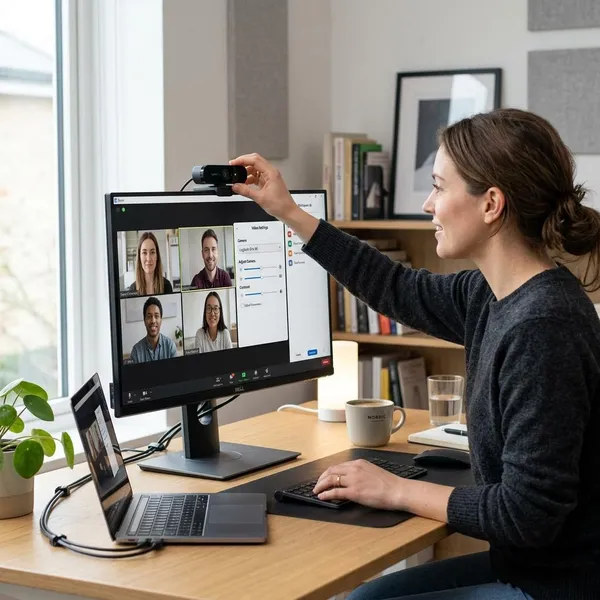
How to improve Zoom webcam quality
You can often make your current webcam look better before replacing it. Lighting, camera height, framing, and audio setup affect the final call more than many people expect.
Before an important interview or client meeting, do a quick test call rather than adjusting everything live. It takes a minute and catches the common problems: a dark face, a low camera angle, too much background, or audio that sounds distant.
Improve your lighting
Put the strongest light in front of you, not behind you. A window behind the screen works during the day, while a desk lamp or soft light near the camera helps at night.
- Avoid backlighting: a bright window behind you can turn your face into a shadow.
- Soften harsh light: angle the lamp or bounce it off a wall if your face looks shiny.
- Keep it consistent: mixed daylight and overhead bulbs can make colors look odd.
Place the camera at eye level
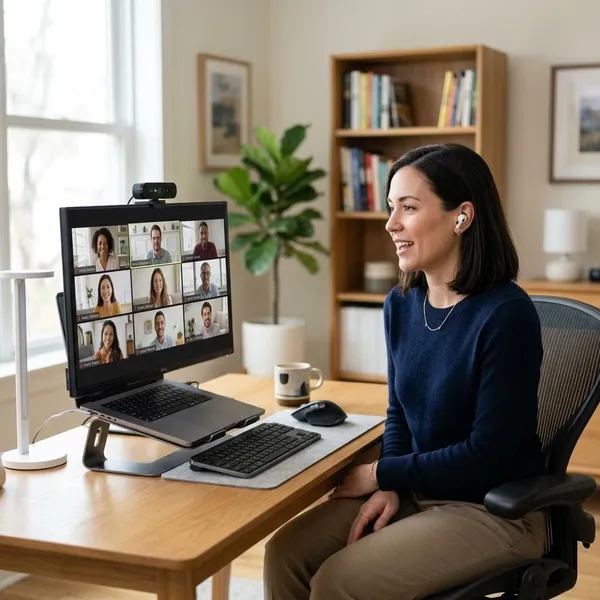
Raise the camera until the lens sits close to eye level. A laptop stand, monitor arm, or even a stack of books can make the angle look much more natural.
This is especially worth doing for interviews. A low camera angle can make you look less engaged, while eye-level placement makes conversation feel more direct.
Adjust framing and exposure
Open your webcam preview and frame yourself before the call starts. Keep your face centered, show your shoulders, and leave only a small amount of space above your head.
If your webcam software allows manual exposure, avoid making the image too bright. Natural skin tone with clear face detail looks better than a washed-out image that hides every shadow.
Use a separate microphone when needed
Use a separate microphone or headset if your room echoes, your keyboard is loud, or people often ask you to repeat something. For professional calls, clean audio usually matters more than upgrading from a good webcam to a slightly better one.
Conclusion
Pick the webcam that fixes your weakest part of the call first: the Brio 500 is the safest everyday choice, the Anker PowerConf C200 is the sensible budget upgrade, and the OBSBOT Meet 2 is worth considering when 4K cropping and polished framing matter. If your lighting or audio is poor, fix that alongside the camera rather than expecting one purchase to solve everything.