If you want the safest pick among the best webcams under 100, start with how you actually use your camera: the Anker PowerConf C200 is the most flexible all-rounder, the Logitech C920s Pro is the easy work-call choice, and the Elgato Facecam Neo makes the most sense if smoother 60fps video matters to you. Lighting and camera position still affect the final result more than many spec differences, so the right choice is the one that fits your desk, apps, and daily routine.
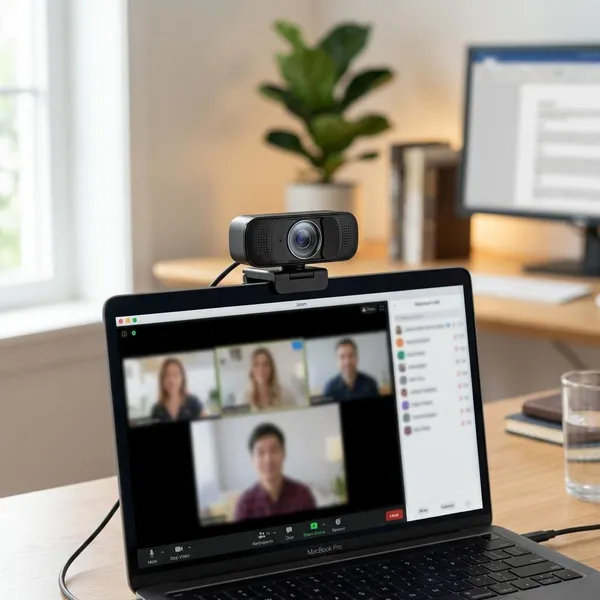
Anker PowerConf C200
The Anker PowerConf C200 is the best fit if you want one webcam that can handle work calls, online classes, and occasional recording without feeling too basic. Its main appeal is balance: sharper-than-standard video, useful framing options, autofocus, and enough flexibility for less-than-perfect home setups.
Choose it if your webcam needs to do more than sit through one weekly meeting. If you work from a small apartment, share a room, or move between calls and short recordings, the C200 gives you more room to adjust the image than a simple plug-and-play model.
Image quality
The C200's 2K image gives faces and close desk details a cleaner look than many basic 1080p webcams, especially when the camera is fairly close to you. The difference is easiest to notice in recordings, presentations, and calls where the app does not heavily compress the video.
Autofocus and framing
Autofocus is useful if you lean forward, show something to the camera, or shift position during calls. It helps the image stay usable without constant manual adjustment.
Low-light performance
The C200 is forgiving in ordinary indoor lighting, but it should not be treated as a fix for a dark room. It can keep a usable image during evening calls or cloudy days, yet a small lamp in front of you will still make a bigger improvement than relying on the sensor alone.
Best use cases
The Anker PowerConf C200 is the strongest all-round choice for mixed use. It suits remote workers who want a sharper image, students who change rooms or desk positions, and casual creators who occasionally record short videos.
- Pick it for: 2K detail, flexible framing, and a setup that changes during the week.
- Skip it if: you only need a simple webcam for basic Zoom calls and do not want to adjust settings.
Logitech C920s Pro
The Logitech C920s Pro is the practical choice for people who want their webcam to work without fuss. It does not chase the newest specs, but it has dependable 1080p video, broad app compatibility, and a privacy shutter, which makes it easy to recommend for everyday work and school use.
Image quality
The C920s Pro looks clear and steady in normal lighting. It is not as sharp as a good 2K webcam, but for Zoom, Teams, Google Meet, interviews, and family calls, its 1080p image is usually enough.
Its strength is consistency rather than maximum detail. If you want a camera that looks acceptable almost every time you open a meeting app, the C920s Pro still holds up well.
Autofocus and color
Autofocus is stable for normal seated use. It may not feel as quick as newer models when you hold objects close to the lens, but it keeps your face in focus well enough for meetings and classes.
Color is one of the reasons this model remains popular. In decent lighting, skin tones tend to look natural rather than overly blue, flat, or harshly contrasted, which matters more for professional calls than a small bump in resolution.
Microphone and privacy
The built-in microphones are fine for quiet rooms and quick calls, but they are not ideal for echoey rooms, keyboard noise, or long presentations. If people often ask you to repeat yourself, upgrade the audio before replacing the camera.
The privacy shutter is simple but genuinely useful. For a webcam used in a bedroom, home office, or shared family space, being able to physically cover the lens is more reassuring than depending only on software controls.
Best use cases
The Logitech C920s Pro is best for straightforward video calls, online classes, interviews, and office meetings. It is the right pick if reliability matters more than 2K sharpness or 60fps motion.
- Pick it for: Zoom, Teams, school, interviews, and shared household use.
- Skip it if: you want smoother motion for streaming or more control over the final image.
Elgato Facecam Neo
The Elgato Facecam Neo is the better match for people who care about how their camera feed looks during streams, recordings, or live sessions. It can handle ordinary meetings, but its value is strongest when smoother motion and image controls actually matter.
Image quality
The Facecam Neo produces a clean, polished image in good lighting. Its advantage is not only sharpness; the overall look can feel more tuned for on-camera presentation than a typical office webcam.
This matters if your face cam is part of the content rather than just a meeting requirement. In a recorded tutorial, livestream, or product demo, a cleaner image helps the video feel more deliberate.
60fps performance
60fps is worth considering if viewers will see you moving on camera. Hand gestures, head turns, reactions, and live demonstrations can look smoother than they do at 30fps.
Camera controls
Manual controls are a major reason to choose the Facecam Neo. Being able to adjust exposure, white balance, and framing helps prevent the camera from changing the image every time a cloud passes the window or a lamp turns on.
If you want the same look every time you stream or record, lock in your settings after testing them in your usual lighting. That small step can make a budget setup look far more consistent.
Best use cases
The Elgato Facecam Neo is best for beginner creators, streamers, remote presenters, and anyone who wants smoother motion with more control over the image. It is less compelling if you only need a dependable webcam for short meetings.
- Pick it for: 60fps video, creator-friendly controls, and a more polished on-camera look.
- Skip it if: you want the simplest webcam possible or mostly use video apps that limit quality.
How to improve webcam quality
A better webcam helps, but setup mistakes can make even a good camera look cheap. Before you replace your webcam, check three things first: light on your face, camera height, and audio clarity.
Add better lighting
Put light in front of you, not behind you. A bright window or lamp behind your head often makes your face look dark because the webcam tries to balance the whole scene.
- Easy daytime fix: face a window instead of sitting with it behind you.
- Easy evening fix: place a soft lamp near your monitor, slightly above or beside the webcam.
- Avoid: harsh overhead light as your only source, which can create strong shadows under your eyes.
Position the camera at eye level
A camera at eye level looks more natural than a laptop camera pointing up from the desk. Raise the webcam with a monitor mount, stand, or even a stable stack of books, then sit far enough back that your face is not filling the whole frame.
Adjust exposure and framing
If your webcam software allows it, reduce exposure until your face has detail instead of looking washed out. Then adjust framing so your eyes sit around the upper third of the image, with a little space above your head.
A tighter frame is useful in a cluttered room; a wider one works better when you teach, gesture, or show objects. The common mistake is leaving the default wide view on, which shows more background than the viewer needs.
Use a separate microphone when needed
Use a separate microphone if your voice sounds distant, echoey, or buried under keyboard noise. A basic USB headset is usually enough for work and classes, while a small desktop USB mic makes more sense for streaming, teaching, or regular recording.
Clear audio often matters more than slightly sharper video. People may tolerate an average image, but bad sound makes meetings and videos tiring very quickly.
Conclusion
The best choice is simple once you match the webcam to the job: choose the Anker PowerConf C200 if you want the most flexible all-rounder, the Logitech C920s Pro if you want dependable plug-and-play calls, and the Elgato Facecam Neo if smoother motion and manual control matter to you. Spend a few minutes fixing lighting and camera height before judging any of them, because a well-set-up budget webcam usually beats a higher-spec camera used in poor light.