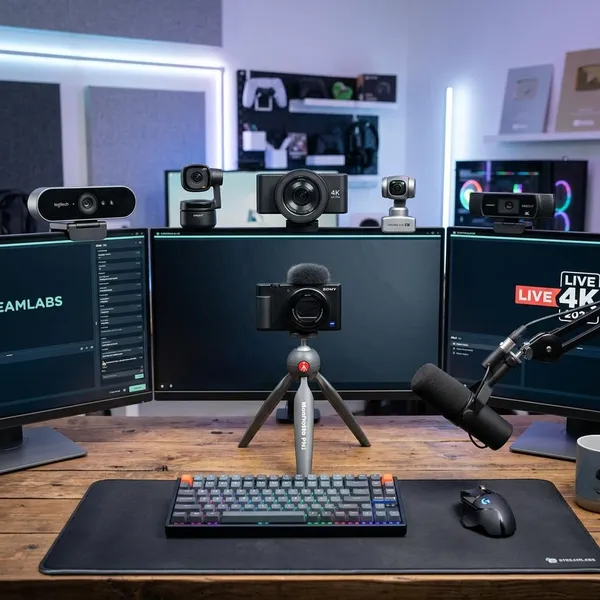
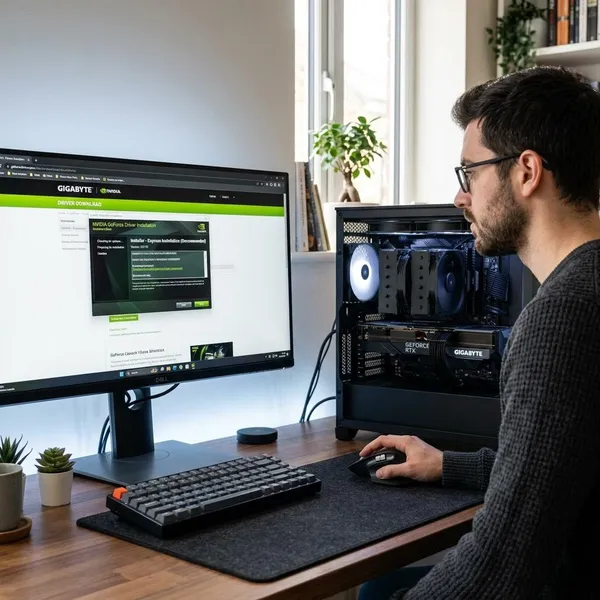
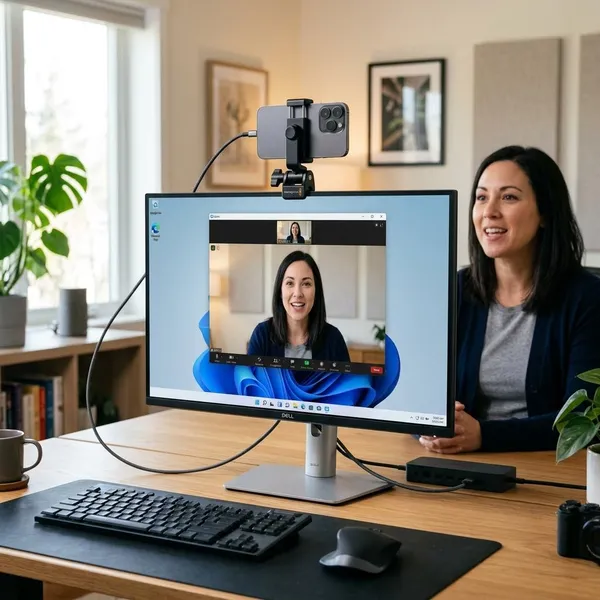
If your Canon camera is supported, Canon EOS Webcam Utility is one of the easiest ways to get better video for calls, classes, and simple streams without buying a capture card. The first things to check are your exact camera model, your operating system, and whether your app can select the utility as a camera source.
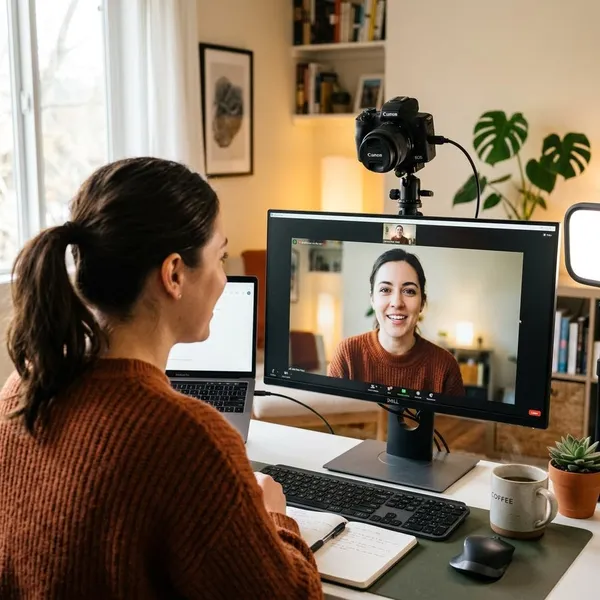
What Canon EOS Webcam Utility does
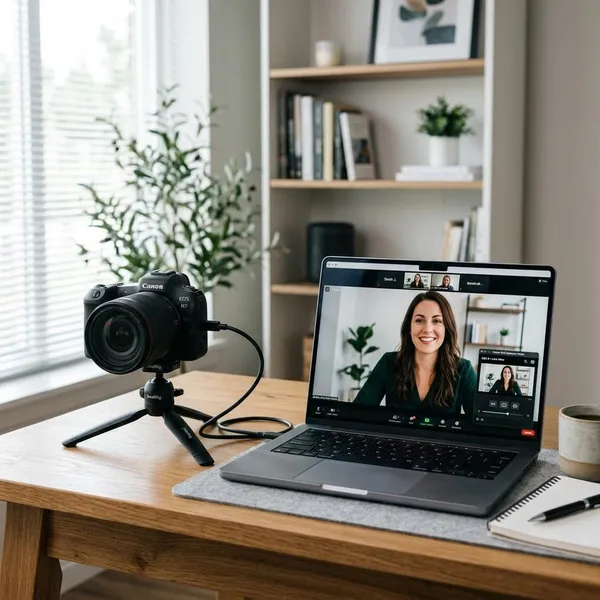
Canon EOS Webcam Utility works as a bridge between a compatible Canon camera and your computer. Instead of relying on a small laptop webcam, you can use the Canon camera you already own for a cleaner, more natural-looking video feed.
Turns compatible Canon cameras into webcams
The software lets supported Canon EOS cameras, and some supported PowerShot models, appear as webcam sources inside video apps. That means the camera can be used for live video rather than only for photos or normal recording.
The main advantage is image quality. A Canon camera usually handles indoor light, background blur, and color better than a built-in webcam, especially if your room is not perfectly lit.
Connects through USB
The utility uses a USB connection, which keeps the setup fairly simple. For most people, that is the biggest reason to try it before looking at HDMI capture cards.
- Use a direct USB connection for the first test.
- Avoid cheap or loose cables if the feed drops out.
- Add hubs or adapters only after the basic setup works.
Works with video and streaming apps
Once installed correctly, the utility can appear as a camera option in many meeting and streaming apps, including common tools such as Zoom, Teams, Google Meet, and OBS. The exact behavior can vary by system, so test it in the app you actually plan to use.
Free and Pro features
The free version is usually enough if your goal is simple webcam use: connect the camera, select the source, and improve your video image. That is the right place to start if you only need it for meetings, school, family calls, or basic recording.
Canon has also offered paid or Pro features in some regions. Those extras may be useful for creators or presenters who want more layout or presentation options, but they are not essential for confirming that your camera works as a webcam.
Canon EOS Webcam Utility compatibility
Compatibility is the first checkpoint, not an afterthought. A failed setup is often caused by one mismatched piece: the camera model, the operating system version, the cable connection, or the app being used.
Before changing camera settings or reinstalling software, search Canon's official support page for your exact model and download the version intended for your computer. Do not assume that every camera in the same product line is supported.
Supported Canon cameras
Many Canon EOS DSLR and mirrorless cameras are supported, and selected PowerShot models may be supported too. Support can change by software release and region, so the safest check is the exact model name, not just "EOS Rebel," "EOS R," or "PowerShot."
Windows and macOS support
The utility is available for Windows and macOS, but the correct installer matters. A version made for a different operating system release may install but still fail to show up properly in your apps.
- On macOS, check camera and privacy permissions if the source is missing.
- On Windows, close other camera software that may be holding the connection.
- After installing, restart the computer before troubleshooting more deeply.
Zoom and meeting apps
Meeting apps are usually the easiest place to test the setup. Open the app's video settings and look for EOS Webcam Utility in the camera list.
If it does not appear, close the meeting app completely, connect and power on the camera, then reopen the app. Some apps only scan for camera sources when they launch, which makes this small order-of-steps issue look like a bigger problem than it is.
OBS and streaming apps
OBS can use EOS Webcam Utility as a video capture source in many setups. It is a sensible starting point for occasional streaming because it avoids the cost and complexity of an HDMI capture card.
For regular streaming, the decision is different. The utility is convenient, while a capture-card setup may offer cleaner output and more control depending on your camera and workflow. If you are just testing livestreaming, start with the utility; if you are building a serious long-term production setup, compare it with HDMI capture before buying accessories.
How to set up Canon EOS Webcam Utility
The setup is simple when you do it in the right order: install the correct software, connect the camera with USB, turn the camera on, choose the utility in your app, and test the feed before you need it. Most avoidable problems happen because one of these steps is skipped or done too late.
Download and install the software
Start on Canon's official support site and search for your exact camera model. Download the EOS Webcam Utility installer that matches your operating system and region.
After installation, restart your computer if Canon recommends it. This helps video apps recognize the new camera source and prevents a lot of "installed but not showing" confusion.
Connect your Canon camera
Use a reliable USB cable and plug the camera directly into the computer for the first setup. A direct connection makes troubleshooting easier because you are not guessing whether a hub, dock, or adapter is causing the issue.
- Try another USB port if the camera is not detected.
- Remove unnecessary adapters during the first test.
- Turn off Wi-Fi or tethering tools if they interfere with USB control.
Turn on the camera
Power on the camera after connecting it and use a shooting mode your model supports for webcam use. If the camera is stuck in a menu, playback screen, or unsupported mode, your app may see the utility but show no usable image.
Check the simple things before blaming the software: lens cap off, battery charged, memory door closed, and camera display awake. These basic checks solve more webcam problems than people expect.
Select EOS Webcam Utility in your app
Open the video settings in Zoom, Teams, OBS, or your chosen app and select EOS Webcam Utility as the camera. Give the preview a few seconds to load before changing settings again.
If another app is already using the camera, close it. Only one program may be able to control the video source cleanly at a time, depending on your setup.
Test the video feed
Do a short test in the same app you will use for the real call or stream. Check framing, brightness, focus behavior, and whether the feed stays stable for more than a few seconds.
- Confirm the camera appears as a selectable source.
- Check that your microphone is set separately if needed.
- Move naturally and watch for focus hunting or brightness shifts.
- Leave the preview running long enough to catch sleep or power issues.
Best camera settings for webcam use
A good webcam setup is less about cinematic settings and more about consistency. Your face should be clear, your focus should not jump around, and the camera should look good under the lighting you actually use every day.
Set exposure
Set exposure so your face is bright enough without looking washed out. If your room lighting stays the same, manual exposure is usually more stable because the camera will not brighten and darken every time you move.
Set autofocus
Use face or eye detection if your camera supports it. That is usually the easiest autofocus option for webcam use because it prioritizes you instead of the background.
If focus keeps pulsing, simplify the background or switch to manual focus when your chair and camera position are fixed. For a desk setup where you sit in the same place every day, manual focus can look calmer than autofocus.
Adjust framing
Place the camera near eye level and frame your head and upper shoulders. This looks more natural than a low laptop angle and helps you avoid leaning awkwardly into the shot.
- Leave a little headroom, but not a large empty space above you.
- Keep the background tidy enough that it does not compete for attention.
- Avoid sitting too close if shallow depth of field makes focus unreliable.
Improve lighting
Lighting will often improve the image more than changing camera settings. Soft light from in front of you is usually better than strong light from behind you.
Manage camera power
For a short meeting, a full battery may be enough. For long calls, teaching blocks, interviews, or streaming, continuous power is much safer if your camera supports it.
A compatible AC adapter or DC coupler prevents the most annoying failure: the camera shutting down in the middle of a session. If you are not ready to buy power accessories, at least test how long your battery lasts in webcam use before depending on it.
How to improve long webcam sessions
A setup that works for ten minutes is not automatically ready for a two-hour class, workshop, or livestream. Longer use brings out different weak points: power drain, heat, auto sleep settings, and unstable USB connections.
For extended sessions, build reliability first and polish the image second. A slightly less perfect picture is better than a beautiful feed that freezes halfway through an important call.
Use continuous power
Continuous power is the first upgrade to consider if you use the camera often. A compatible power adapter keeps the camera running without depending on battery life.
Prevent automatic sleep
Check the camera's auto power-off or sleep settings before a long session. If the camera is allowed to sleep, your app may suddenly lose the video source even though the USB cable and software are fine.
Extend the timer or disable sleep if your model allows it, then run a longer test. A five-minute preview does not prove that a one-hour session will stay active.
Keep the camera cool
Heat can become a problem during extended use, especially in a warm room, near a sunny window, or under strong lights. Keep airflow around the camera and avoid trapping it tightly against shelves, walls, or soft materials.
- Move the camera out of direct sunlight.
- Open the flip screen if your model allows it and it helps airflow.
- Reduce unnecessary heat from nearby lamps when possible.
Use a reliable USB connection
A weak USB path can cause random freezes, dropouts, or missing video. Use a good-quality cable with a snug fit, and keep the connection as simple as possible.
If you must use a USB-C adapter or dock, test it before an important session. When troubleshooting, go back to the simplest setup first: camera, cable, computer, and one video app.
Conclusion
Canon EOS Webcam Utility is a smart first step if you already own a supported Canon camera and want better video without building a full capture-card setup. Check compatibility first, keep the USB and power setup simple, and test the exact app you will use; if your sessions become longer or more serious, continuous power and a more stable connection matter more than chasing perfect camera settings.