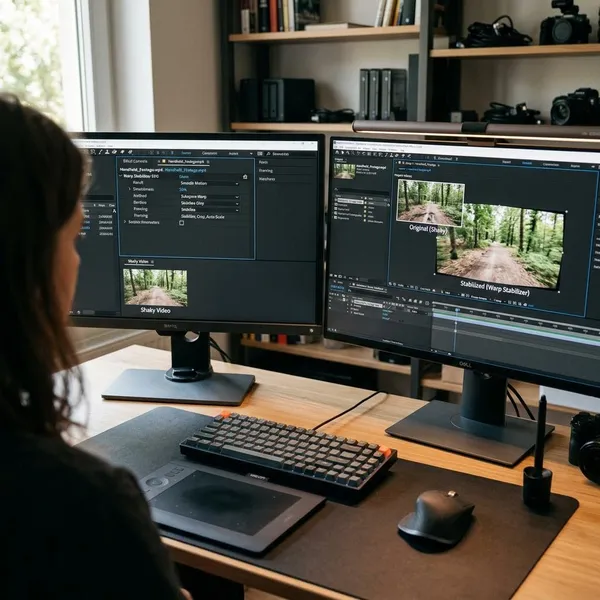
If you want a serious image editor without paying for a subscription, the gimp graphics program is still one of the most practical choices. It is best for photo fixes, background removal, web graphics, simple design work, and learning layer-based editing. The main thing to know before installing it: GIMP is powerful, but it feels more like a desktop editor than a beginner-friendly phone app.
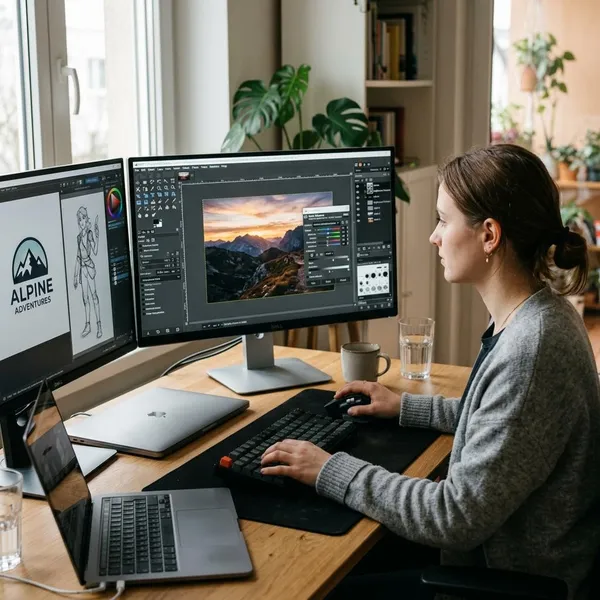
What can you do with GIMP?
GIMP can cover a surprising amount of everyday image work: cleaning up photos, correcting color, cutting out objects, combining images, painting, and making graphics for websites or social media. The best way to think about it is simple: if the job is pixel-based and does not require a professional publishing workflow, GIMP is often enough.
Retouch and restore photos
GIMP is useful for small photo repairs such as removing dust spots, softening blemishes, fixing scratches in scanned photos, or cleaning up a distracting mark in the background. For an old family photo with faded areas or small creases, the clone and healing-style tools can make a visible improvement without needing paid software.
Correct color and lighting
For dark, flat, or slightly yellow photos, GIMP gives you the tools that matter most: levels, curves, exposure, contrast, saturation, and color balance. A quick check before editing is to ask what is actually wrong with the image: is it too dark, too warm, too dull, or just badly cropped?
- Too dark: start with exposure or levels.
- Too yellow or blue: adjust color balance or white balance manually.
- Too flat: add contrast carefully before increasing saturation.
- Too harsh: reduce contrast rather than adding more filters.
Remove backgrounds
Background removal is one of GIMP's most practical uses, especially for product photos, profile images, blog visuals, and simple promotional graphics. A product photographed against a plain wall is usually a good GIMP task; a portrait with loose hair against a messy background will take much longer.
The safest workflow is to use selections together with a layer mask instead of deleting pixels immediately. That way, if the edge looks too sharp or you cut away part of the subject, you can correct it without starting again.
Combine multiple images
GIMP handles collages, thumbnails, mockups, banners, and before-and-after images well because each element can sit on its own layer. This is where the program starts to feel much more capable than a basic online editor.
Draw and paint digitally
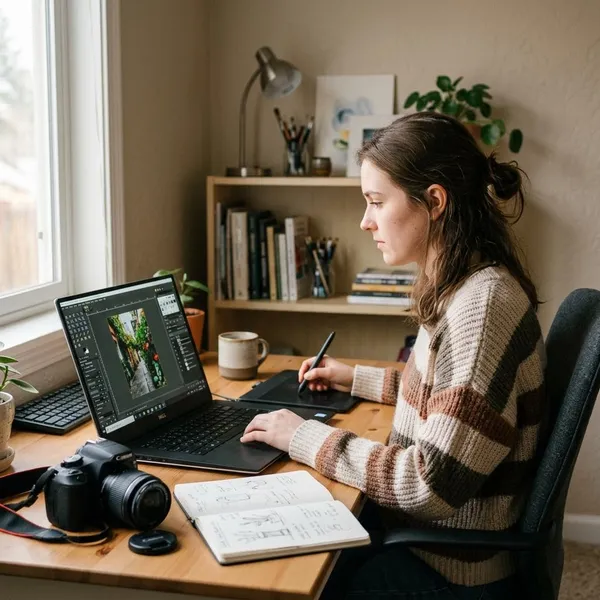
GIMP can be used for sketching, coloring, texture work, and simple illustration. It supports brushes, erasers, custom brush settings, and drawing tablets, so it is a good low-cost way to test whether digital art suits you.
Dedicated painting apps may feel smoother for serious illustration, but GIMP works well if you want one program for both editing photos and adding hand-drawn details.
Create graphics for the web
GIMP is a strong fit for blog headers, social media images, simple ads, icons, and website graphics. You can set an exact canvas size, add text, crop images, resize files, and export in common web formats.
Key GIMP features
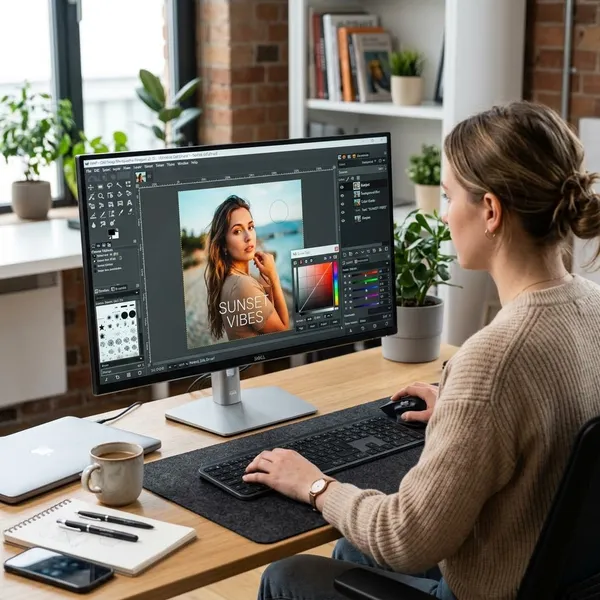
The most important GIMP features are not the flashy effects. The real value is in layers, masks, selections, brushes, filters, and the ability to customize the workspace. Learn those in roughly that order and the program becomes much easier to use.
Layers and masks
Layers let you keep parts of a project separate, such as a photo, text, logo, background, or adjustment. That means you can move or edit one element without damaging everything else.
Masks are just as important because they let you hide parts of a layer without permanently deleting them. If you are removing a background or blending two photos, masks give you room to fix mistakes.
Selection and transform tools
Selections help you work on one part of an image instead of the whole file. You might select a sky to darken it, a product to cut it out, or a face to brighten it slightly.
Transform tools handle the practical fixes: rotate a tilted photo, scale a logo, flip an object, straighten a layout, or fit an image into a specific design space. These are everyday tools, not advanced extras.
Brushes and painting tools
Brushes are useful even if you never plan to paint from scratch. In photo editing, they help soften masks, touch up small areas, dodge and burn, or add subtle corrections that look more natural than a hard selection.
Filters and effects
GIMP includes filters for blur, sharpening, noise reduction, distortion, lighting effects, and stylized looks. The mistake beginners often make is applying effects too strongly. If the viewer notices the filter before the image, it is probably too much.
A better habit is to use filters for a clear purpose: soften a busy background, sharpen a resized product photo, reduce visible noise, or create a specific graphic style.
Plugins and customization
GIMP can be adjusted to fit the way you work. You can change panels, shortcuts, tool options, and layouts, which helps if you use the same tools often.
Plugins can add extra effects, file handling, or workflow shortcuts, but it is better to learn the core program first. Installing too many extras early can make GIMP feel more confusing instead of easier.
Who is GIMP best for?
GIMP is best for people who want capable editing tools, local files, and no subscription cost. It is not the smoothest option for every professional team, but for many students, creators, photographers, and small businesses, the trade-off is very reasonable.
| User type | GIMP makes sense when... | Be cautious if... |
|---|---|---|
| Student or hobbyist | You want to learn real editing concepts for free. | You need the simplest possible interface. |
| Photographer or creator | You mainly edit finished images for web or personal projects. | You need a fast professional RAW workflow or team review tools. |
| Designer or illustrator | You work with raster images, composites, or painted graphics. | You need advanced vector design or page layout features. |
| Small business owner | You need affordable product photos, banners, and basic branded visuals. | You need strict brand templates across a large team. |
How to get started with GIMP
The easiest way to start with GIMP is not to learn every tool. Start with one image, make a copy, do three useful edits, and export the result. That gives you a quick win before the interface starts to feel overwhelming.
Download and install GIMP
Download GIMP from the official website and choose the installer for your operating system. GIMP is available for Windows, macOS, and Linux, but it is still worth checking the download page for the current supported versions before installing.
Avoid unofficial download sites. With free software, the safest habit is to get the installer from the source rather than from a random software bundle page.
Open your first image
Open a familiar photo first, such as a phone picture, pet photo, or simple landscape. Familiar images make it easier to judge whether your edits are improving the file or just changing it.
- Save a copy first: keep the original untouched.
- Find the layers panel: you will use it often.
- Zoom in and out: check both detail and overall appearance.
Learn the basic tools
Focus on the crop tool, move tool, text tool, brush, eraser, selection tools, and basic color adjustments. Those tools cover a large share of beginner projects.
Learn layers early, even if you only add text over a photo. Once you understand that separate parts of the image can stay editable, GIMP becomes much less intimidating.
Try a simple editing project
A good first project is small and specific: crop a portrait, brighten it slightly, remove one background distraction, add a text layer, and export a copy. That single exercise teaches cropping, adjustment, retouching, layers, and exporting without turning into a long course.
- Open a copied photo, not the original.
- Crop it for the place you plan to use it.
- Adjust brightness or contrast lightly.
- Remove one small distraction.
- Export a new file and compare it with the original.
Conclusion
GIMP is a smart choice if you want free desktop image editing and you are willing to spend a little time learning the basics. It is strongest for photo cleanup, web graphics, background removal, compositing, and casual digital art; it is less convincing when you need polished team workflows or specialized professional tools. If your needs are personal, student-level, creator-focused, or small-business practical, try one real project before deciding whether you need anything more expensive.