To enable webcam access, check Windows first, then Chrome. Windows decides whether the camera can be used at all, while Chrome decides which websites may ask for it and which camera they should use. If you are setting up for a video call, online exam, recorder, or identity check, do the Windows check before changing site permissions.
Enable webcam access in Windows
Windows is the first permission layer. If camera access is off here, Chrome cannot fix it from inside the browser, even if the website shows an Allow button.
Open Camera privacy settings
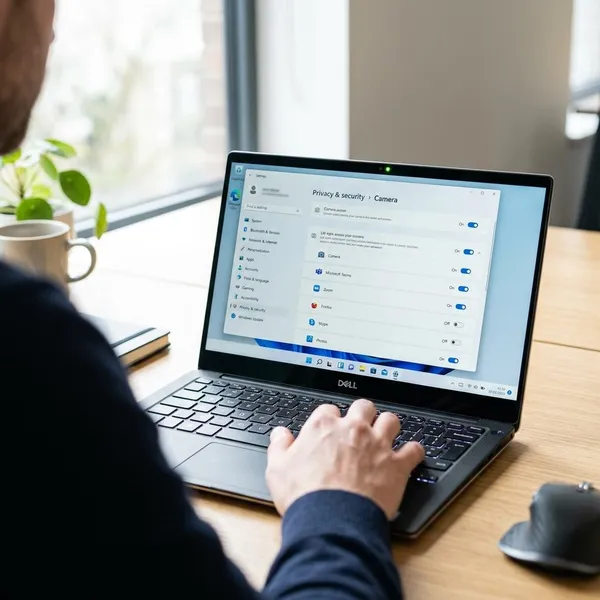
Press Windows + I to open Settings. On Windows 11, go to Privacy & security > Camera. On many Windows 10 PCs, go to Privacy > Camera. You can also search for Camera privacy settings from the Start menu if you want the quickest route.
- Use this page first if no website can see your webcam.
- Check it again after a Windows update if camera access suddenly stops working.
- Expect some wording differences between Windows 10 and Windows 11, but the permission logic is similar.
Turn on Camera access
Find Camera access near the top of the Camera settings page and switch it On. This is the main system permission. If it is off, Windows blocks the webcam before Chrome, Zoom, Teams, or any website gets a chance to use it.
If you use an external USB webcam, plug it in before testing. A loose cable, closed laptop privacy shutter, or disabled camera can look like a permission problem, so make sure the device is physically available too.
Allow apps to use the camera
Turn on Let apps access your camera if you want Windows apps to use the webcam. This matters when you test the camera in the Windows Camera app or use installed calling and recording tools.
For a one-time browser task, such as identity verification, you may only need Chrome and the desktop app setting below. For regular video calls, it is more practical to allow the trusted apps you actually use and leave unrelated apps switched off.
- Allow meeting apps you use regularly.
- Leave unnecessary apps off if they do not need video.
- Test with the Camera app if you want to separate a Windows issue from a Chrome issue.
Allow desktop app access
Chrome is treated as a desktop app in Windows, so Let desktop apps access your camera should be On. This is the setting people often miss: the camera can work in a Microsoft Store app while still failing in Chrome if desktop app access is disabled.
If this setting is greyed out on a work or school laptop, it may be controlled by an administrator. In that case, do not waste time reinstalling Chrome first; ask the device admin or IT team whether camera use is blocked by policy.
Allow camera access in Chrome
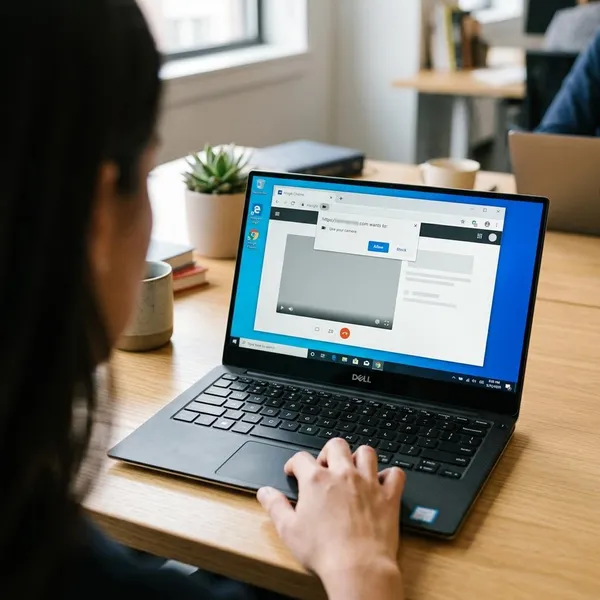
After Windows allows the camera, Chrome still needs its own permission check. The most common browser-side problems are a blocked website, the wrong default camera, or a permission prompt that was dismissed earlier.
Open Camera site settings
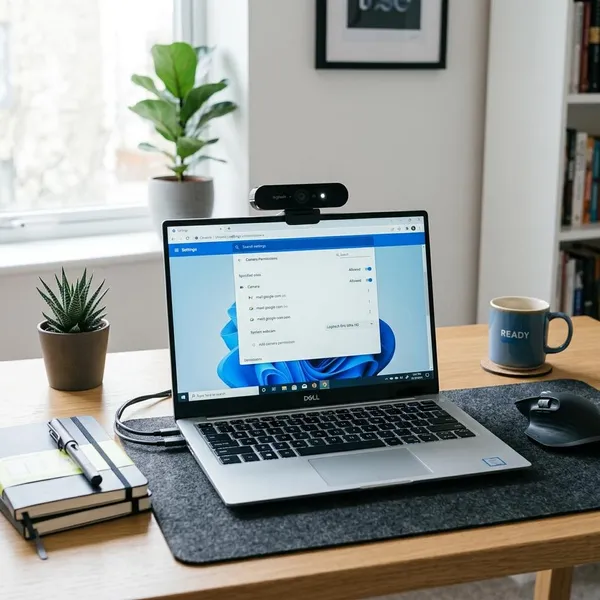
In Chrome, click the three dots in the top-right corner and open Settings. Go to Privacy and security > Site settings > Camera. For a faster path, type chrome://settings/content/camera into the address bar.
This page shows the default camera, whether sites can ask for access, and which websites are blocked or allowed. It is the best place to check when a site never shows a camera prompt.
Allow sites to request access
Select Sites can ask to use your camera. That does not give every website automatic access; it only lets trusted sites show a permission request when they need the webcam.
- Click Allow on sites you trust and need to use.
- Click Block for sites that have no clear reason to use your camera.
- Refresh the page after changing a camera permission.
This is the safest everyday setting for most people because it keeps the decision at the site level. For a quick telehealth appointment or job interview, it also avoids the last-minute problem where Chrome refuses to show the camera prompt at all.
Choose the correct webcam
If your computer has more than one camera, use the camera drop-down in Chrome's Camera settings to choose the one you want. You may see a built-in laptop camera, an external USB webcam, a docking-station camera, or a virtual camera from software such as OBS.
Choose the real camera you plan to use before an important call. A virtual camera that is not running, or an old built-in webcam with poor lighting, can make access seem broken even though permissions are correct.
Check blocked websites
Scroll through Chrome's camera settings and look for blocked sites. If the website you need appears there, remove it from the blocked list or change the camera permission to Allow, then reload the page.
You can also fix a single site from the address bar: open the site, click the lock or settings icon beside the URL, and check the camera permission. If the page also needs the microphone, confirm that permission at the same time so the call or recorder does not fail halfway through setup.
How to test webcam access
Changing the settings is only half the job. A quick test tells you whether the full chain works: Windows allows the camera, Chrome allows the site, and the right webcam is actually active.
Test the camera on the website
Open the exact website where you need the webcam and start the video feature. That might be a meeting room, browser recorder, online exam page, telehealth portal, or verification screen. When Chrome asks for permission, choose Allow.
A general webcam test page is useful for troubleshooting, but the real website matters more. Some services have their own device menu or browser requirements, so a camera can work in one place and still fail on the platform you actually need.
Confirm the active webcam
If you see video but it is from the wrong angle, open the site's device settings and switch cameras there. If the site does not offer a camera selector, go back to Chrome's Camera settings and change the default device.
- Built-in laptop camera: convenient, but not always the best quality.
- External USB webcam: often better for regular meetings or recording.
- Virtual camera: useful for streaming tools, but confusing if selected by accident.
Close other camera apps
Close apps that may already be using the webcam, such as Zoom, Teams, Discord, OBS, the Windows Camera app, or manufacturer webcam software. If the camera light stays on when Chrome is closed, another program may still have control of it.
For a high-pressure situation, such as an exam check-in or client call, do this before the scheduled time rather than during the setup screen. It is one of the fastest fixes, but it is easy to overlook when permissions appear correct.
Restart Chrome if needed
If the site still does not react after you changed permissions, close every Chrome window and reopen the browser. Then return to the site and watch for a new permission prompt or a live preview.
- Save anything important in open tabs.
- Close all Chrome windows, not just the active tab.
- Reconnect an external webcam if you use one.
- Open Chrome and test the same website again.
- Restart Windows if the camera is still stuck or unavailable.
Conclusion
Most webcam access problems are solved by checking the permissions in the right order: Windows first, Chrome second, then the website itself. If the camera still fails after that, look for the practical blockers that settings menus do not always make obvious: the wrong camera selected, another app using the device, a closed privacy shutter, or an administrator policy on a managed computer.