You can livestream with 8 GB RAM on OBS if the stream is simple and your PC is not overloaded. Webcam streams, screen sharing, console capture, and light games are realistic; demanding PC games with Discord, browser tabs, animated overlays, and recording at the same time are where 8 GB starts to feel tight.
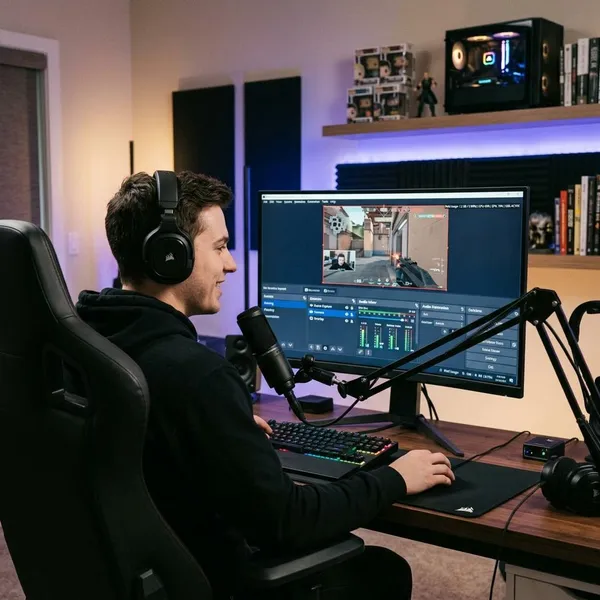
Can you stream with 8 GB RAM on OBS?
OBS can run on 8 GB RAM, but the better question is what else is running with it. The first thing to check is not OBS itself; it is your total workload: game, browser, Discord, overlays, capture card software, and background apps.
Webcam and screen sharing
Webcam streams and screen sharing are the safest use cases for an 8 GB PC. A class, tutorial, coding session, slideshow, or casual talking stream usually does not load the system as heavily as a game does.
Keep the scene plain: webcam, microphone, screen capture, and maybe one simple overlay. If you also open ten browser tabs, a music app, and a live dashboard, the stream may still work, but you are using up the margin that makes 8 GB feel stable.
Console capture streaming
Console capture is often a strong fit because the console handles the game. Your PC mainly needs to receive the capture card signal, run OBS, encode the stream, and maybe show chat.
- Good setup: console feed, webcam, microphone, one alert source.
- Risky setup: animated overlays, multiple browser widgets, Discord video, and several tabs.
- Best first test: stream or record locally for 20 minutes before going live.
Light gaming and streaming
Light PC gaming can work on 8 GB when the game leaves enough memory for Windows and OBS. Older esports games, indie games, retro games, 2D titles, and less demanding sandbox games are the realistic targets.
If you want to stream a light game once a week for fun, 8 GB may be perfectly usable with conservative settings. If you want a regular streaming schedule with chat, alerts, music, and browser tools open every time, you will feel the limits sooner.
Demanding gaming and multitasking
Demanding games are the weak point. A newer AAA game can use a large share of an 8 GB system before OBS even starts encoding, and Windows may begin relying on slower virtual memory from the drive. That is when you see hitching, delayed scene changes, dropped frames, or a stream that gets worse over time.
What affects OBS performance with 8 GB RAM
RAM matters, but it is only one part of the stream. OBS performance also depends on game load, browser usage, scene design, encoder choice, CPU workload, and GPU workload. Two 8 GB PCs can behave very differently if one has simple scenes and hardware encoding while the other is overloaded with browser sources and background software.
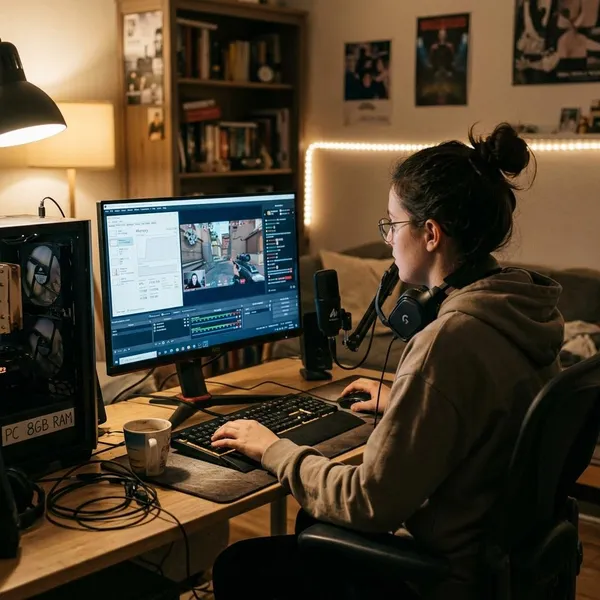
Game memory usage
The game is often the biggest deciding factor. If it uses only a modest amount of RAM, OBS has room to operate. If the game alone takes most of the available memory, the stream is already starting in a bad place.
Texture quality is worth checking early. Lowering shadows or effects can help GPU load, but high-resolution textures and large open worlds are often more relevant when memory is the problem.
Background apps and browser tabs
Browsers are one of the easiest problems to miss. A stream dashboard, video tab, social feed, music web player, and chat window can quietly take enough memory to make OBS feel unstable on 8 GB.
Before changing every OBS setting, close the obvious extras first. Keep the dashboard or chat you actually need, then shut down the rest. This is boring advice, but on a low-memory PC it often works better than chasing random presets.
Scenes and browser sources
Browser sources inside OBS act like small web pages. Alerts, chat boxes, donation widgets, animated labels, and event lists can all add load, especially when several are active at once.
- Use static images instead of animated overlays where possible.
- Remove duplicate sources from scenes you rarely use.
- Test one browser source at a time if lag begins after redesigning your layout.
CPU and GPU workload
A stream can lag even when RAM is not completely full. If the CPU is busy with the game and software encoding, or the GPU is maxed out while also helping OBS render and encode, the symptoms can look similar: skipped frames, choppy preview, or encoder overload warnings.
That is why an 8 GB setup needs balance. A lighter game, simple scenes, and a supported hardware encoder usually beat a higher-resolution stream that pushes every part of the PC at once.
Best OBS settings for 8 GB RAM
The best settings for an 8 GB system are the ones your PC can hold for a full stream, not the highest settings OBS lets you select. Start conservative, test under real conditions, and increase quality only after the stream stays smooth.
| Setting choice | Best starting point on 8 GB | When to change it |
|---|---|---|
| Resolution | 720p | Try 1080p only after stable tests |
| Frame rate | 30 FPS | Use 60 FPS for fast games only if usage stays comfortable |
| Encoder | Hardware encoder if available | Use software encoding only if CPU headroom is clearly available |
| Scene design | Few sources, minimal browser widgets | Add extras one by one and retest |
Start with 720p
720p is the most sensible first target for most 8 GB PCs. A steady 720p stream usually looks better to viewers than a 1080p stream that stutters, drops frames, or becomes unstable after half an hour.
This is especially true for webcam content, screen sharing, console capture, and slower-paced games. Once 720p is stable during a real test, then it makes sense to experiment upward.
Lower the frame rate if needed
If 60 FPS creates skipped frames or encoder warnings, move to 30 FPS. For talking streams, lessons, screen sharing, casual games, and many console streams, 30 FPS is often enough.
Fast competitive gameplay is the main reason to push for 60 FPS, but it should not come at the cost of constant stutter. Stable beats ambitious on an 8 GB machine.
Use hardware encoding when available
Use NVENC, Intel Quick Sync, or AMD AMF if your system supports it and the result is stable. Hardware encoding can reduce CPU strain, which helps when your processor is already handling a game, audio, scenes, and background tasks.
Keep scenes and sources simple
A lean OBS setup is easier to run and easier to troubleshoot. Start with the sources you actually need: game or display capture, microphone, webcam if used, and one alert source if needed.
Add decorative pieces only after testing. If the stream starts lagging right after adding animated alerts or a browser-based chat overlay, you have found a likely cause instead of guessing.
How to optimize an 8 GB PC for streaming
Optimization will not make 8 GB behave like 16 GB, but it can make the difference between a usable stream and a frustrating one. The goal is to give OBS predictable headroom before you go live.
Close unnecessary apps
Close anything that is not part of the stream: extra launchers, cloud sync tools, media players, update utilities, RGB software, and unused chat apps. On 8 GB, small background programs add up faster than people expect.
Reduce browser tabs
Keep only the browser tabs you truly need while live. For most people, that means a stream dashboard, chat, and maybe one reference page.
- Close video tabs unless they are part of the stream.
- Use a pop-out chat instead of a full dashboard when possible.
- Avoid leaving social feeds open in the background.
Disable unused overlays
Turn off overlays you do not actively use, such as Steam overlay, Discord overlay, Xbox Game Bar, or GPU software overlays. One overlay may not ruin the stream, but several can add clutter and sometimes interfere with game capture.
Test before going live
Do not judge the setup from a two-minute preview. Run a private stream or local recording with your real game, real scenes, Discord if you use it, and the browser tabs you normally keep open.
A useful test lasts long enough for problems to appear. If the stream is fine for five minutes but starts stuttering after twenty, your setup is too close to its limit for a relaxed live session.
Monitor memory usage
Open Task Manager while testing and watch memory usage during the actual stream workload. If it sits around 85% to 95% for long periods, there is very little room for spikes when the game loads a new area, a browser source updates, or another app wakes up.
If careful cleanup still leaves memory nearly full every time, that is a strong sign that upgrading to 16 GB would be more useful than spending hours tuning minor settings.
Conclusion
8 GB RAM is enough for OBS streaming when the job is modest: 720p, simple scenes, light content, and a cleaned-up desktop. It is not the setup I would choose for demanding PC games or heavy multitasking, because the stream has too little breathing room. If your tests show memory staying near full even after closing apps and simplifying OBS, 16 GB is the practical upgrade rather than another round of tiny setting changes.