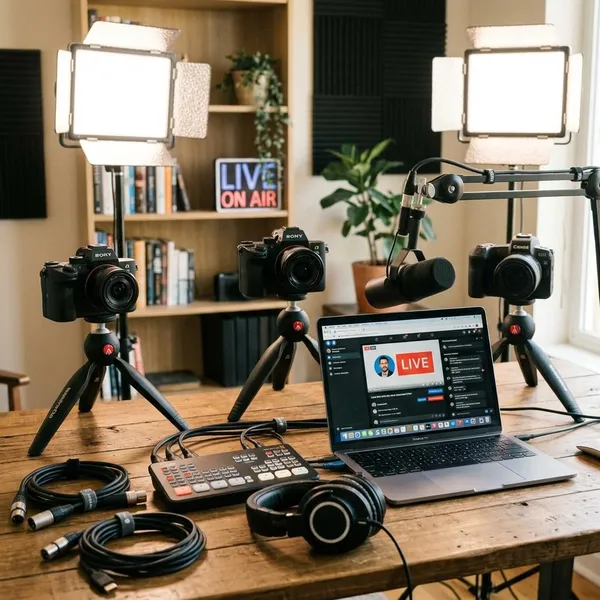
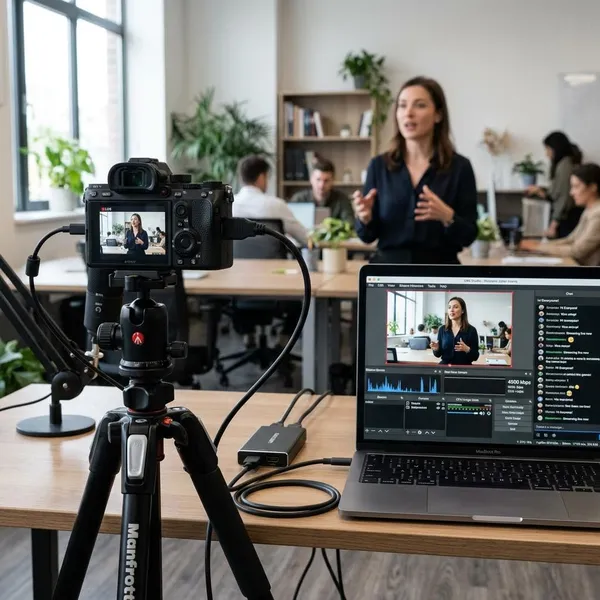
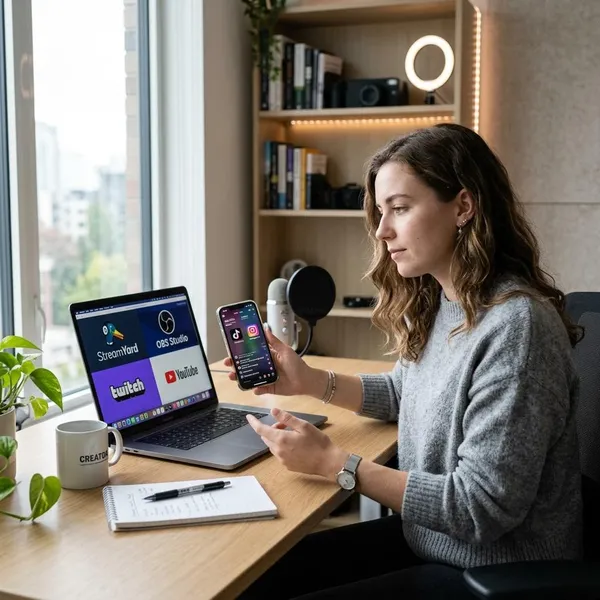
If you need to save a YouTube Live session, the safest first choice is simple: use OBS on a computer for long or important recordings, and use the built-in screen recorder for quick clips on a phone, tablet, Windows, or Mac. Before you record the full stream, always make a short test file with sound, because missing audio is the most common problem.
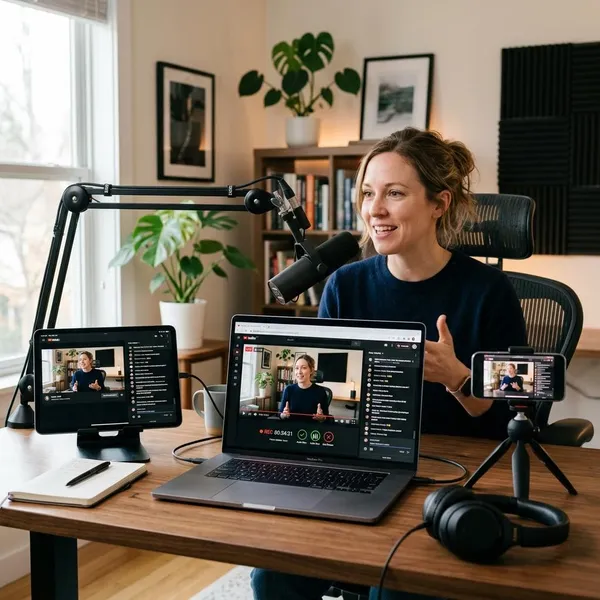
Best ways to record a YouTube livestream
The best method depends on what you are trying to save. A five-minute Q&A clip does not need the same setup as a two-hour class, live concert, webinar, or gaming stream.
OBS Studio for desktop recording
OBS Studio is the strongest desktop option because it lets you choose the capture source, check audio meters, set recording quality, and save longer sessions more reliably than most lightweight recorders.
It is worth the extra setup if you are recording something you cannot easily repeat, such as an online lesson, company presentation, live interview, or event stream. For a casual clip, OBS may be more than you need; for a full livestream, the control is usually worth it.
Built-in screen recording for quick captures
Built-in screen recording is the fastest route when convenience matters more than fine control. It works well for short clips, simple tutorials, announcements, or a section of a livestream you want to review later.
The weak spot is usually audio. Some built-in tools record the screen but not the system sound, or they default to microphone audio. Record 10 seconds, play it back, and only continue if the sound is actually there.
Mobile screen recording on phones and tablets
Mobile recording is handy when the stream is already open on your iPhone, iPad, or Android device. It is best for short or medium recordings, not for leaving a phone running through a long event without checking storage and battery.
- Good fit: a short live tutorial, creator announcement, interview segment, or classroom reminder.
- Risky fit: a long livestream while your battery is low, storage is nearly full, or notifications are not silenced.
YouTube Studio for your own livestreams
If you hosted the livestream, do not start with screen recording. Check YouTube Studio first, because completed streams are often saved as replays that you can review, manage, or download depending on your account and settings.
This also avoids recording your own browser window, notifications, cursor movement, or accidental tab changes. For creators, the saved replay is usually cleaner than a manual screen capture.
How to record a YouTube livestream with OBS
OBS takes a few minutes to set up, but it gives you the most useful checks before the livestream gets important: is the video framed correctly, is the stream audio moving in the meter, and is the file saving where you expect?
Use this method when you need a dependable desktop recording on Windows or Mac, especially for longer streams where a failed capture would be frustrating.
Add the livestream as a video source
Open the YouTube livestream in your browser first, then open OBS and create a new scene for this recording. Add Window Capture if you want to capture only the browser window, or Display Capture if Window Capture does not show the video correctly.
Window Capture is usually cleaner because it reduces the chance of recording your whole desktop. After adding the source, resize it in the OBS preview so the player fills the canvas without cutting off the edges.
Capture the livestream audio
Audio is the part to test carefully. Play the stream and look at the Desktop Audio meter in OBS. If the meter moves, OBS is hearing the stream. If it stays flat, check the selected output device, especially if you use Bluetooth headphones, an external monitor, or speakers that switch automatically.
Choose your recording quality
For most YouTube livestreams, 1080p at 30 fps is a sensible starting point. Use 720p if your computer is older, the stream itself is not high resolution, or OBS starts dropping frames. A fast gaming or sports stream may justify 60 fps, but only if your system can handle it smoothly.
For the file format, MP4 is convenient because it plays almost everywhere. MKV can be safer for long OBS recordings because it is less likely to become unusable if the app or computer crashes; you can remux it to MP4 in OBS afterward if needed.
Start and monitor the recording
Click Start Recording, then watch the preview and audio meter for the first minute. If the stream stutters in your browser, the recording will capture that stutter too, so close heavy apps and unnecessary tabs before a long session.
- Open the stream and set the playback quality you want.
- Hide chat or browser clutter if you do not want it recorded.
- Confirm the OBS preview shows the right area.
- Check that the audio meter moves during playback.
- Start recording and stay nearby for the first minute.
Stop and find the saved video
When the stream or the section you need is finished, click Stop Recording. OBS saves the file to the folder shown under Settings > Output > Recording Path.
Rename the file while you still remember what it is. If the stream was important, make a backup copy before editing or moving it, especially if the replay may not stay online.
How to record a YouTube livestream without OBS
You can record without OBS if you only need a quick capture or you do not want to install anything. The tradeoff is that built-in tools may give you less control over internal audio, file format, and recording quality.
Before a long recording, check three things in this order: enough storage, Do Not Disturb or Focus mode, and a short playback test with sound. Those checks matter more than the exact button you use to start recording.
Record on Windows
On Windows, open the YouTube livestream in your browser and use the screen recording tool available on your system, such as Xbox Game Bar or the screen recorder included with newer Windows tools. If a shortcut or recorder does not capture the browser properly, try selecting the browser window directly or switch to OBS for better control.
Turn off notifications, put the video in full screen if you want a clean capture, and test system audio before the real stream starts. A common mistake is recording microphone sound from the room instead of the livestream audio.
Record on Mac
Press Command + Shift + 5 to open the Screenshot toolbar, then choose full-screen recording or drag around only the YouTube player. Use Options to check the save location before you start.
Mac screen recording is simple for video, but internal audio capture can depend on your setup. If the stream audio must be perfect, make a test clip first; if the test is silent, OBS or a properly configured audio capture setup is the safer choice.
Record on iPhone or iPad
Use the built-in Screen Recording button from Control Center. If it is not there, add it in Settings, then open the livestream, start recording, and return to YouTube after the countdown.
- Before recording: plug in power for longer streams.
- During recording: use Do Not Disturb so calls and alerts do not appear.
- After recording: check the Photos app and trim the start or end if needed.
Record on Android
Most modern Android phones have Screen Recorder in Quick Settings. Open the livestream, swipe down to find the recorder, choose the audio option if your phone offers one, and start the capture.
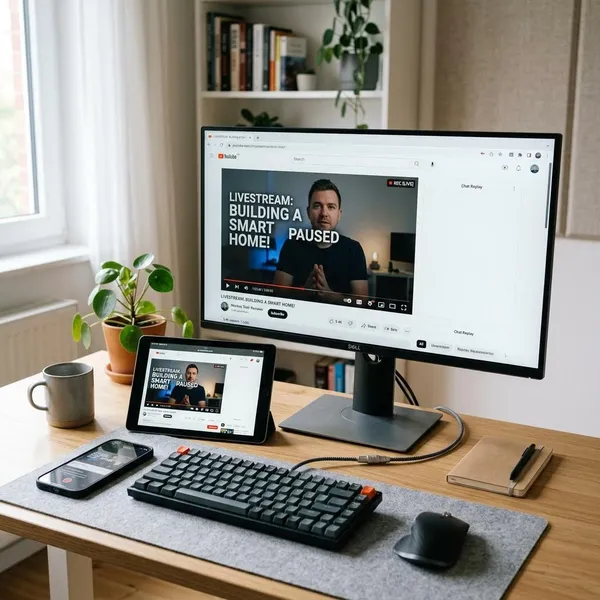
Choose device audio or internal audio when available, not microphone-only audio. Since Android menus vary by brand, test a short clip on your specific phone before relying on it for a long livestream.
Conclusion
For a short, casual capture, the recorder already built into your device is usually enough; for a long or important livestream, OBS is the better choice because you can test the source, audio, and quality before committing. If the stream is yours, check YouTube Studio first, because the cleanest copy may already be waiting there. The one habit that prevents most bad recordings is simple: make a short test file before the part you care about begins.