You can start a TikTok livestream once your account has LIVE access, your app is updated, and your setup is ready enough for people to hear and see you clearly. Check eligibility first, because no title, camera trick, or posting hack will unlock LIVE if your account does not meet TikTok's rules yet.
TikTok LIVE requirements
Before planning a stream, confirm the basics in this order: age, follower count, account standing, and regional availability. Most "LIVE is missing" problems come from one of these checks, not from a hidden setting.
Age requirements
TikTok generally requires you to be at least 16 to go live. To receive LIVE Gifts, you usually need to be at least 18, and availability can still depend on your region and account status.
Follower requirements
For many accounts, the standard requirement is 1,000 followers before the LIVE option appears. If you are below that number, the practical answer is simple: build toward the threshold instead of wasting time on unofficial workarounds.
- Under 1,000 followers: focus on short videos that bring comments and saves.
- Near 1,000 followers: plan a first LIVE topic so you are ready when access appears.
- Already eligible: test the LIVE screen before announcing a stream.
Account eligibility
Your account also needs to be in good standing. Recent guideline violations, suspicious activity, spam-like posting, or repeated risky behavior can limit LIVE access even if you meet the age and follower requirements.
If LIVE disappeared after previously being available, check your TikTok notifications and account status before reinstalling the app. A temporary restriction or policy warning is more likely than a random button glitch.
Regional availability
TikTok LIVE is not identical everywhere. Some regions may have different access rules, fewer tools, or limited monetization features because of local laws, product rollout, or platform testing.
How to go live on TikTok
Once your account qualifies, the actual process is quick: open the creation screen, choose LIVE, set your title, check your setup, and start. The part worth slowing down for is preparation, especially if this is your first stream or you are using LIVE for something more serious than a casual chat.
Open the LIVE option
Open TikTok, tap the plus button, and look for the LIVE option among the creation modes. If you do not see it, check your follower count, age settings, app version, and account status before assuming the feature is broken.
Add a title and topic
Your title should tell viewers what they are walking into. "Beginner makeup Q&A," "Packing orders live," or "First look at my new sketchbook" gives people a reason to stay; "Come join" usually does not.
Match the title to the real format. A casual chat title is fine for a small community stream, but if you are teaching, reviewing, selling, or answering questions, make the purpose obvious before viewers tap in.
Set up your camera
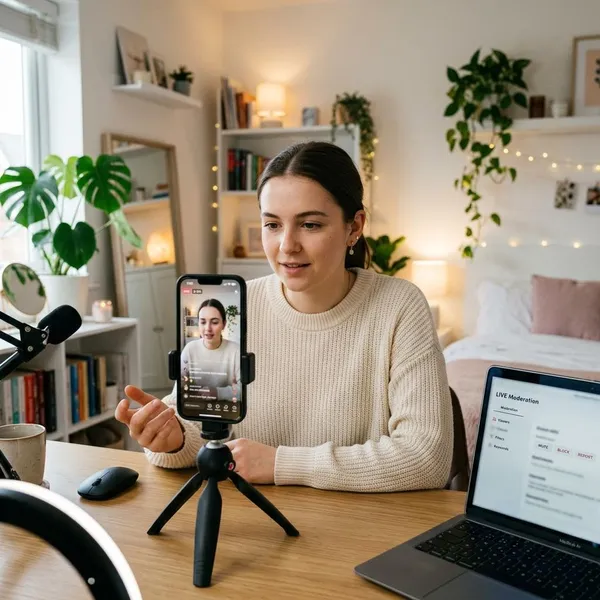
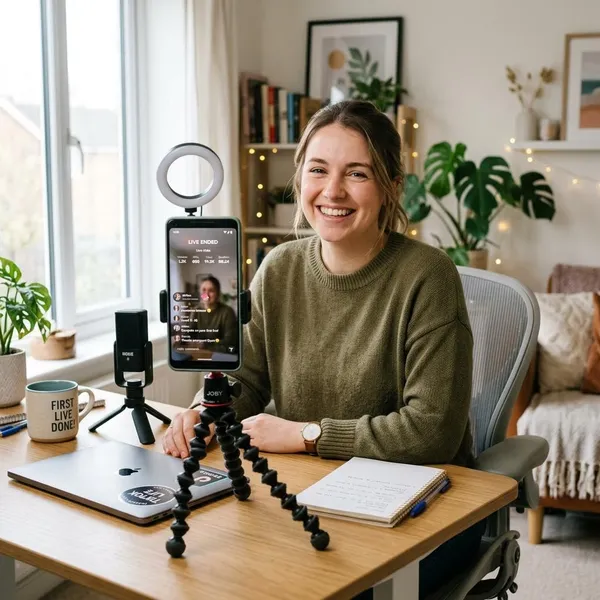
Put your phone somewhere stable, clean the lens, and place light in front of you rather than behind you. Sound matters even more than image quality, so choose a quiet spot and test whether your voice is clear.
- Casual stream: clean background, steady phone, clear voice.
- Demo or tutorial: angle the camera so hands, products, or steps are easy to see.
- Longer stream: plug in your phone or start with enough battery.
Check your stream settings
Before going live, review the settings available on your account. Depending on your region and eligibility, you may see options for comments, moderation filters, guest access, effects, category selection, or other LIVE tools.
For a low-risk casual stream, basic comment controls may be enough. For a public Q&A, a product demo, or any topic that could attract spam, set filters before viewers arrive so you are not trying to fix the room while talking.
Start your livestream
Tap the go-live button only after the title, framing, sound, and comments are ready. In the first minute, say who the stream is for and what is happening right now; new viewers need context fast.
- Confirm the LIVE option is visible.
- Add a specific title.
- Check lighting, audio, and framing.
- Turn on any comment controls you need.
- Start and repeat the topic for new arrivals.
TikTok LIVE features to use
TikTok LIVE has plenty of tools, but beginners should not turn on everything at once. Pick the features that match the stream: comments for Q&A, guest tools for collaboration, Gifts for eligible monetization, and interaction tools when the audience needs a prompt.
Comments and moderation
Comments are usually the heart of a LIVE session. They let viewers ask questions, react, and steer parts of the conversation, but they can also overwhelm the stream if you try to answer everything.
Choose what deserves attention. Answer clear questions, ignore bait, and use mute or filter tools when the chat starts pulling the stream away from its purpose.
Multi-guest features
Multi-guest features can make a stream feel more active, especially for interviews, creator collaborations, reactions, or community discussions. They work best when the guest knows the topic and has a decent connection.
LIVE Gifts
LIVE Gifts may let eligible creators earn from viewer support during a stream. Access depends on TikTok's rules, including age, region, and account standing.
Treat Gifts as a bonus, not the main content plan. Viewers are more likely to support a stream that is useful, entertaining, or community-driven than one that keeps asking for gifts without giving people a reason to stay.
Viewer interaction tools
Polls, question prompts, guest requests, and similar tools can help when chat is quiet or scattered. Use them to make participation easier, not to clutter the screen.
- Ask narrow questions: "Which one should I test first?" works better than "Any questions?"
- Repeat the topic: people join throughout the stream, not only at the start.
- Use polls with a purpose: let viewers choose between real options.
- Watch what gets replies: shape future streams around the moments people respond to.
TikTok LIVE safety and moderation
LIVE content is less forgiving than edited video because mistakes happen in real time. A little moderation planning protects your account, keeps the room easier to watch, and makes streaming less stressful.
Follow LIVE content rules
Community guidelines apply during LIVE just as they apply to posted videos. Avoid content that could trigger enforcement, including harassment, hate speech, scams, dangerous behavior, sexual content, or anything that may violate local rules or TikTok policy.
Be extra careful with sensitive topics. A joke, claim, or offhand comment can be clipped or reported without the wider context, so keep your wording clear when the topic is serious.
Manage comments
Good comment management is not about controlling every viewer; it is about keeping the stream usable. Filter obvious problem words, mute disruptive users, and do not reward provocation with attention.
If your stream is educational, tell viewers when you will take questions. If it is casual, name the topic and invite relevant comments. Small boundaries make the room feel more intentional.
Use moderators when needed
Add a moderator when the chat moves faster than you can handle while still presenting well. This is especially useful for interviews, demonstrations, shopping-style streams, or any session where you need your hands or attention elsewhere.
Choose someone who understands your tone. A good moderator does more than delete spam; they help keep useful questions visible and stop one disruptive person from taking over the room.
Protect personal information
Check the full camera frame before going live. Mail, school names, street signs, family photos, reflections, and voices in the background can reveal more than you intended.
This is a bigger issue for home streams and regular streaming schedules. If you go live often from the same place, keep routines, addresses, and private details out of the conversation so strangers cannot piece together where you are or when you are there.
Conclusion
A good first TikTok LIVE does not need fancy equipment; it needs eligibility, a clear topic, decent sound, and a room you can manage. Start with a short, low-pressure stream, notice where viewers respond or drop off, and improve one thing at a time instead of trying to run a perfect broadcast on day one.